

Intro
With Alerts in Domo, you can configure alerts to send you a notification when there are important changes to your business. Alerts can be configured and edited in the Alert Center.Access Alerts Center
You can access the Alerts Center from the navigation header and select Alerts.Alerts Center
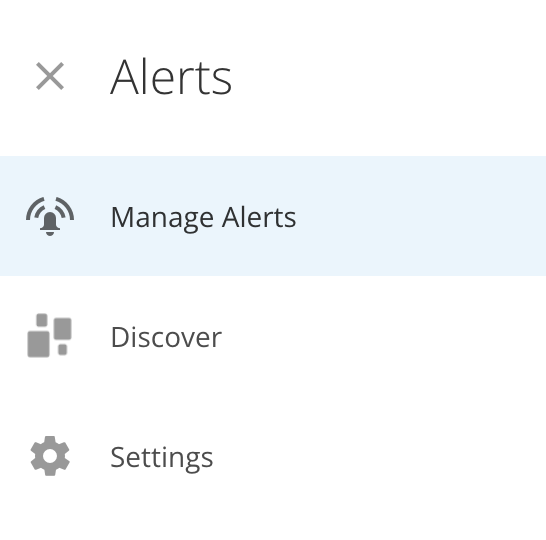
The Alerts Center has three pages which you can navigate between using the sidebar. Each page is then described in detail.-
 Manage Alerts — On this page, you can view and manage your alerts. See Manage Alerts.
-
 Discover — The Discover tool provides a dynamic view of all the activity occurring in your instance. See Discover.
-
 Settings — On this page, you can configure notifications for your alerts. See Settings.
 the menu icon to expand and pin the sidebar. Select
  Close to collapse it.
Manage Alerts
The Manage Alerts page displays a list of all of the alerts in your instance. You can search and filter through these alerts as well as subscribe to as many as you want.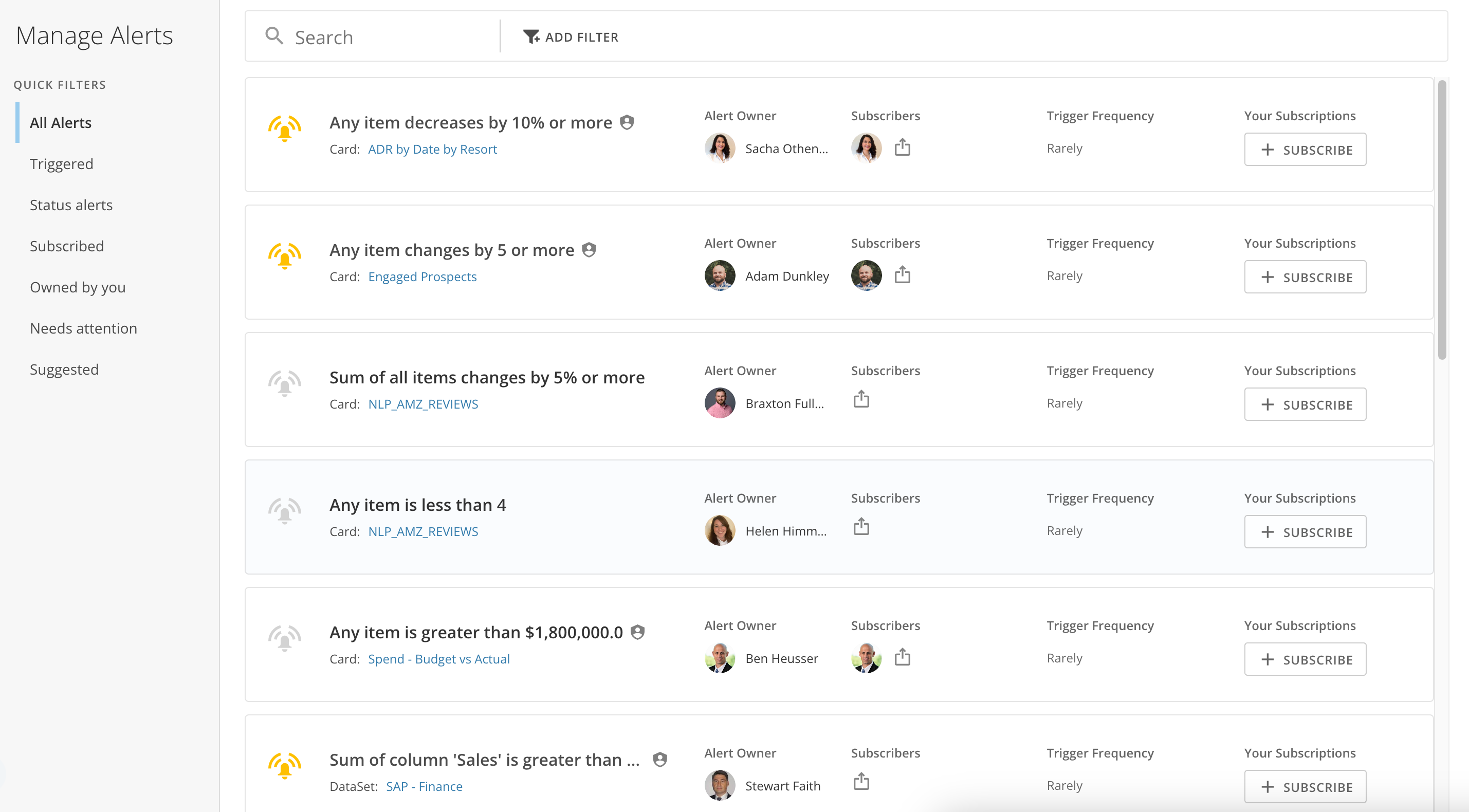
Quick Filters
The available Quick Filters display in a column beside the alerts list. These Quick Filters are listed below. After selecting a Quick Filter, you can add an additional filter or filters from the following list:- Owned by — Selecting this Filter displays a list of alert owners in the instance. You can select one of them or enter a name to narrow your results. You can also select the Not Custom Filter to filter out certain owners.
- Created Data — This Filter allows you to filter the alerts by the date they were created. You can also stack the On, Not On, Before, or After Custom Filters on your date creation Filter.
- Subscribed to by — Selecting this Filter displays a list of alert subscribers in the instance. You can select one of them or enter a name to narrow your results. You can also select the Not Custom Filter to filter out certain subscribers.
- Disabled — Selecting this Filter will display a list of all the alerts you have unsubscribed from.
- All Alerts: This Filter displays all alerts in your instance. You can add an additional Filter.
- Triggered
- Status alerts
- Subscribed
- Owned by you
- Needs attention
- Suggested
Component | Description |
|---|---|
Quick Filters |
|
Search/Filter bar | Lets you search for Alerts by keyword as well as apply a filter to your search ( Owned by , Created Date , Subscribed to by , or Disabled ). Owned by lets you filter to show Alerts owned by (or not owned by) a specified user. Created Date lets you filter to show Alerts created on a certain date or within a certain range; various custom filters are available to help you customize your range. Subscribed to by lets you filter to show Alerts that a specified user is subscribed to (or not subscribed to). Disabled lets you filter to show Alerts that are disabled or not disabled. |
Alert cards | Provide information and options for individual Alerts. Information in an Alert card includes the name of the Alert, the Card where it is found, the owner of the Alert, subscribers (followers) of the Alert, and the trigger frequency. If you click an Alert card, a panel appears with additional options. This panel is discussed in more detail later. If the name of an Alert appears in orange , this indicates the Alert is in a triggered state. |
Share icon | Lets you share this Alert with other users. For more information, see Sharing the Alert . |
Subscribe button | Lets you subscribe to (follow) this Alert. You can choose whether you want to receive Notifications via text, email, push notifications, or phone call. You can also choose whether to add Notifications for the Alert to your Daily or Weekly summary email. For more information, see Receiving and Viewing Notifications . |
Alert Information Panel
If you click on any Alert card in the Alerts screen, a panel appears with additional information and options for this Alert.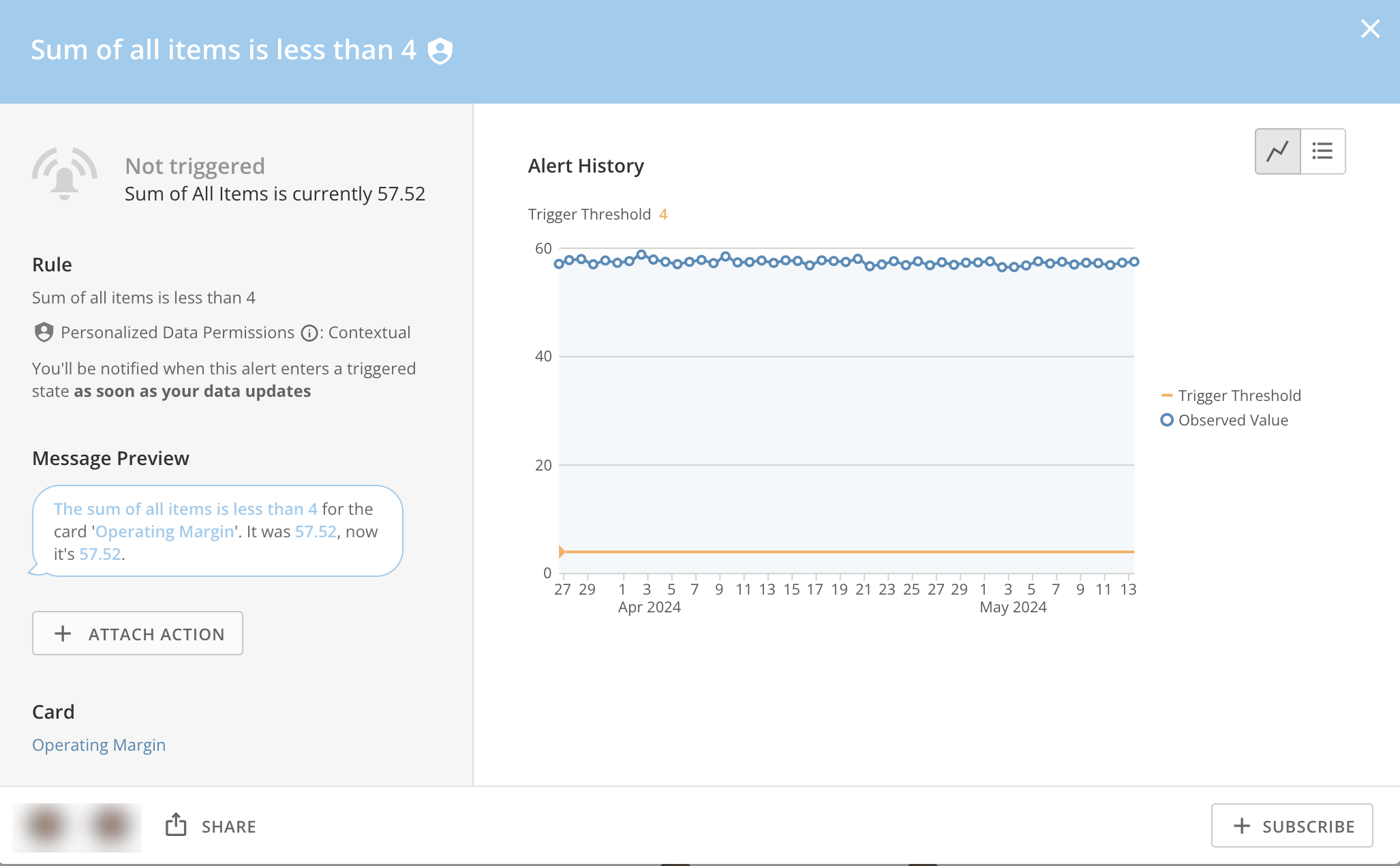
Component | Description |
|---|---|
Alert name | The name of the Alert. You can rename an Alert by clicking the pencil icon to the right of the name. |
Trigger status | Shows whether the Alert is currently in a triggered state. If it is, the status message tells you the current value of the Alert. |
Alert rule | Shows the rule, i.e. the conditions that must be met for this Alert to be triggered. You can click the Edit button to edit the Alert rule. For more information about creating and editing Alert rules, see Setting up Your Alert rule . |
Alert message preview | Shows the rule, i.e. the conditions that must be met for this Alert to be triggered. You can click the Edit button to edit the Alert rule. For more information about creating and editing Alert rules, see Setting up Your Alert rule . |
History view toggle | Lets you toggle the history view for this Alert. You can choose to show the history as a line chart (by clicking |
Owner avatar | Shows the owner of the Alert. If you click the photo, a panel will pop up with information about this user. |
Share button | Lets you share this Alert with other users. For more information, see Sharing the Alert . |
Card | Shows the name of the Card in which this Alert is found. You can click on the Card name to open that Card. |
Alert History area | Shows the trigger history for this Alert. This history appears as either a trendline or a chronological listing of trigger events, depending on the view toggle you have selected (for more information, see “History view toggle” in this table). |
Subscribe button | Lets you subscribe to (follow) this Alert. You can choose whether you want to receive Notifications via text, email, push notifications, or phone call. You can also choose whether to add Notifications for the Alert to your Daily or Weekly summary email. For more information, see Receiving and Viewing Notifications . |
Delete icon | |
Attach Action | Allows you to attach a Domo Webhook, Task, Workflow, or Scheduled Report to your alert. |
 ) or a chronological listing (by clicking
  ).
). Settings Screen
In the Settings screen, you can configure settings for your Alerts. The options in this screen are the same as those in the Instant Alerts, Daily Alerts, and Weekly Alerts tabs in the global Settings screen, which you access by clicking on your user photo in the top right corner of Domo then clicking . For more information about these tabs, see Configuring Notification and Alert Settings — Alerts.
Discover Tool
The Alert Discover tool helps business leaders keep a pulse on all the important things happening in their business. Imagine a central command center with updates about opportunities being pushed from this month’s pipeline, unusual spikes in cost per conversion, trending hot topics in your organization, or important obstacles as simple as data connection failures. All of these updates and more live side-by-side in the Discover tool, where you can then take action as a team to capitalize on the most valuable opportunities. Discover brings all of the important information into a central location where you can discover and interact with new content. Domo intelligently organizes all the activity into a rich set of topics that users can explore. Subscribe to your boss’s Alert. Share a card with someone on your team. Start a new conversation with an old friend who logged into Domo for the first time.Parts of Discover
The following screenshot points out the most important parts of the Discover tool: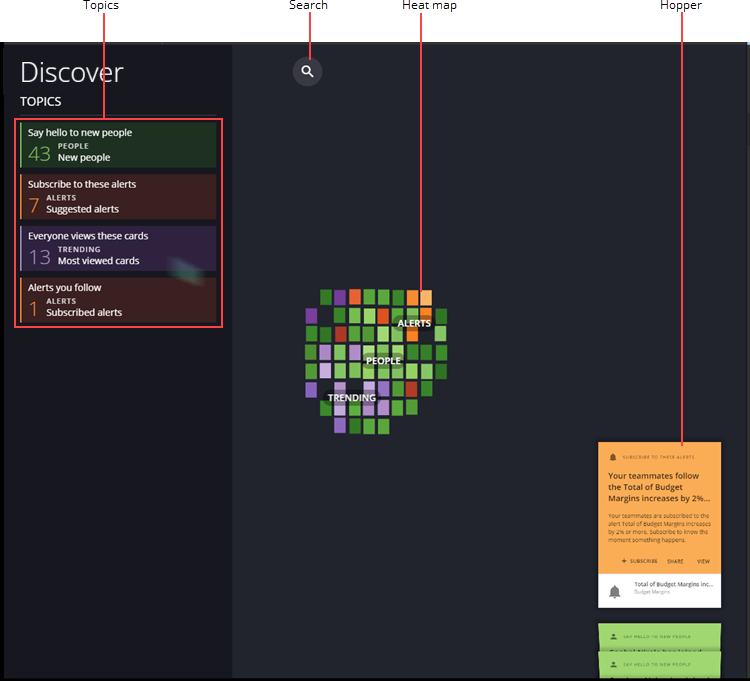
Component | Description | Example |
|---|---|---|
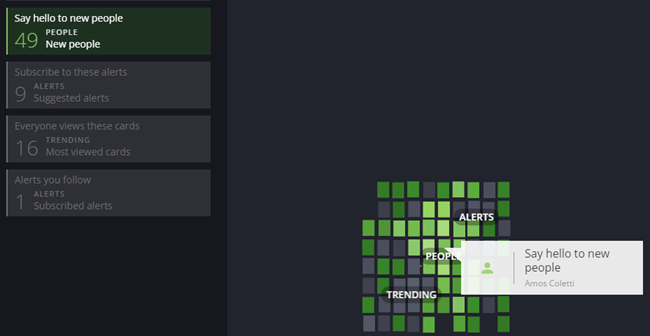
Topics | Allow you to find out more about the Alerts in your Domo. Mousing over a category “freezes” the hopper/heat map, allowing you to more easily see the number of Alerts in that category as a percentage of all Alerts in the heat map. Clicking on a category opens the card carousel for that category (see below). Alerts are divided into several categories, as follows:
| |
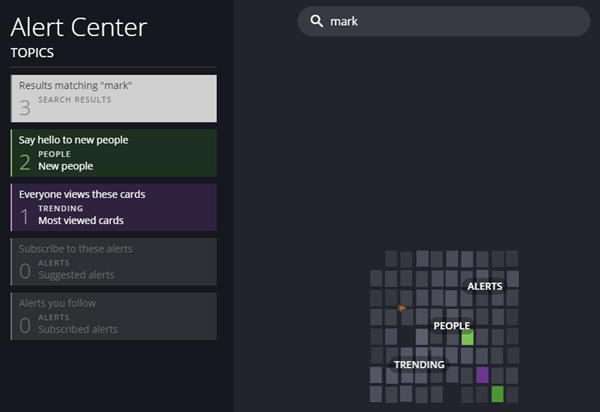
Search | Lets you search Discover for an Alert in any of the four topic categories. When you enter a search term without pressing Enter, any topics in which the search term is found filter down to show the number of Alerts that include that search term, while topics without the search term are grayed out. The heat map also freezes when you enter a search term. Any Alerts in the heat map that include the search term appear in their usual colors, and all other Alerts are grayed out. This makes it easy to pinpoint and open the desired Alerts in the card carousel (see below). If you enter a search term and press Enter, the card carousel opens and shows cards for all Alerts corresponding to the search term. The following screenshot shows an example of using search. The user has searched for the term “mark.” Three results are returned. Two of these are for new people (both named “Mark”) and one is for a trending card called “Marketing Inquiries.” All three are shown in the heat map—two are green (those corresponding to new people) and one is purple (the one corresponding to the trending card). |
|
Heat map | Provides a dynamic, ever-changing visual representation of your Domo Alerts. The heat map continually updates as new Alerts fly in from the hopper. There are a number of colors of Alerts, each of which corresponds to a topic category. For example, “New people” Alerts appear green; “Suggested” and “Subscribed” Alerts appear orange; and “Trending” Alerts appear purple. If you mouse over a square in the heat map, the action freezes and all squares belonging to that category appear colorized, while squares in all other categories are grayed out. If you click a square in the heat map, the Alerts in that category open in the card carousel. |
|
Hopper | Shows new alerts in your Domo instance as they fly into the heat map. There are a number of colors of Alerts, each of which corresponds to a topic category. For example, “New people” Alerts appear green; “Suggested” and “Subscribed” Alerts appear orange; and “Trending” Alerts appear purple. If you mouse over an Alert in the hopper, the action freezes and all squares in the heat map belonging to that category appear colorized, while squares in all other categories are grayed out. If you click an Alert in the hopper, the Alerts in that category open in the card carousel. |
Card Carousel
When you click a topic category, heat map square, or hopper Alert, or when you perform a search, the card carousel opens. Usually this displays cards for all Alerts pertaining to the given category. The exception to this is when you perform a search, in which case the card carousel shows cards for all Alerts that include your search term. All Alert cards have options, such as subscribing to an Alert, adding a trending cards as a favorite, and so on. The specific options available for an Alert card depend on the topic category. In the following example, the user has clicked on an orange “Suggested Alert” square in the heat map. The card carousel opens to show cards for all suggested Alerts, with the Alert the user clicked on appearing in the center and the others flanking it.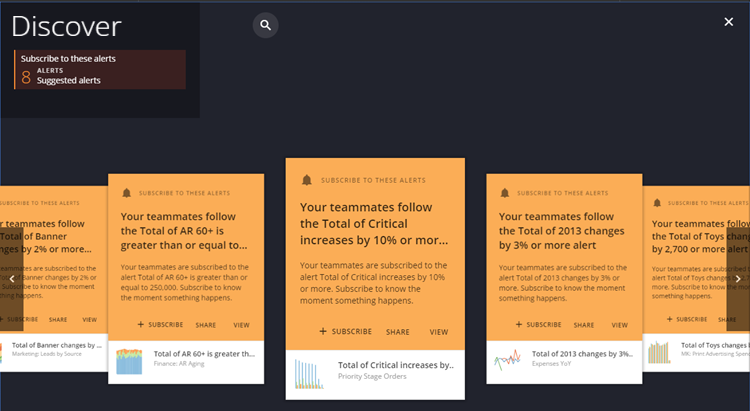
Topic Category | Available Options |
|---|---|
New People |
|
Suggested Alerts/Subscribed Alerts |
|
Most Viewed (Trending) Cards/Recently Shared with You/Cards You Should Be Following |
|
Recently Discussed Cards |
|