Intro
The following troubleshooting steps can help you solve common issues in Jupyter Workspaces. If your issue is not listed here, or the steps do not resolve your issue, contact your Account Executive (AE) or Customer Success Manager (CSM). For general information about Jupyter, see our Jupyter Workspaces | User Guide.- Jupyter Workspaces won’t start
- Kernel restarting
- Slow execution
- Error installing third-party libraries
- Cannot update domojupyter Python or R sdk
- Error starting kernel
- Scheduled execution failures
Jupyter Workspaces Won’t Start
If Domo reports an error after you have attempted to start Jupyter or the status returns to “Stopped” instead of “Started,” your user most likely does not have a usage policy configured by an Admin.
-
In the navigation header, select
Admin > Feature Settings > Jupyter and make sure that:
- The Jupyter Account Activated toggle is enabled
- If the Active Account Plan is set to Manual, you or the user have a usage policy with an appropriate instance size limit.

Kernel Restarting
If an error message with the heading Kernel Restarting appears in Jupyter Workspaces, your Jupyter kernel has most likely run out of memory.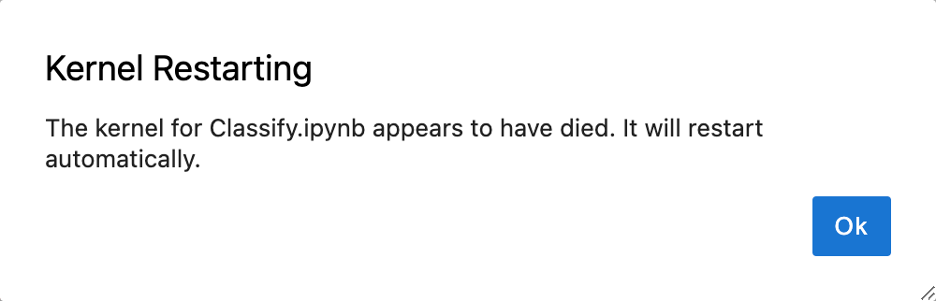
-
From the Jupyter Workspaces list, select
 Wrench > Edit for the workspace.
-
In
Workspace Configuration, choose a higher computer tier.

- Select Save.
Slow Execution
When working with large amounts of data, a notebook cell execution can take longer than expected or remain in the same state for an extended period due to the workspace not having enough resources for the job. Follow these steps to increase the size of the workspace:-
From the Jupyter Workspaces list, select
Wrench > Edit for the workspace.
-
In
Workspace Configuration, choose a higher computer tier.
- Select Save.
Error Installing Third-Party Libraries
If you receive a failure when installing third-party libraries for Python or R, the library or its dependencies are not compatible with the current conda environment. Follow these steps to resolve the issue:-
Install the appropriate conda pip command from a workspace terminal. Include the conda channel if necessary.

-
If the conda install fails in the terminal, try a pip/cran command.
pip command:
R/cran command:
-
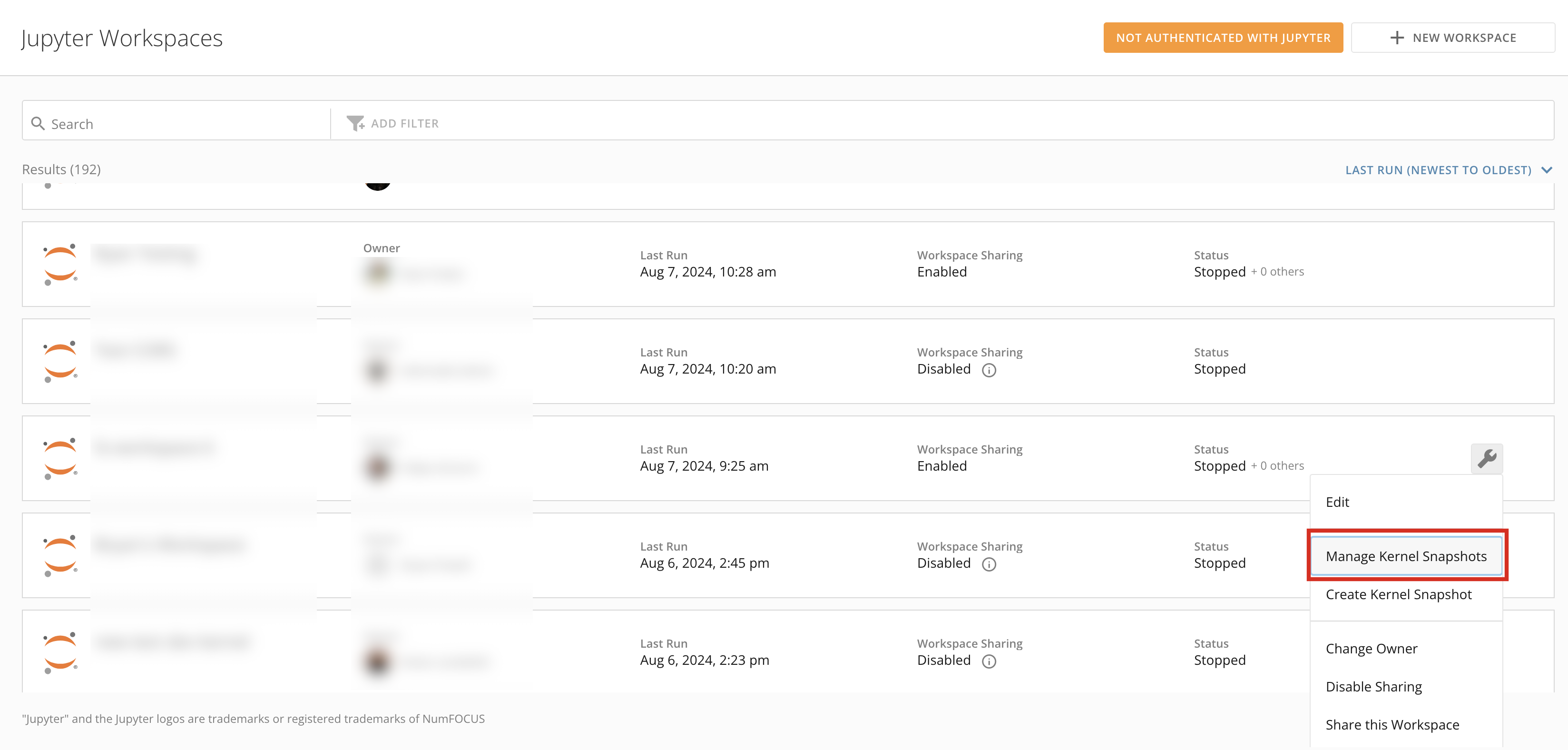
Navigate to the Jupyter Workspaces list, select
Wrench > Edit for the workspace.
-
Select
Manage Kernel Snapshots.
The Manage Kernel Snapshots modal displays.
-
In the modal, check the box labeled
Restore to base kernel environment.
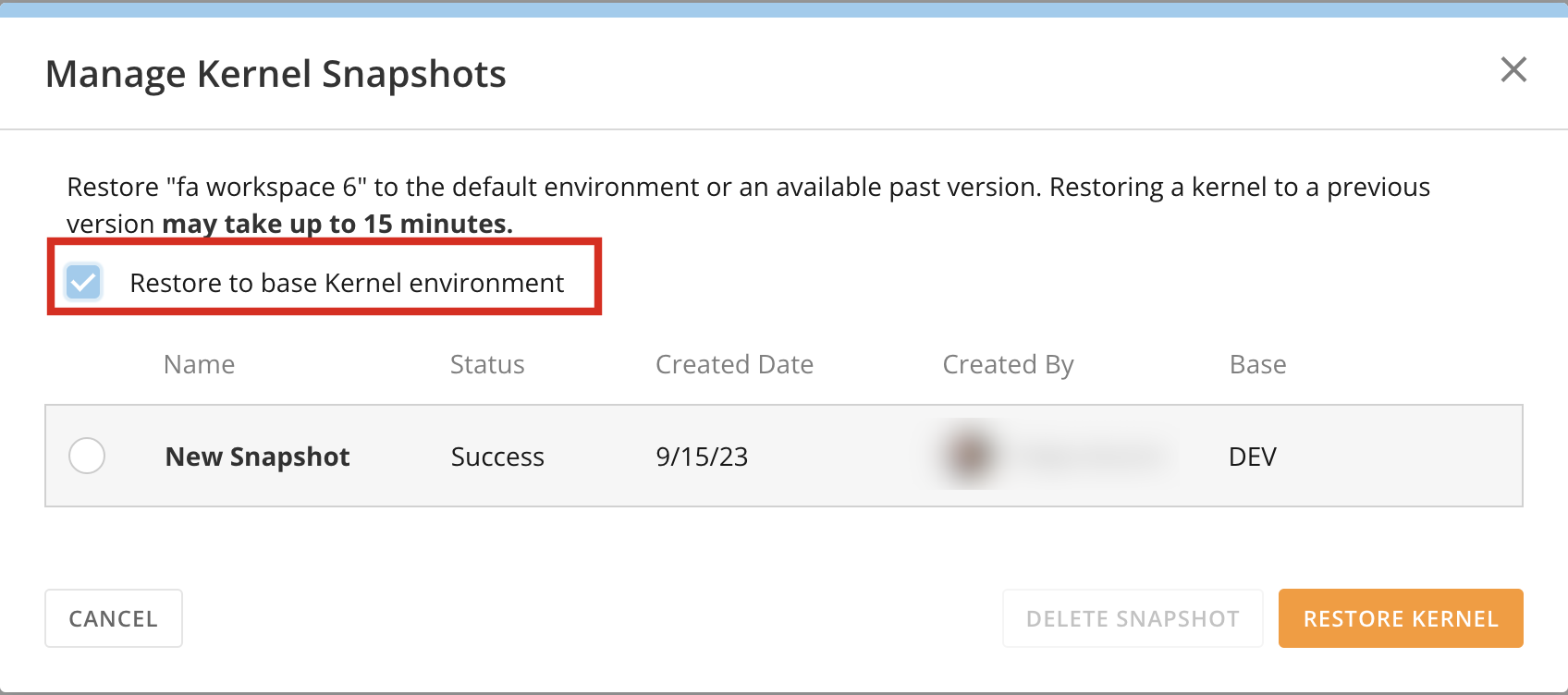
- Select Restore Kernel.
- Uninstall any libraries installed locally using pip or cran.
Cannot Update domojupyter Python or R sdk
If updating domojupyter to the latest version fails or if the notebook continues to display a message that a new version is available, then the new version of domojupyter is not compatible with the current conda environment.
- Execute the suggested conda command from a Jupyter Workspace terminal.
-
Navigate to the Jupyter Workspaces list, select
next to the workspace, and Edit.
-
Select
Manage Kernel Snapshots.
The Manage Kernel Snapshots modal displays.
-
Check the box labeled
Restore to base kernel environment.
- Select Restore Kernel.
Error Starting Kernel
If an error message with the heading “Error Starting Kernel” displays in Jupyter Workspaces, then an error has occurred while bootstrapping the conda environment.
-
Navigate to the Jupyter Workspaces list, select
Wrench > Edit for the workspace.
-
Select
Manage Kernel Snapshots.
The Manage Kernel Snapshots modal displays.
-
In the modal, check the box labeled
Restore to base kernel environment.
- Select Restore Kernel.
Scheduled Execution Failures
If a Jupyter DataFlow created from a Jupyter Workspace notebook fails to execute successfully, it may be due to one of the following reasons:- Python/R language syntax or logic errors
- The notebook cells executed in an order resulting in an error
- The notebook file has been deleted
- Error accessing the third-party system
- Attempt to execute the notebook’s cells in order from the Jupyter Workspace environment.
-
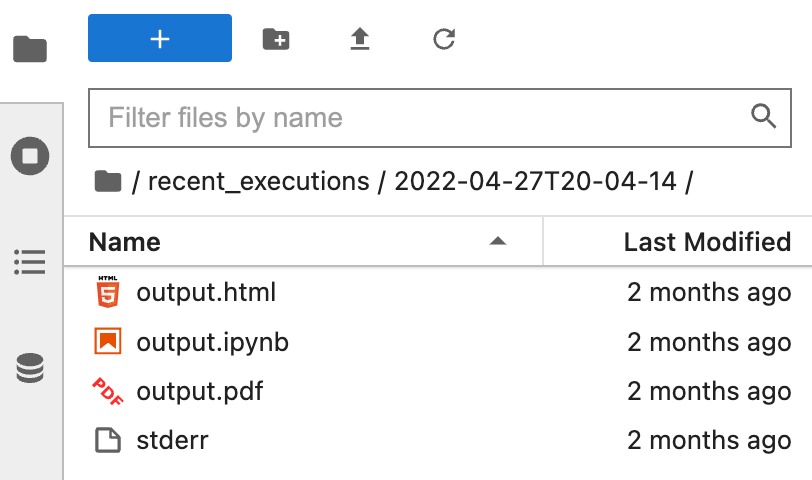
Review the execution details in the recent_executions directory in your workspace.
The following files are available:
- output.jpynb
- output.html
- output.pdf
- stdout
- stderr