

Intro
There are two available tiles in the Performance tab of the Magic ETL interface:- Select and Store Columns
- Restore Columns

Note:
These tiles are available by default to organizations on the Domo Consumption agreement.For non-consumption users, the tiles are available
on demand
and
paid
.
To enable Performance tiles, contact your Domo account team. You may need to complete training before you can use a tile.
Prerequisites
The Performance tiles are intended for use with either the Python or R Scripting tiles. For more information on the Scripting tiles, see Magic ETL Tiles: Scripting.
Select and Store Columns Tile

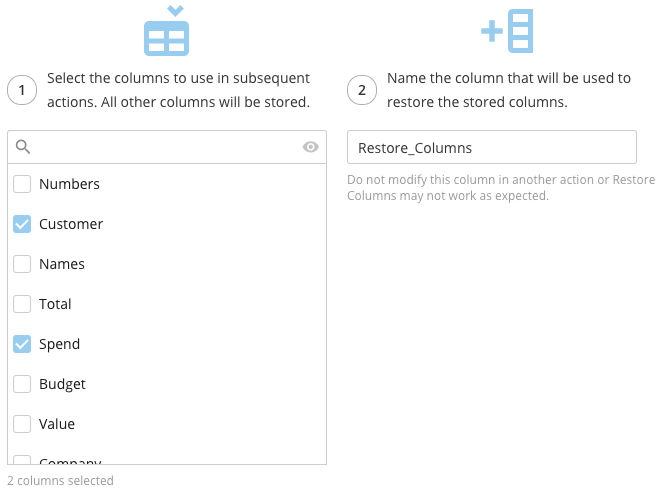
- Click the Select and Store Columns tile in the canvas.
- (Optional) Rename the tile by clicking
 , then entering the name you want.
 - Select the columns you want to use in the subsequent Python or R Scripting tile.
- (Optional) To verify all desired columns have been selected, hide all non-selected columns in the list by clicking
 .
. - Name the column that you will use to restore the columns to the DataFlow.
Restore Columns Tile


- Click the Restore Columns tile in the canvas.
- (Optional) Rename the tile by clicking
, then entering the name you want.
- Select the column that you named in the Select and Store Columns tile.
- (Optional) Review the columns that will be restored by hovering over the text that states the number of columns that will be restored.