

Intro
The Asset Library contains all the assets in your organization’s instance, including apps. You can manage apps that you have created and apps that have been shared with you. If you have an Admin default security role, you can also manage all apps that exist in the instance.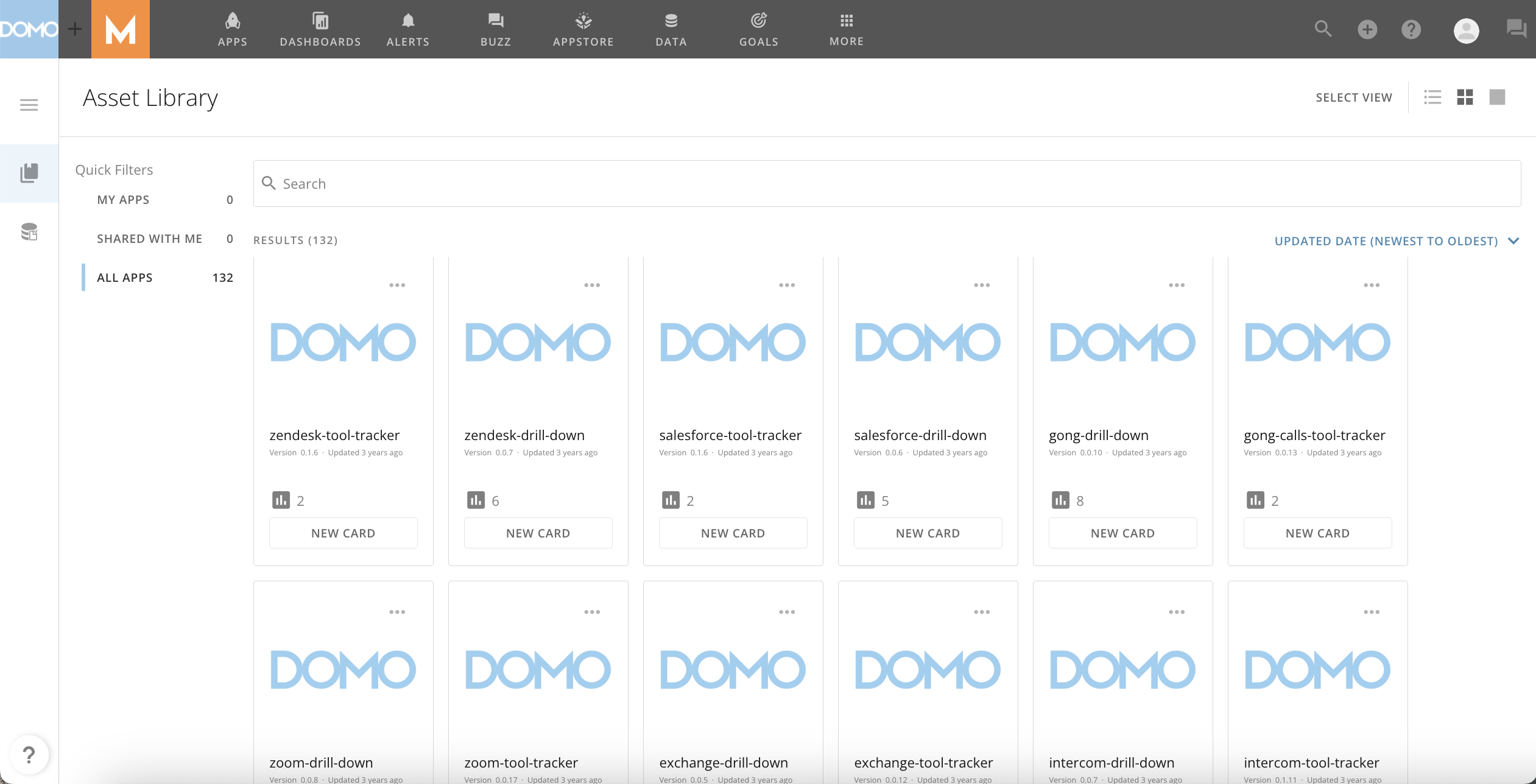
This article describes the Asset Library in the following topics:
Access Asset Library
You can access the Asset Library from the navigation header by selecting More > Asset Library.
Landing Page
The Asset Library landing page contains a list of apps in your instance. You can customize the way you view the list as well as filter, search, and sort the list. Learn more about these options below. You can choose one of the following view options:- List View — Displays apps vertically in rows. This is similar to DataSets.
- Tile View — Displays apps in smaller tiles so you can see more apps on the page.
- Original View — Displays apps in larger tiles.

- My Apps — Contains all the apps you have created.
- Shared With Me — Contains all the apps that have been shared with you
-
All Apps
— Contains all the apps created in your company’s instance.
Note: You must have an Admin default security role to access the All Apps Filter.


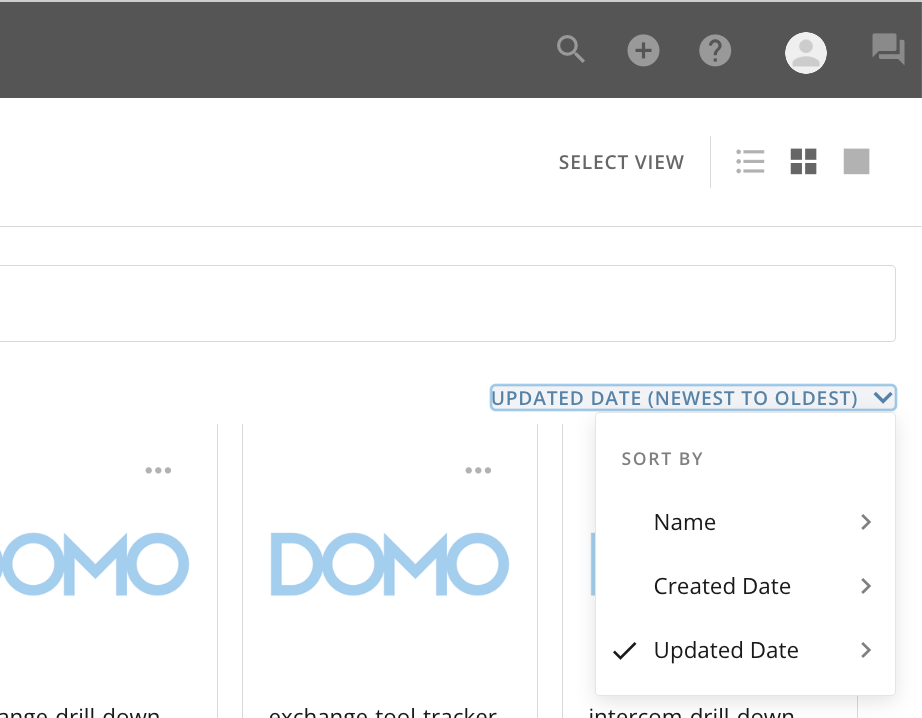
- Name — Sorts apps alphabetically: from A to Z or Z to A.
- Created Date — Sorts apps by the date they were created: from Newest to Oldest or Oldest to Newest.
- Updated Date — Sorts apps by the date they were last updated: from Newest to Oldest or Oldest to Newest.
App Details
While the layout depends on your view of the landing page, each app in the list displays a title, a version number, the date it was last updated, the owner’s avatar, the number of cards—instances of the app—and an option to create a new card. Hover over the More icon for an app to display the following options:
- Download Assets — Downloads the available files for the app.
- Share — Opens the Share modal, where you can choose to share the app with other users.
- Create Card — Creates a new instance of the app.

-
The
Overview tab displays the app name, design ID, version number, date last updated. This tab also allows you to create a new card (instance of the app), share the app, or download the available files for the app. (Select
 App options > Download Assets.)

- The Cards tab displays the cards created with the app and displays the option to Create Card.
-
The
Data tab displays the data powering the app divided into DataSets, Wired Collections, and Datastore Collections. For each of these data sources, you can view the owner, a list of people with access to it, and the number of views.
Navigate between the different groups of data (divided by card/app instance) by selecting

 Expand/Collapse.
- The Versions tab displays all of the versions of the app and allows you to release the version(s) to the Appstore.