

Intro
DataSet Views in Views Explorer give you a simple, yet powerful way to explore—filter, group, and aggregate—and even combine your data in a spreadsheet interface, without having to build a transform DataFlow. DataSet Views is available in Analyzer, so you can create and edit the view while building a visualization. DataSet View creation and editing takes place inside the Views Explorer. The Advanced SQL Editor allows users proficient in SQL to create a DataSet View, and the AI Assistant can help you craft your SQL queries.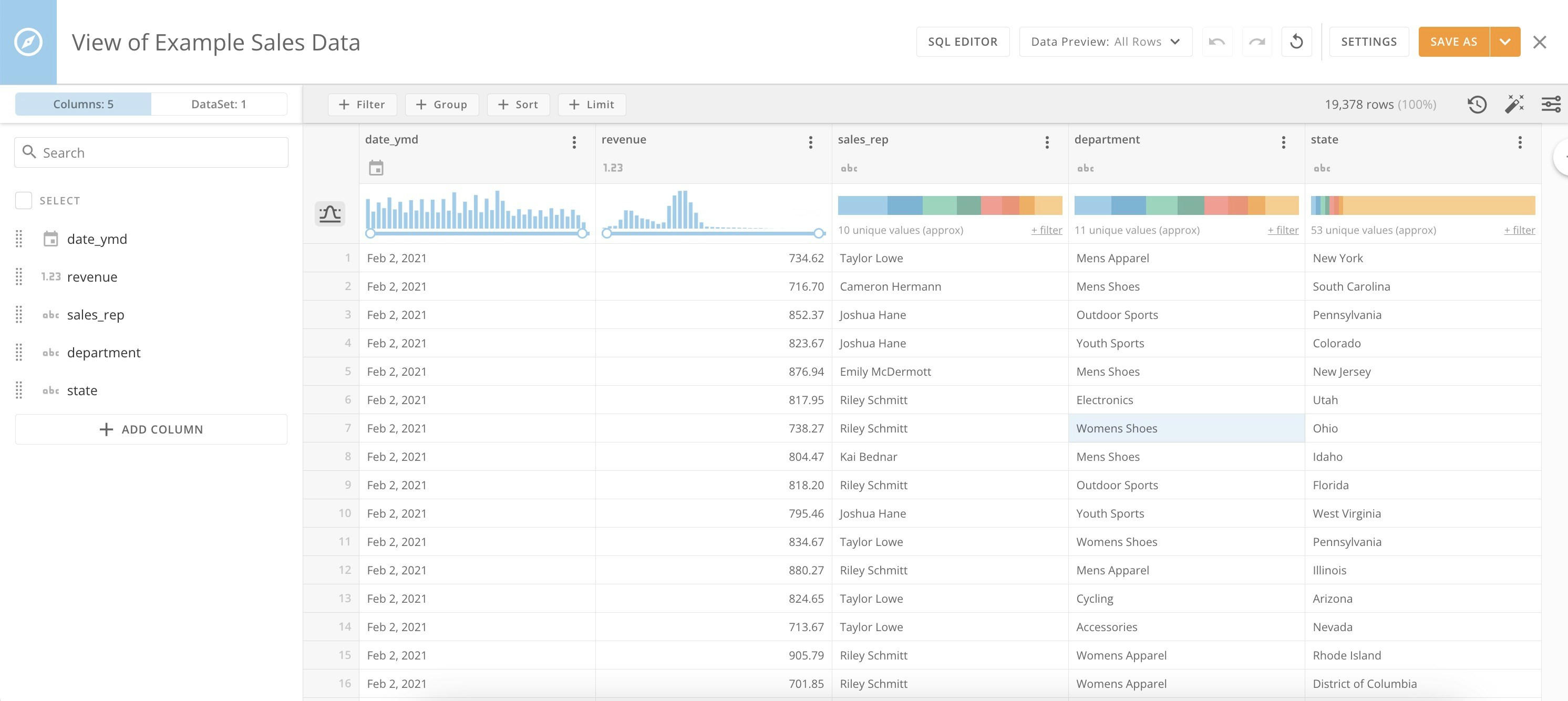
Learn your way around Views Explorer and learn about the Advanced SQL Editor in the following topics:
- Permissions
- Access Views Explorer
- Use Views Explorer
- Advanced SQL Editor with AI Assistant
- FAQ
- Video — DataSet Views Explorer Overview
Permissions
Permissions are as follows:- DataSet Views — Admins or users with either the Edit DataSet or Manage DataSet grant enabled for their role can use DataSet Views. Learn more about Managing Custom Roles.
- Advanced SQL Editor & AI Assistant — The Advanced SQL Editor is available to all users with Edit permission to a DataSet View. The AI Assistant is limited to users who have the Use AI Services grant enabled for their role.
Access Views Explorer
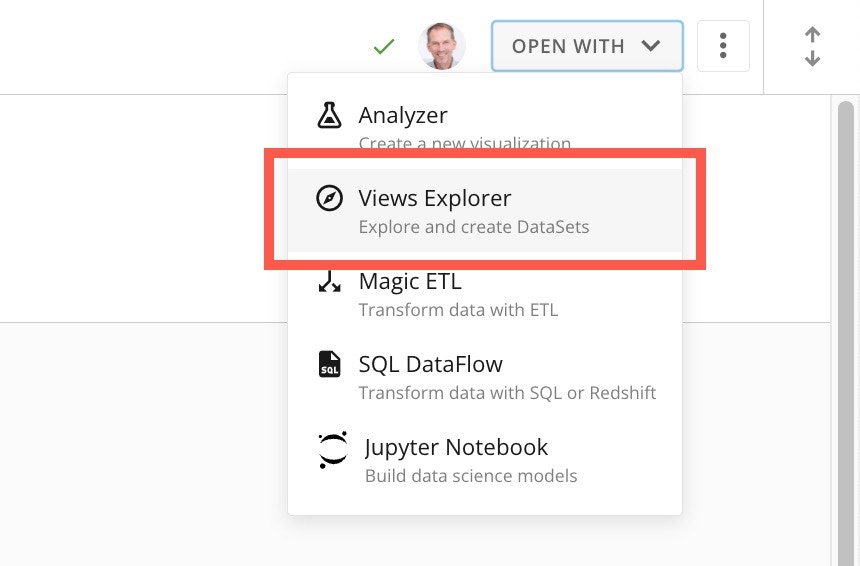
There are two ways to access Views Explorer—from the Data Center or within Analyzer. Learn how to use DataSet Views with Analyzer. To access Views Explorer from the Data Center, locate and select the DataSet you want to create a DataSet View from to open and display its Overview tab.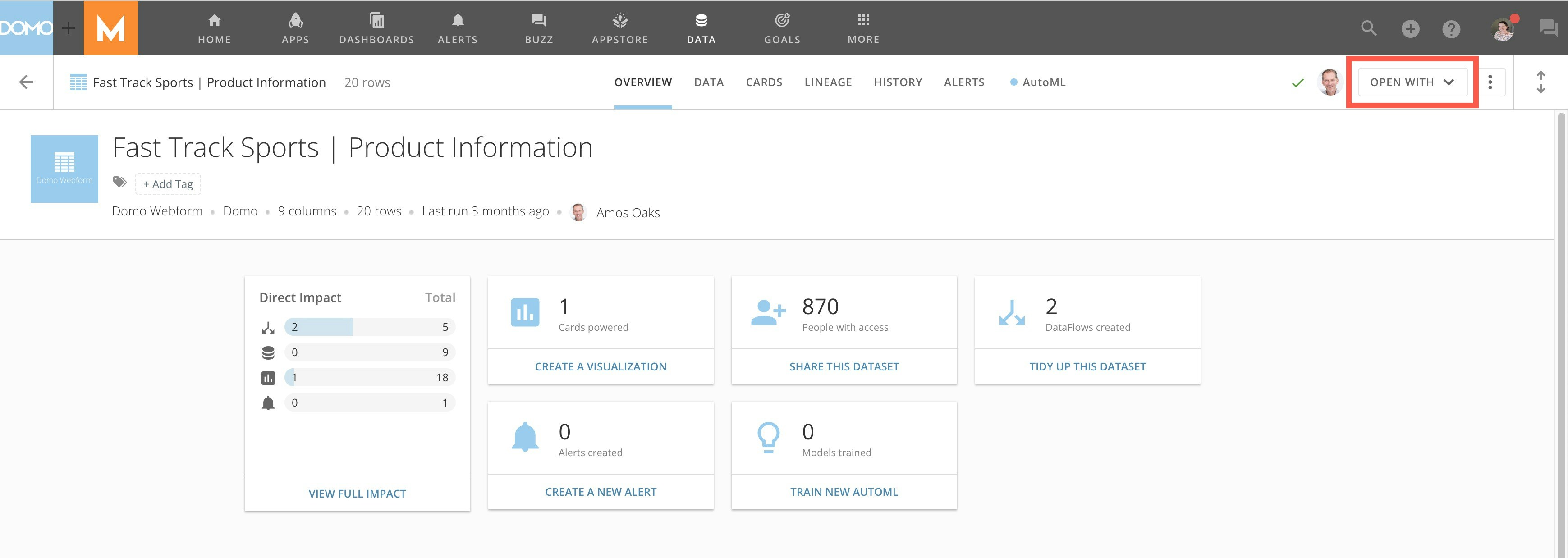
Use Views Explorer
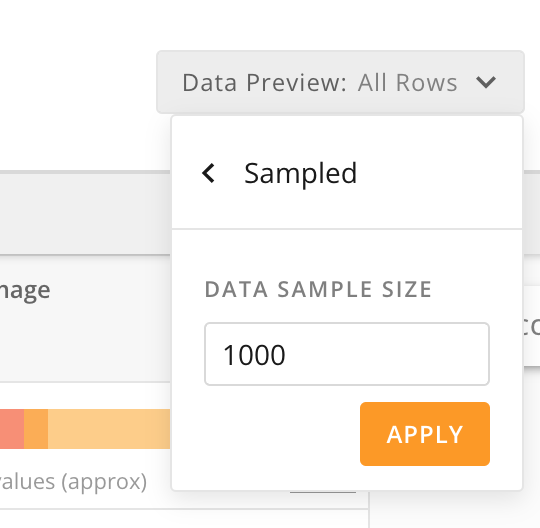
The Views Explorer allows you to view all rows in the DataSet or to sample a set number of rows to enable your changes to be seen more quickly without waiting for changes to display for every row. To configure a sample preview from the top navigation of View Explorer, select Data Preview > Sampled. Then enter the number of rows for the sample size.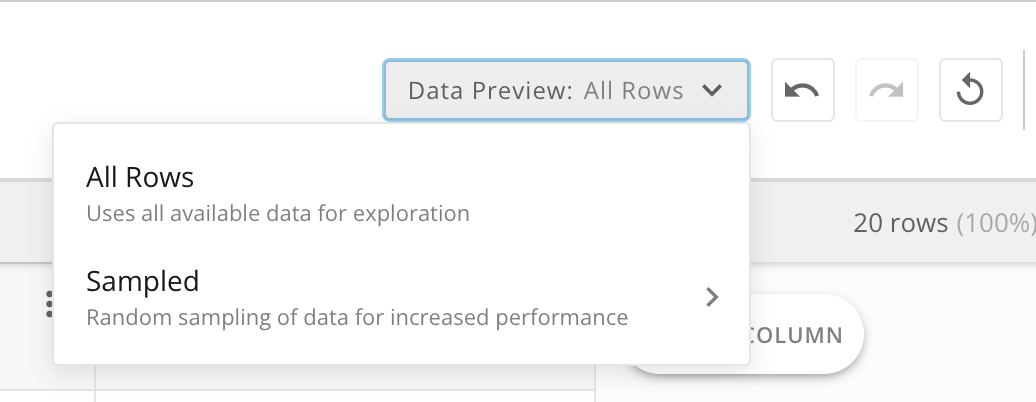
Appearance Controls
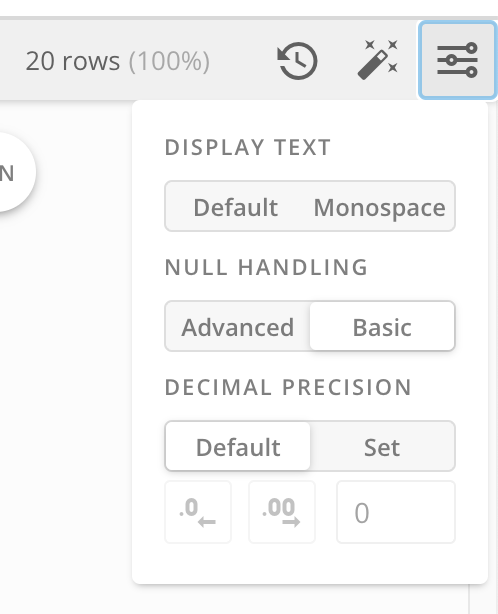
Selecting Controls in the top ribbon of your View allows you to choose default or monospace text and how to handle null values and decimals.
Null Values:
By default, Domo shows null values as blank. In DataSet Views, when you choose
Advanced
null handling, null values display as 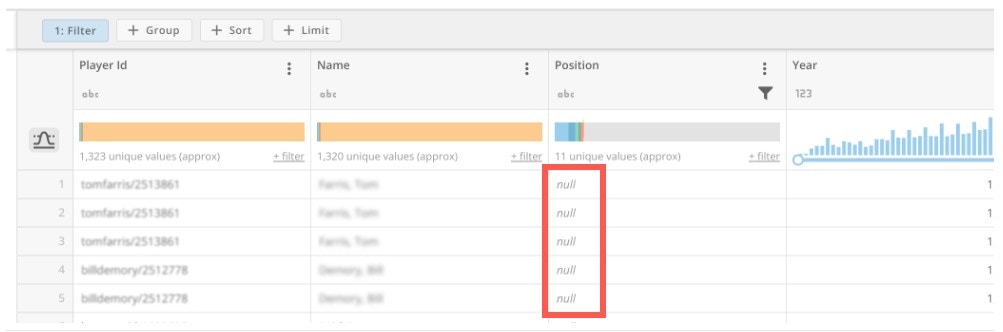
null in the columns.Columns
Joins & Unions
Filter & Sort
DataSet View Controls
Add Columns
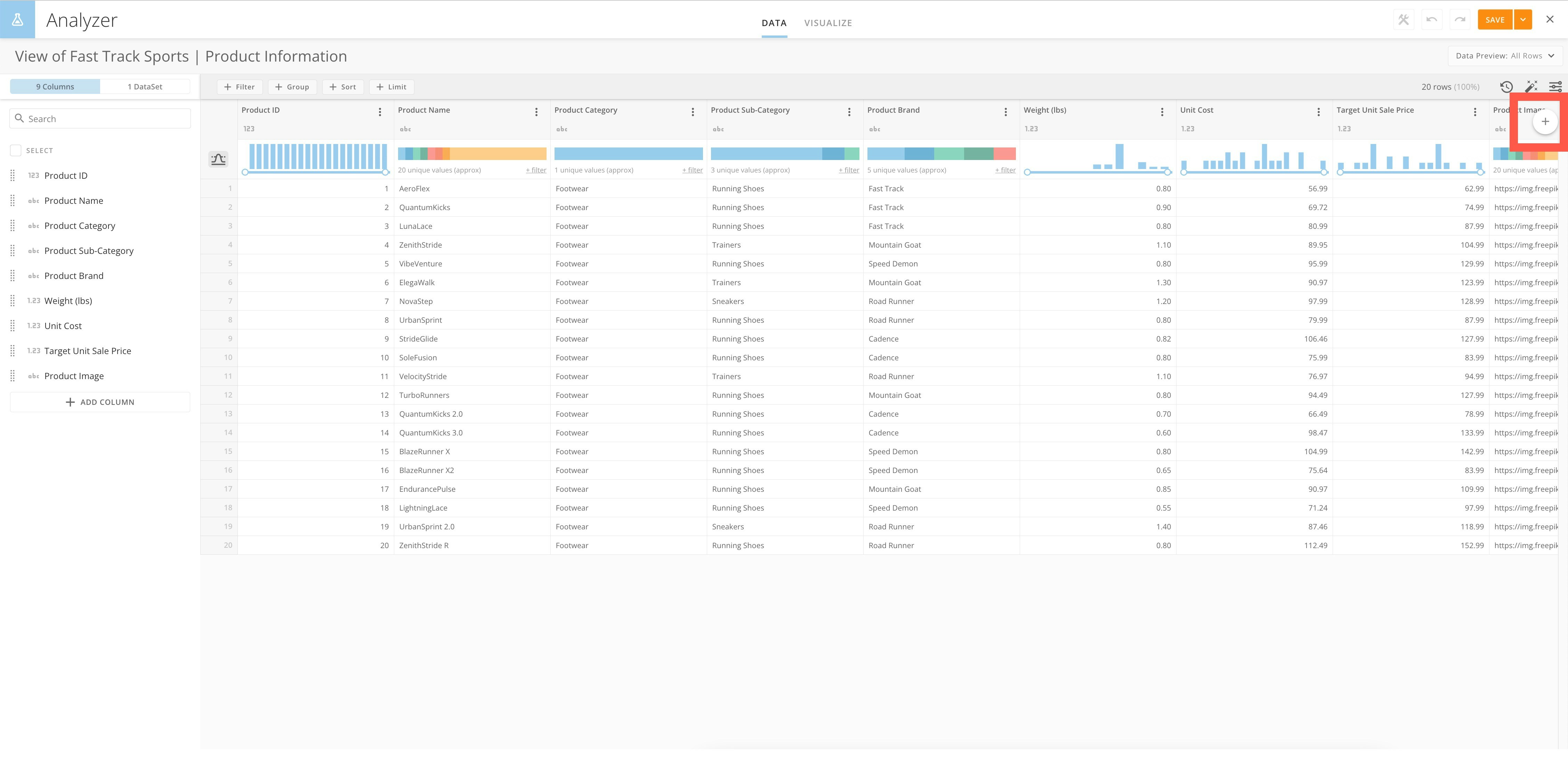
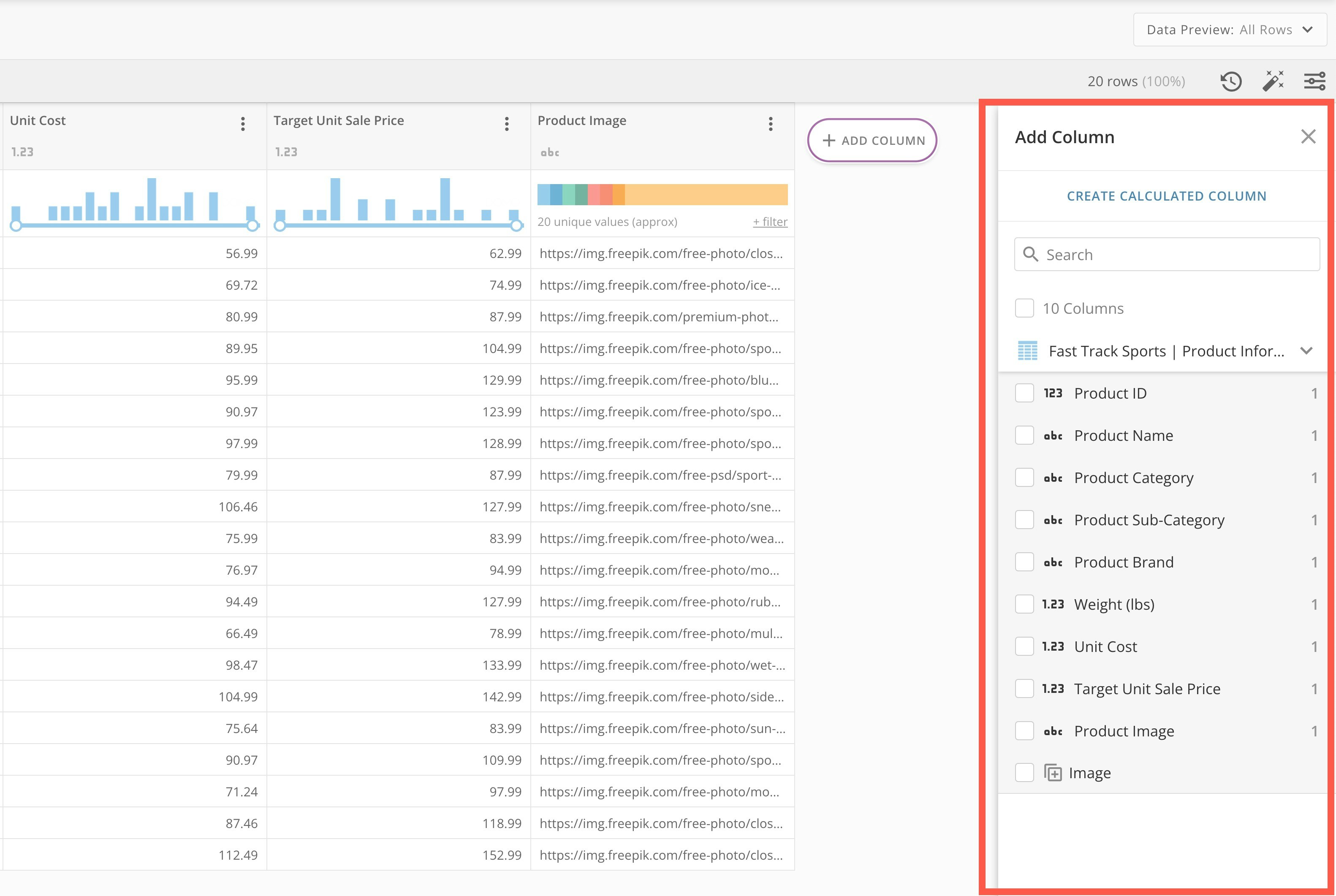
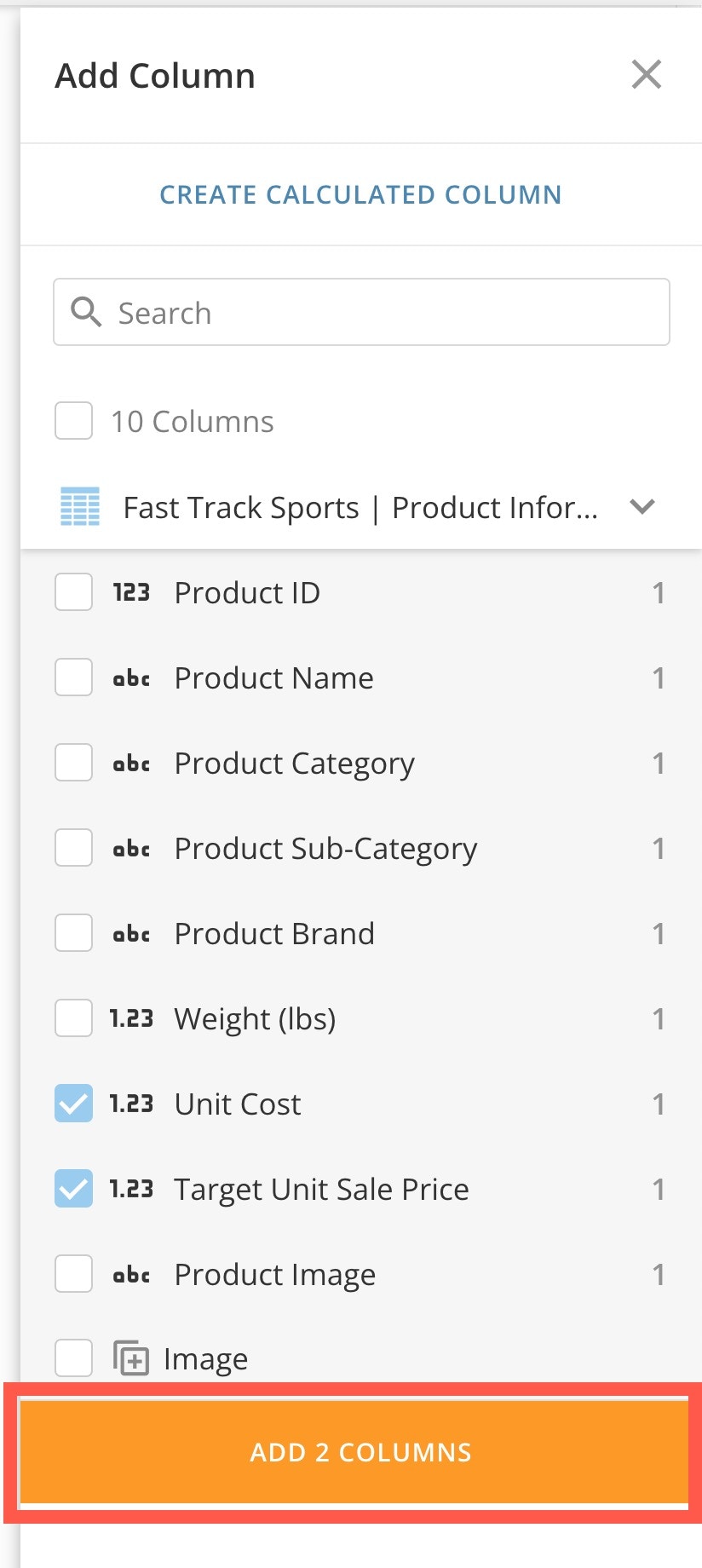
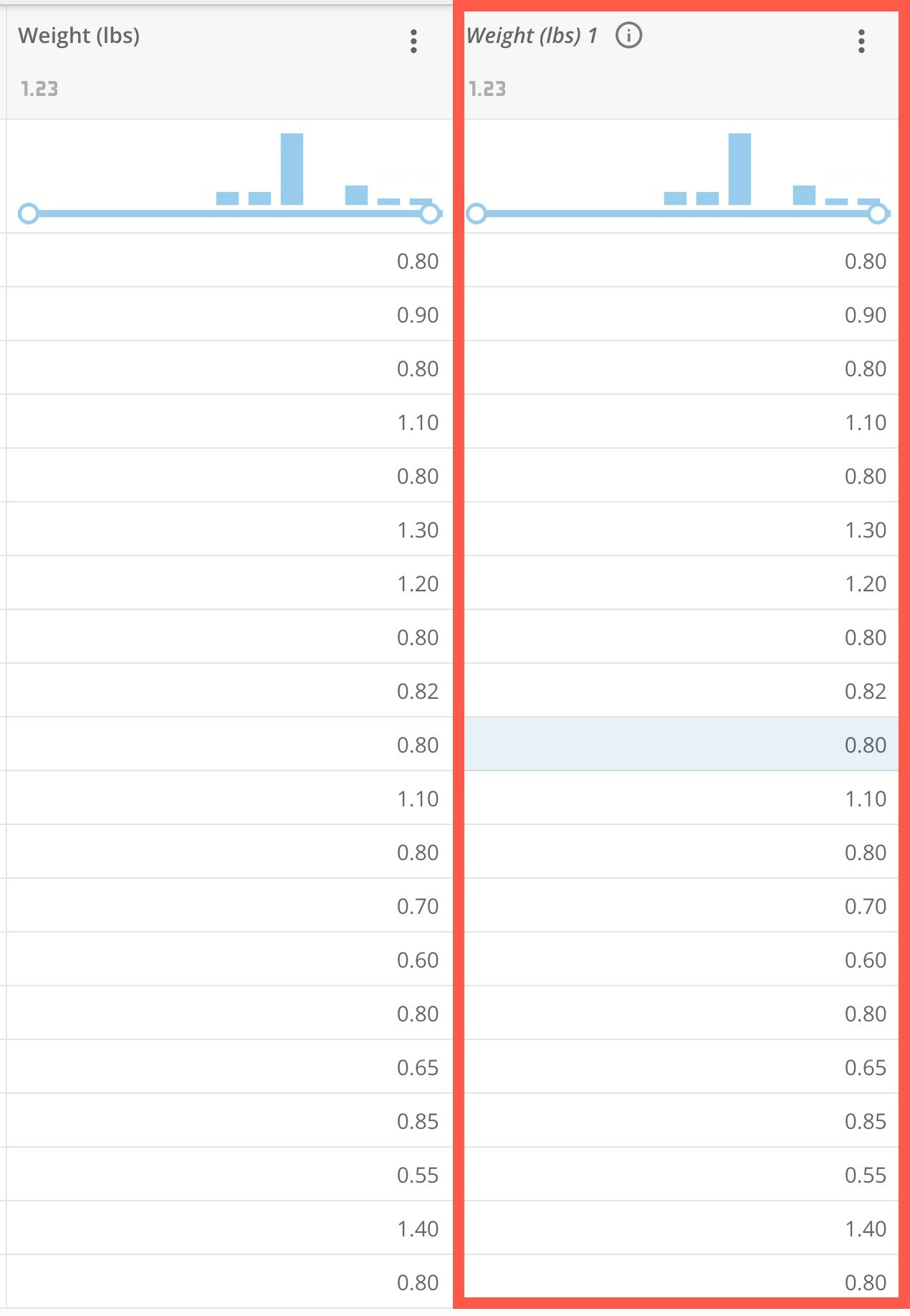
Sometimes you may want to add a duplicate of one or more columns to the DataSet View. You can do this by adding a column(s). To add a column to the DataSet View, select Add Column (or hover over Add and then select Add Column).


Rename Columns
Rename a column by hovering over the column name until the Edit icon displays. Then click on the name to make the field editable. Click outside of the field to save your changes.

Move Columns
Reorder columns in the left panel by using the handles to drag the columns in the correct order.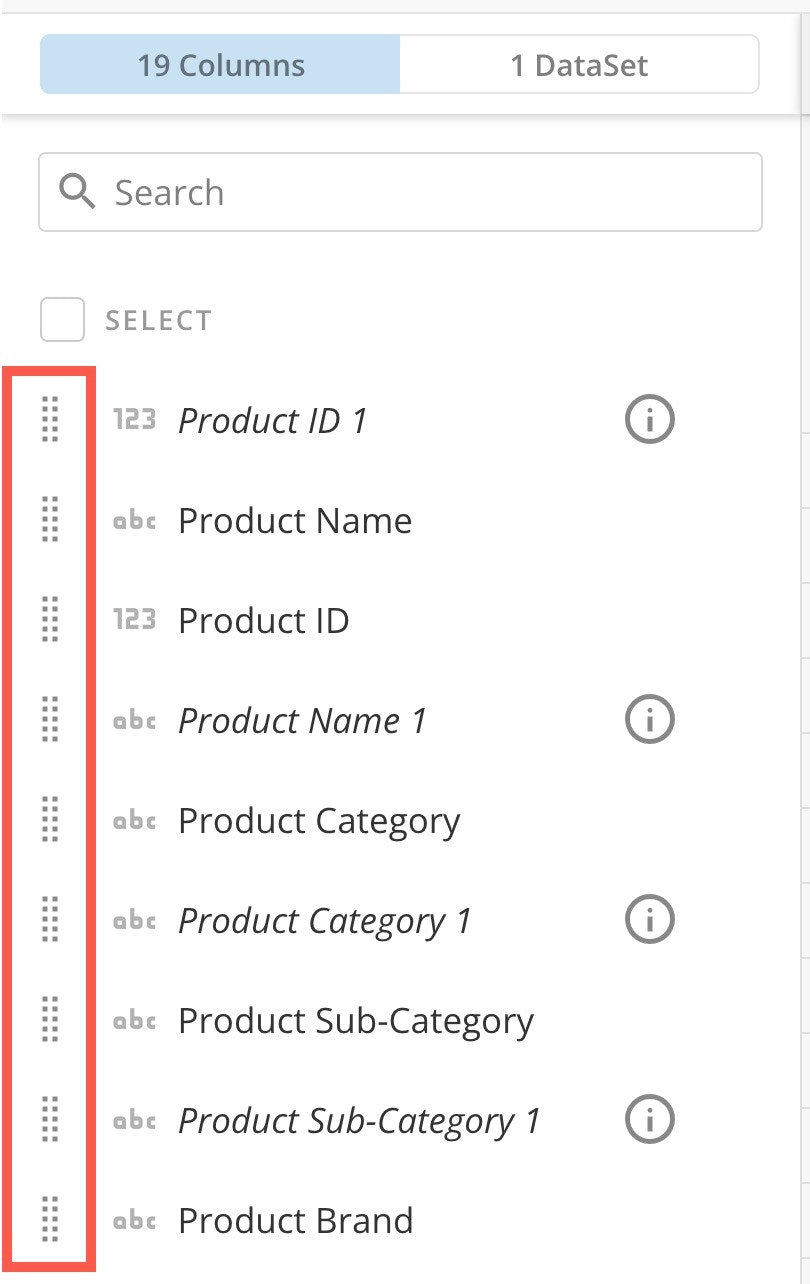
Add Calculated Column
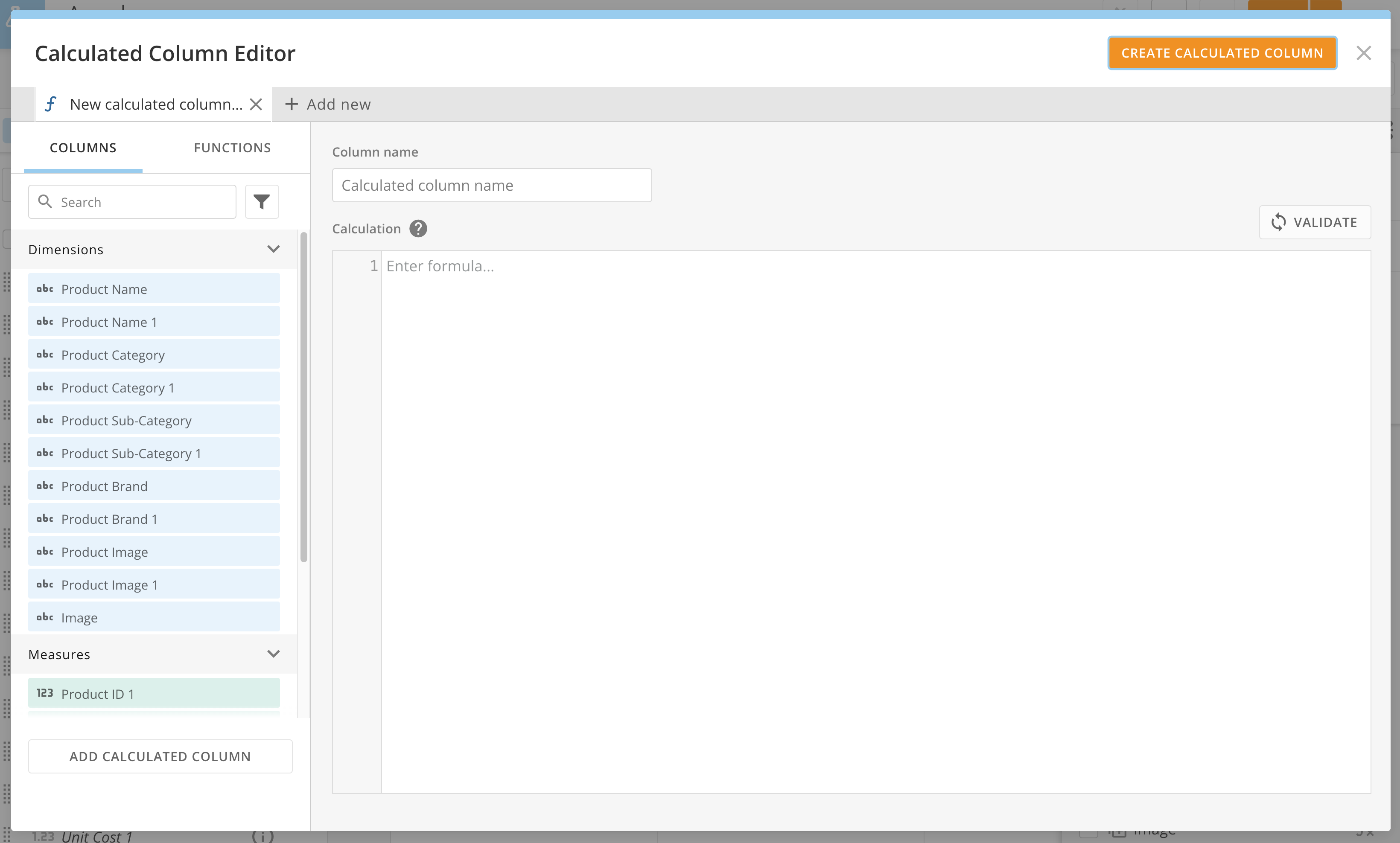
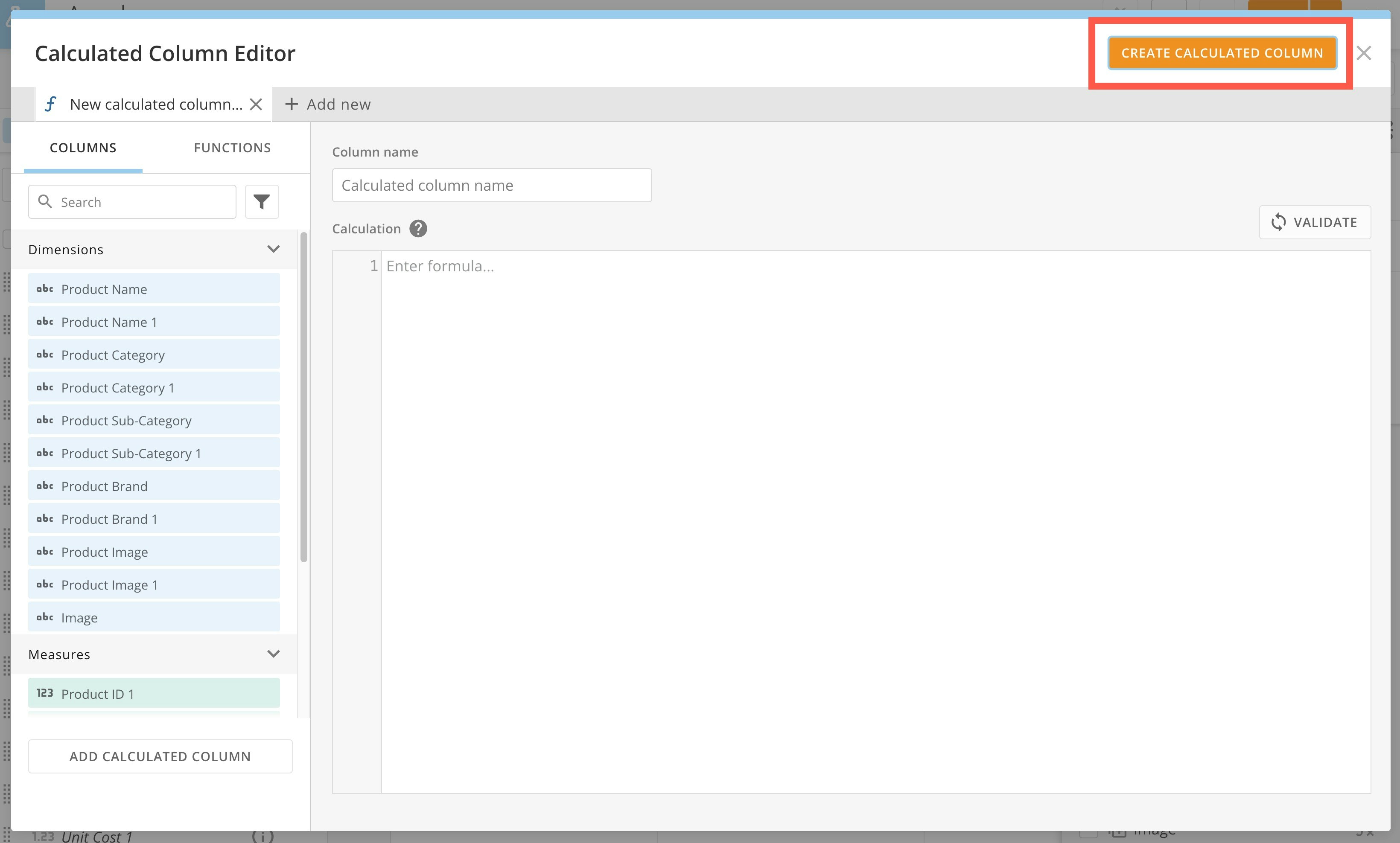
Add a new calculated column to your DataSet View by opening the Add Column panel and selecting Create Calculated Column.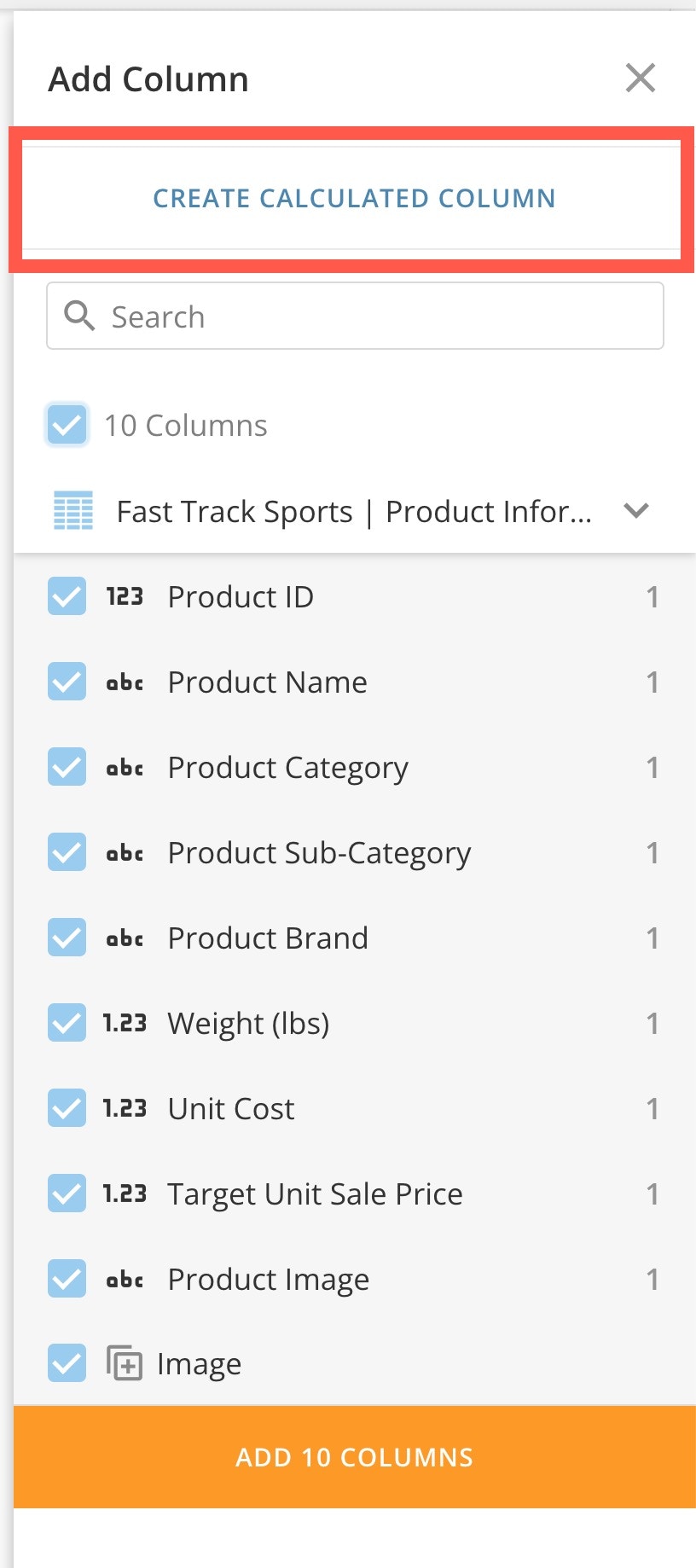
Remove Columns
Remove a column by selecting the kebab menu for the column and choosing Remove. To remove multiple columns, you can also choose the Select All option from the columns on the left and the delete icon.

Bulk Removal
To remove multiple columns at the same time, select the checkboxes for the columns you want to remove and select Delete.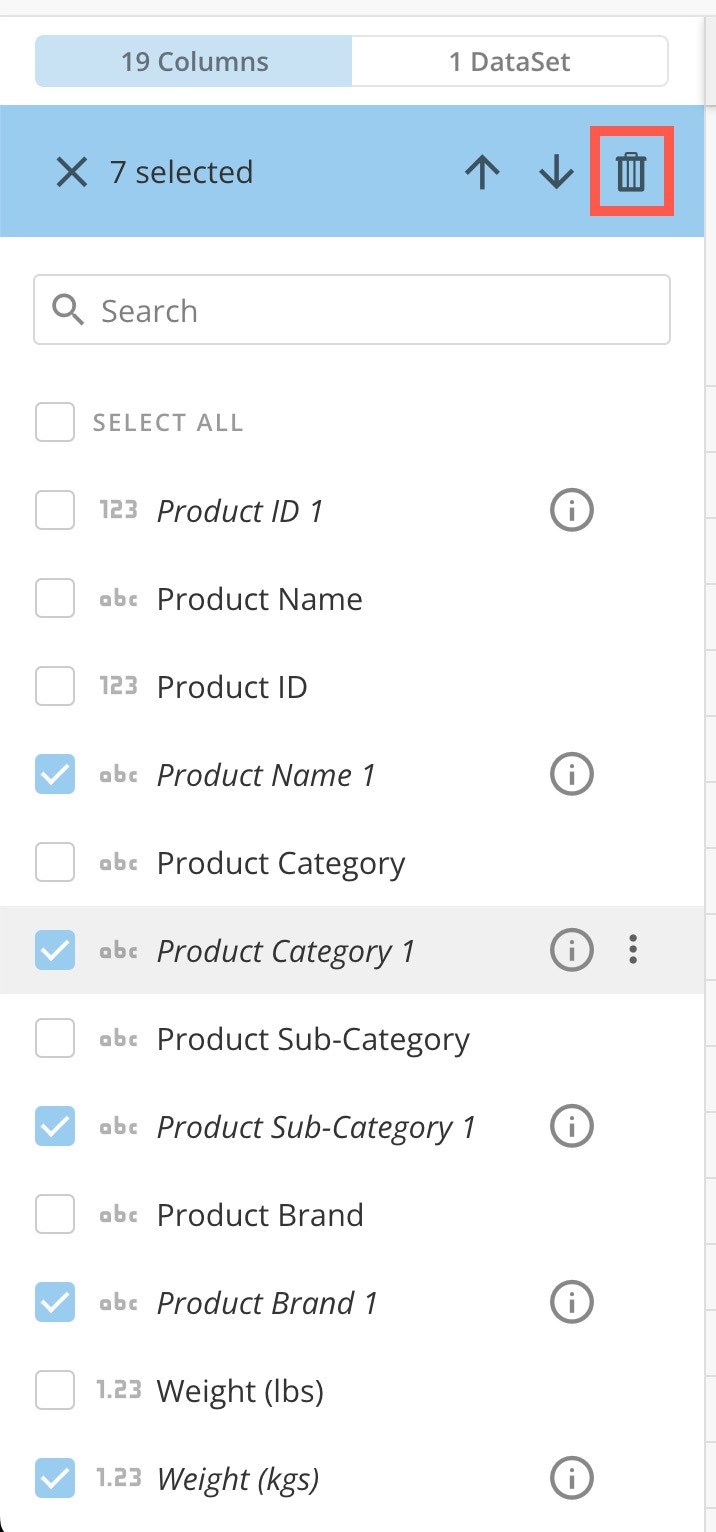
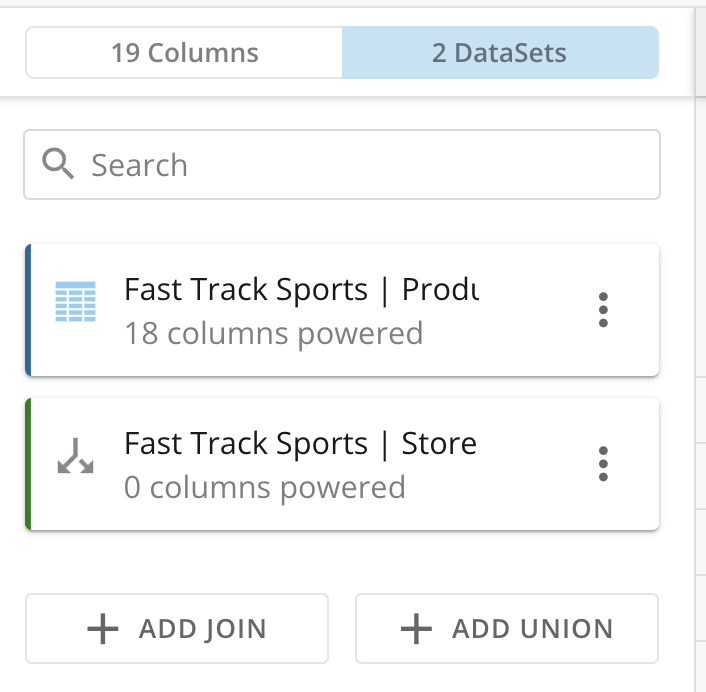
Perform Joins
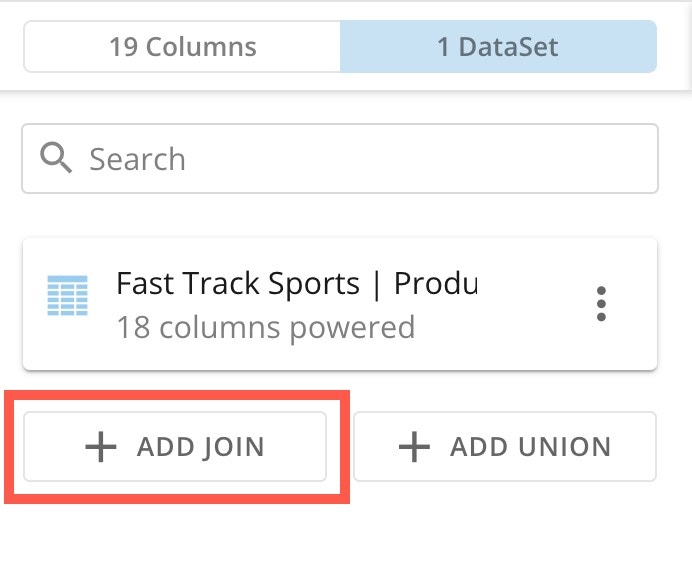
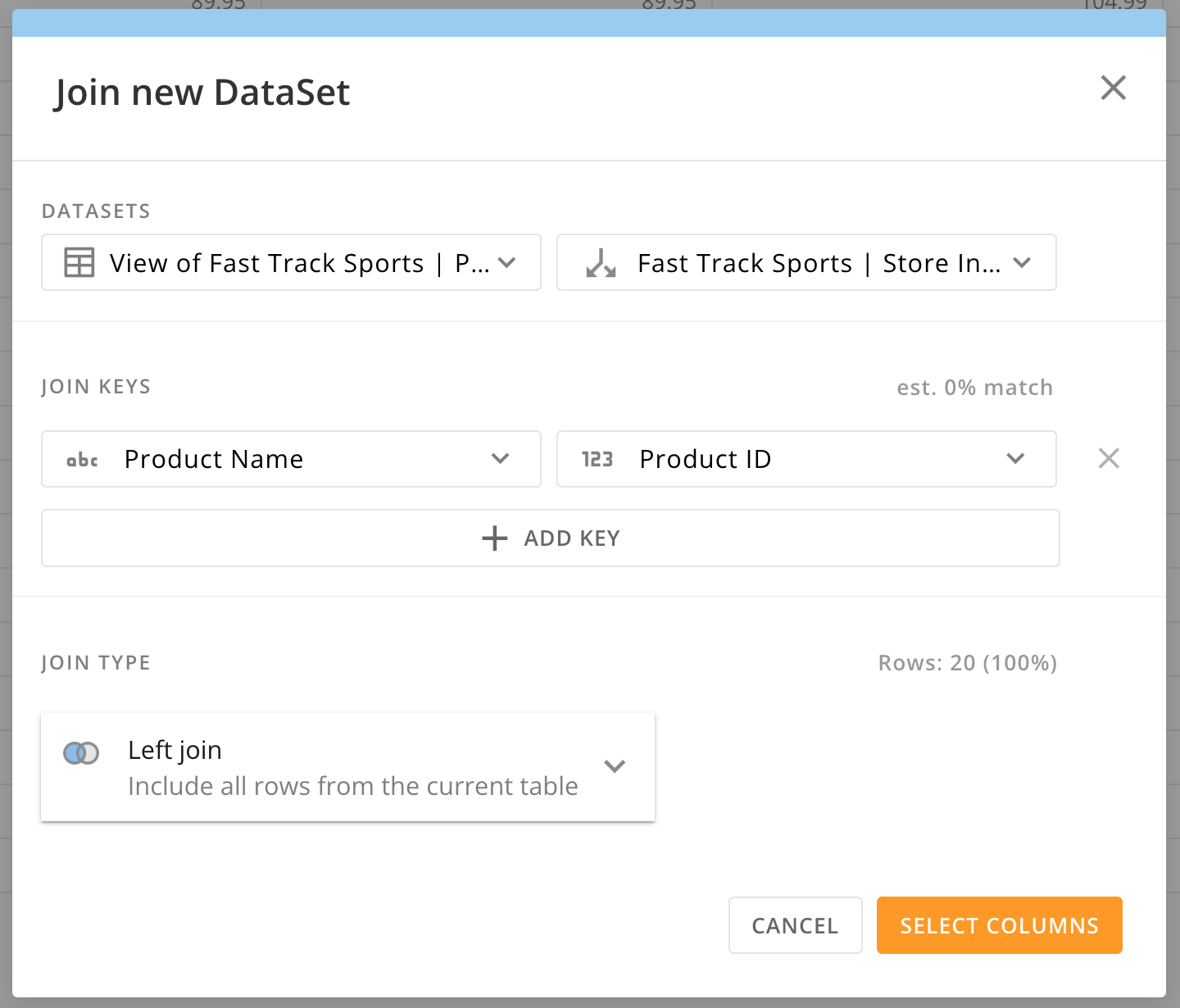
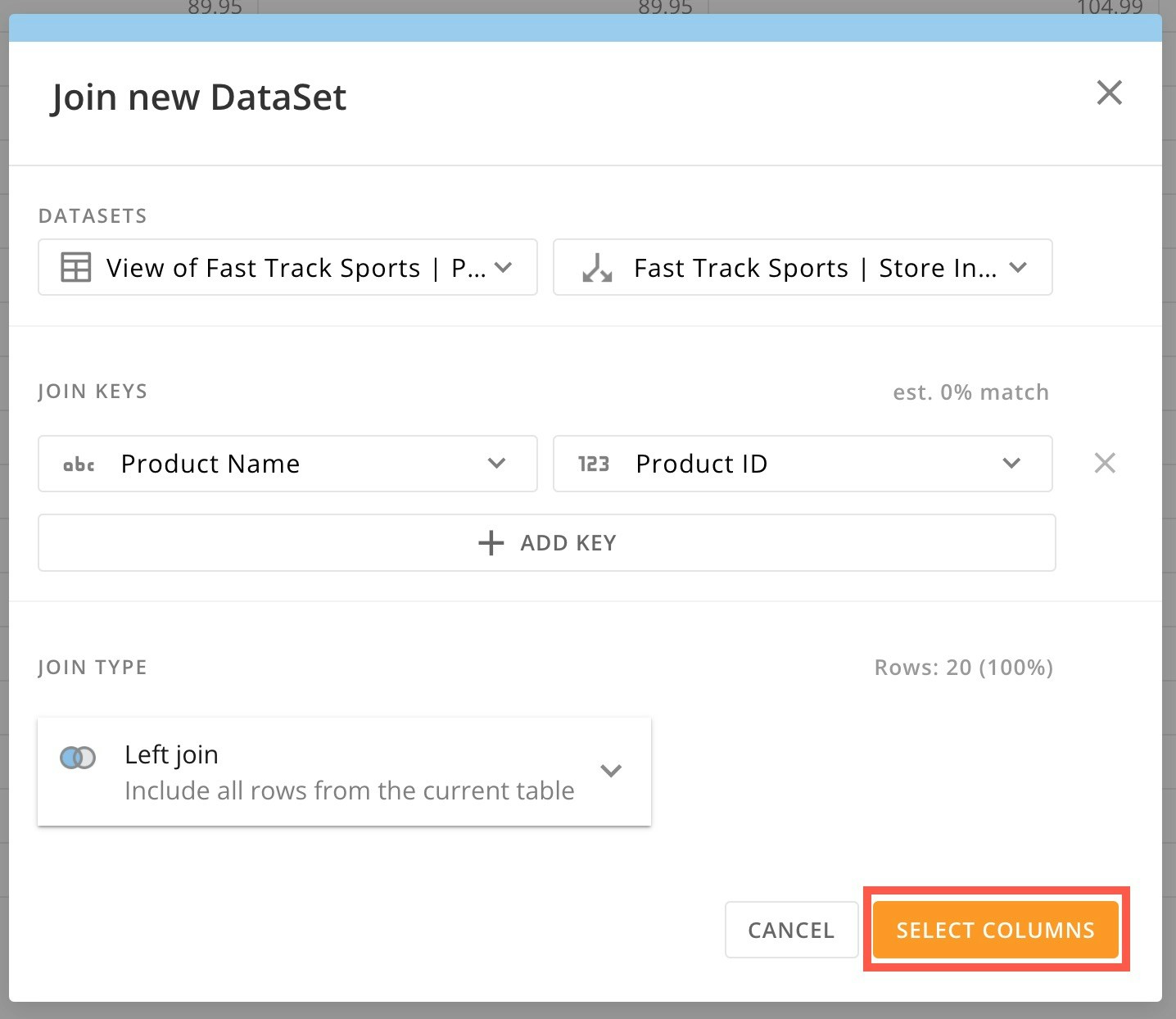
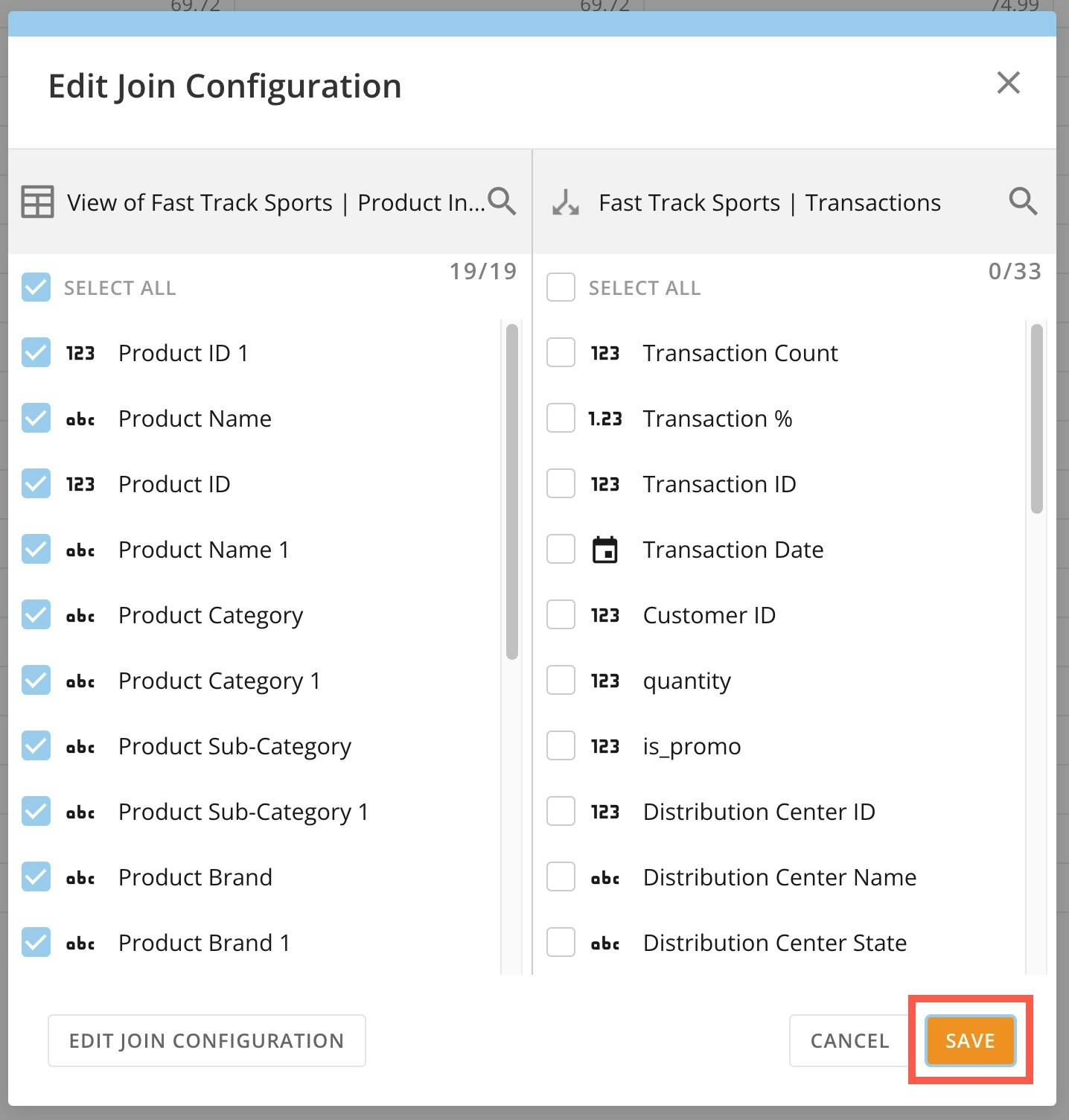
To join DataSets in Views Explorer, toggle the DataSet side of the left panel.


Perform Unions
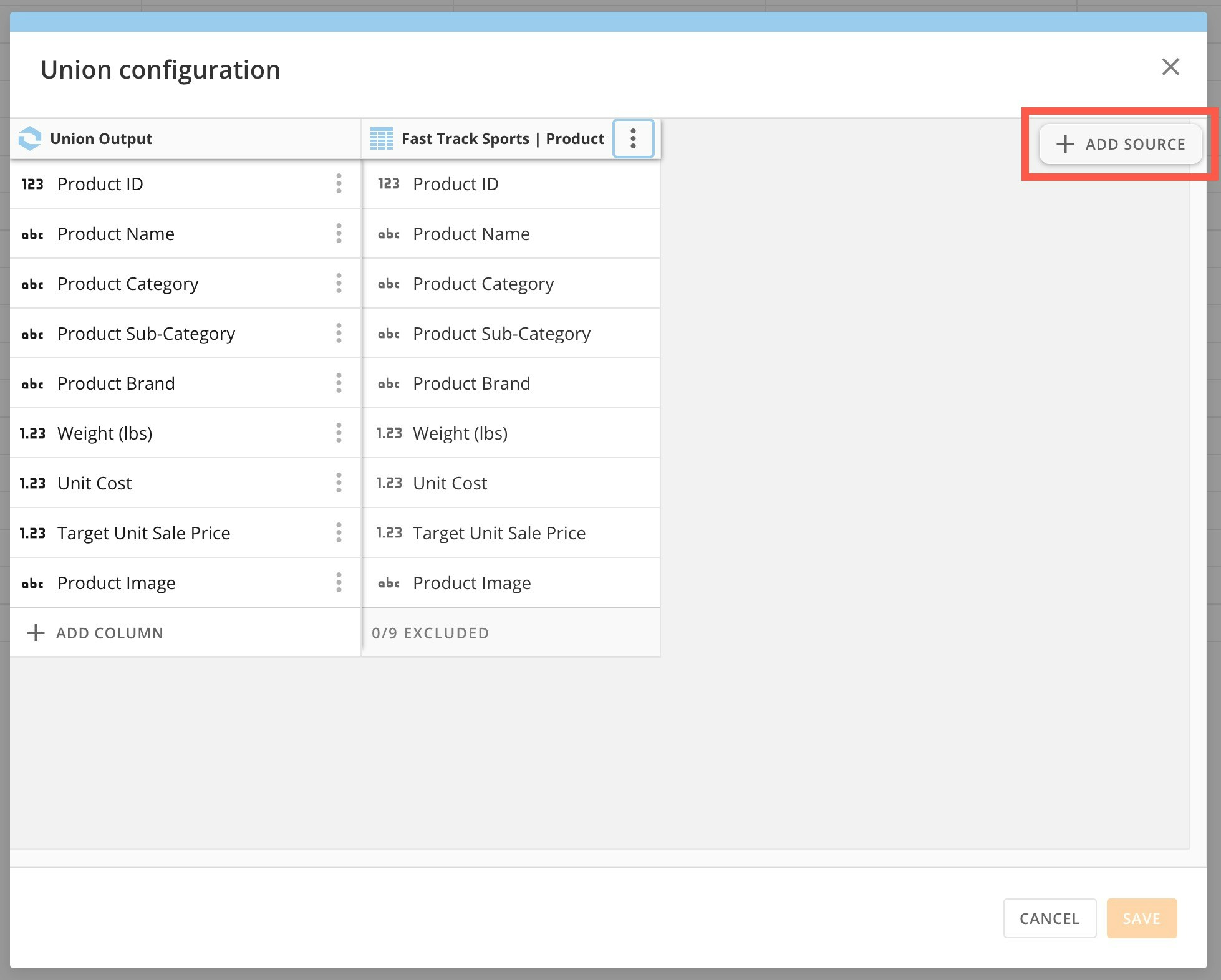
To union your DataSets using Views Explorer, toggle the DataSet side of the left panel. From there, select the Add Union button.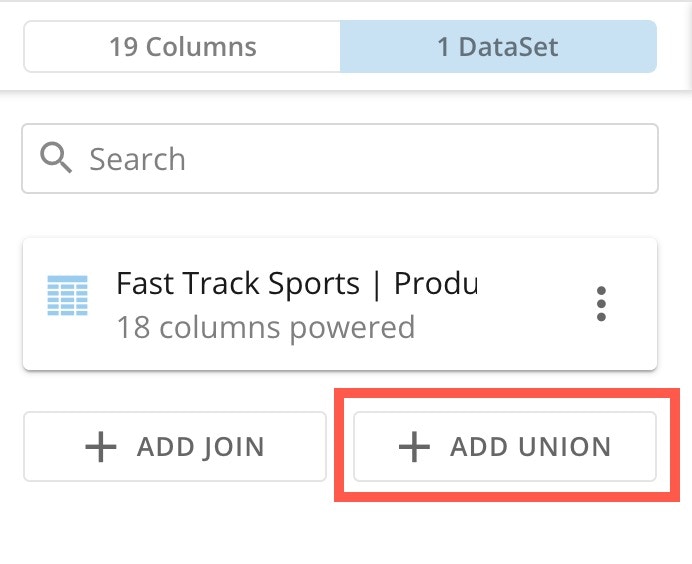
Note:
For unions to work properly, all DataSets must contain the same columns. If your DataSets contain different columns, it is best to
join
them instead.

Filter Data
Filter columns in your View by using the + Filter option at the top of the View.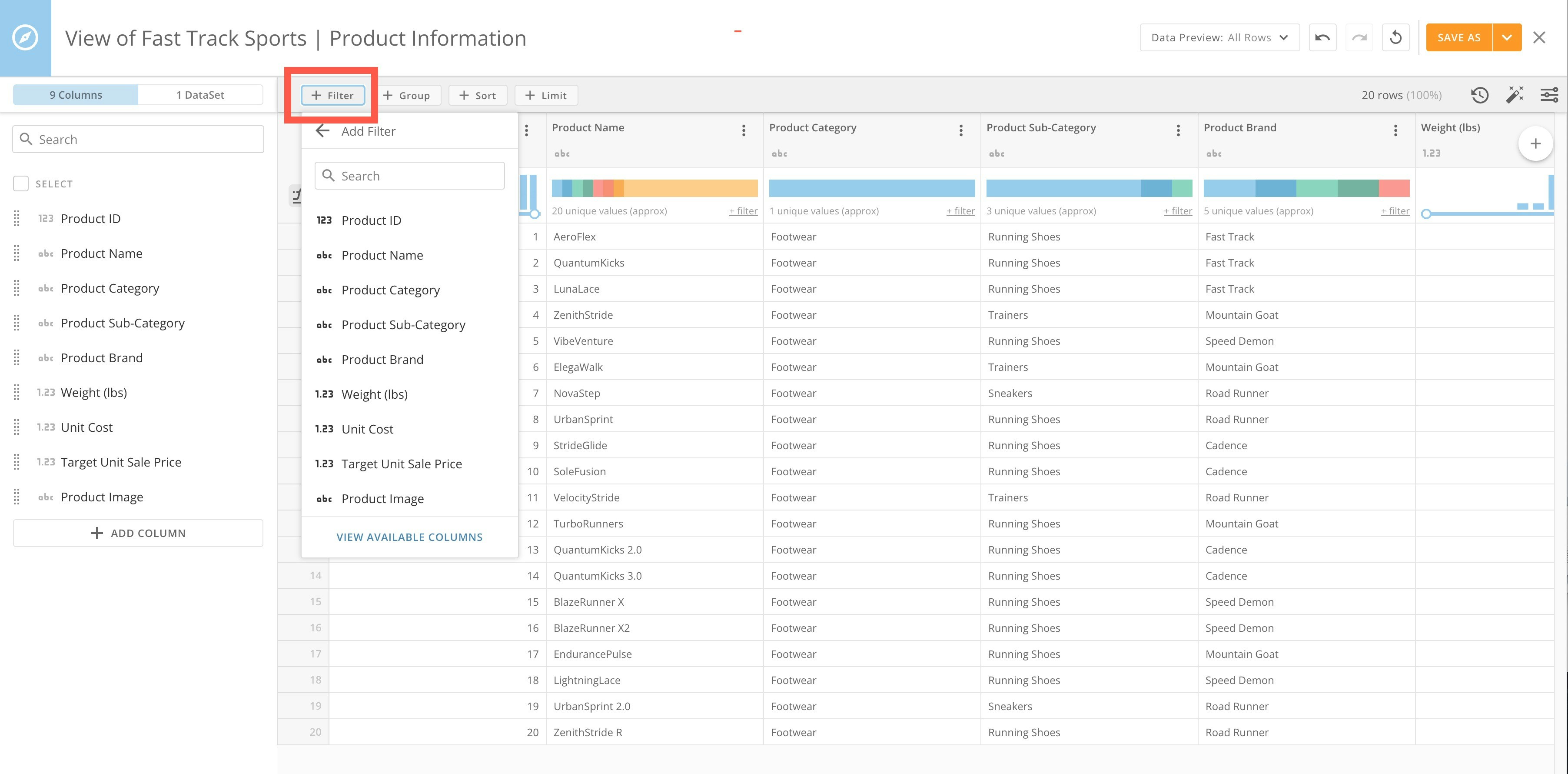
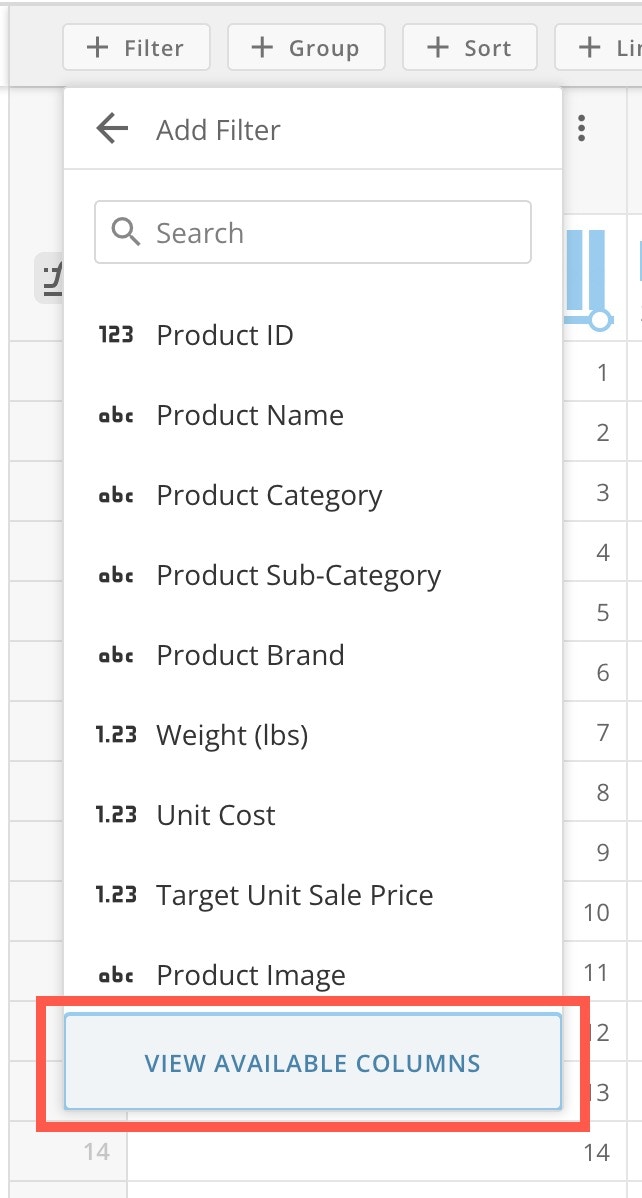
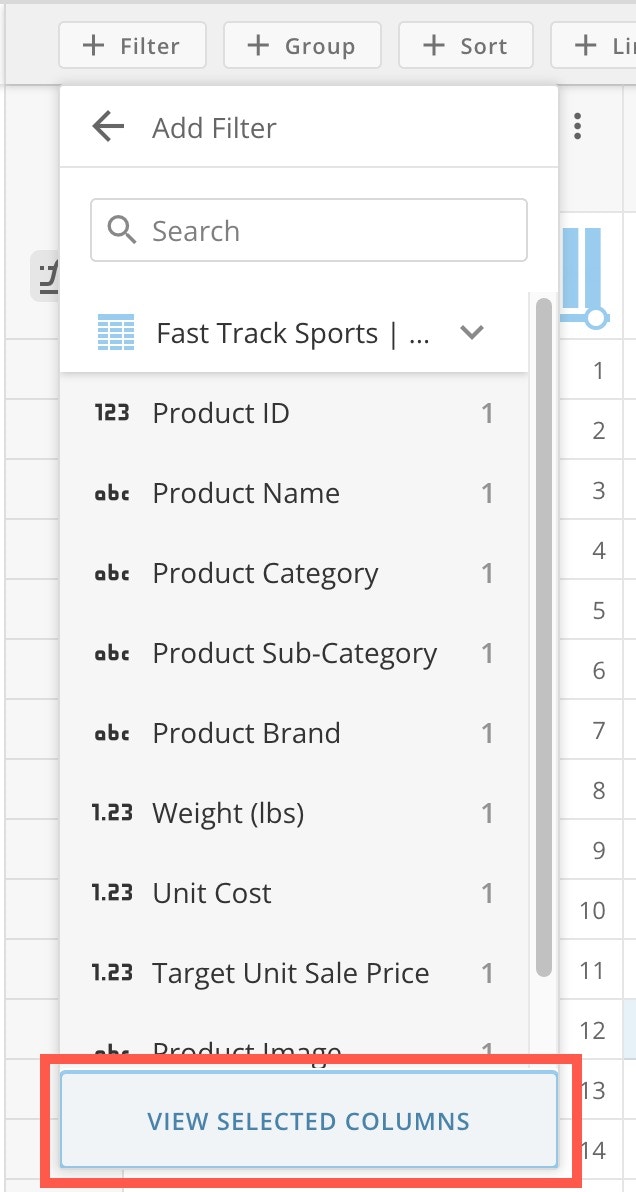

 Remove.

Group Data
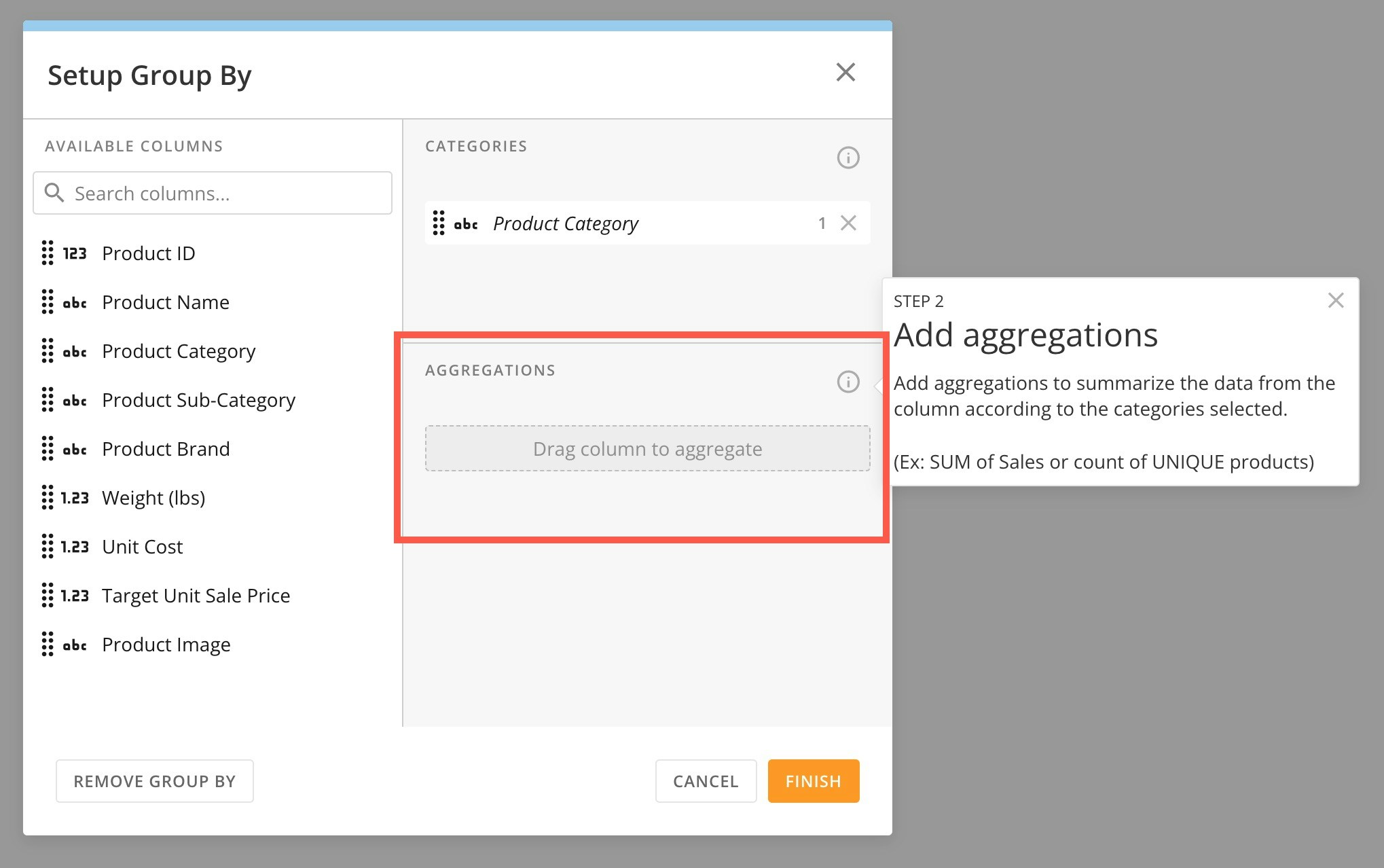
Grouping data helps you to see only columns you are interested in and aggregations that summarize the data from the categories you select. To Group data, select + Group at the top of the View.



Sort Data
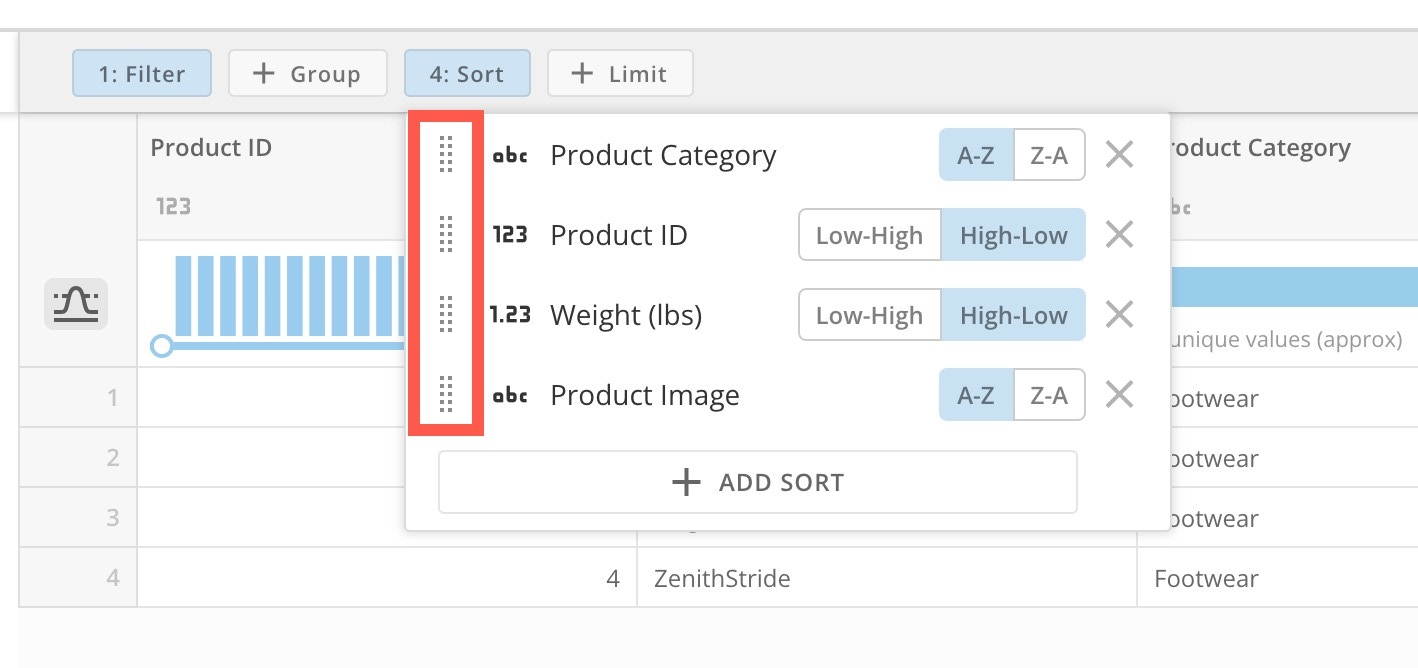
You can sort your data in the following ways, depending on data type:- Alphabetically (A–Z or Z–A)
- By date
- Low to High or High to Low


Limit Data
Limiting data means the DataSet will only return the number of rows you have chosen, sorted by the sorting rules you select. To limit the number of rows in your data, choose + Limit and add the number of rows you would like to include in your DataSet. Then choose an offset number. Select Apply to see your changes reflected in the View.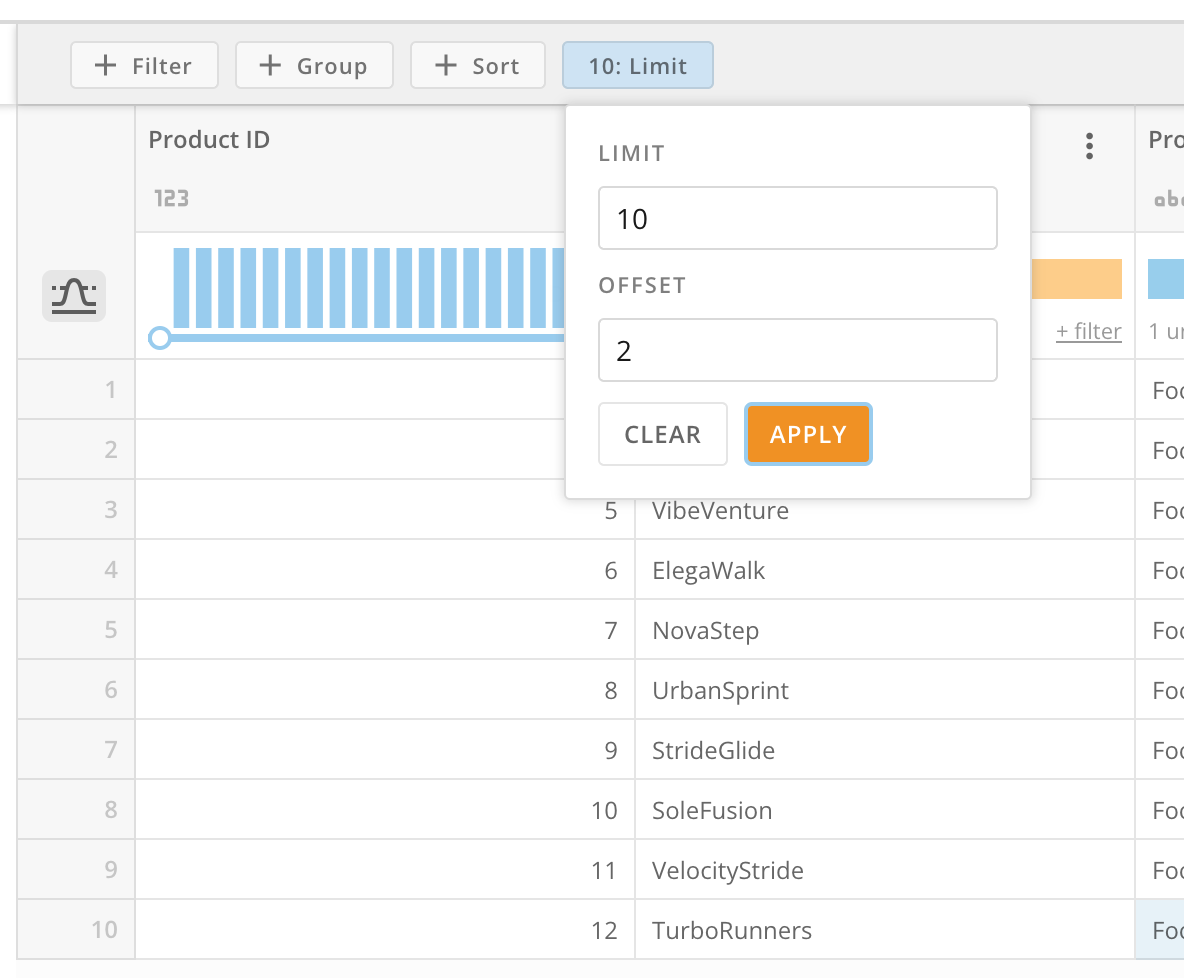
DataSet Suggestions
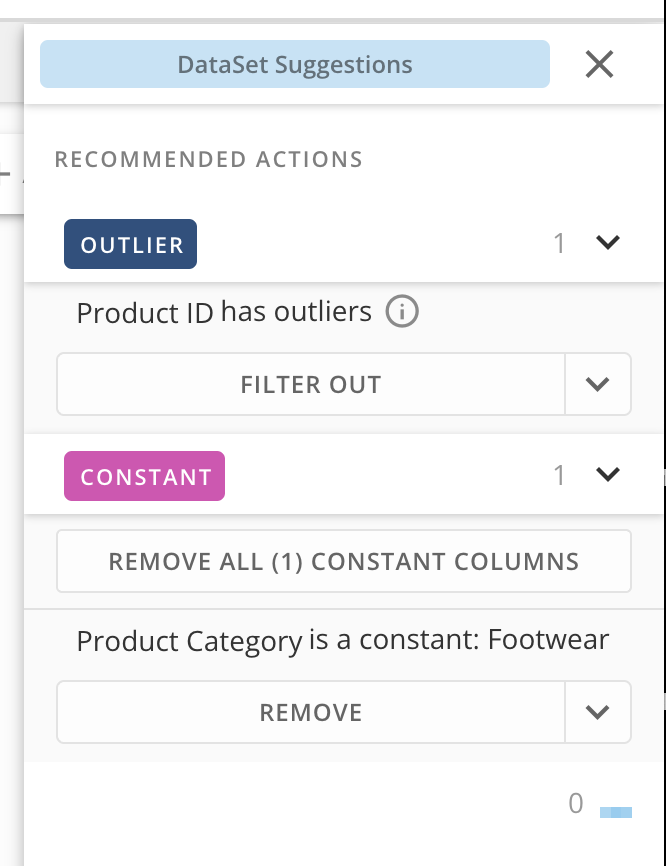
The DataSet Suggestions tool in the ribbon at the top of your View helps you review items like outliers and constant values in your View so you can filter them out or remove them.
Version History
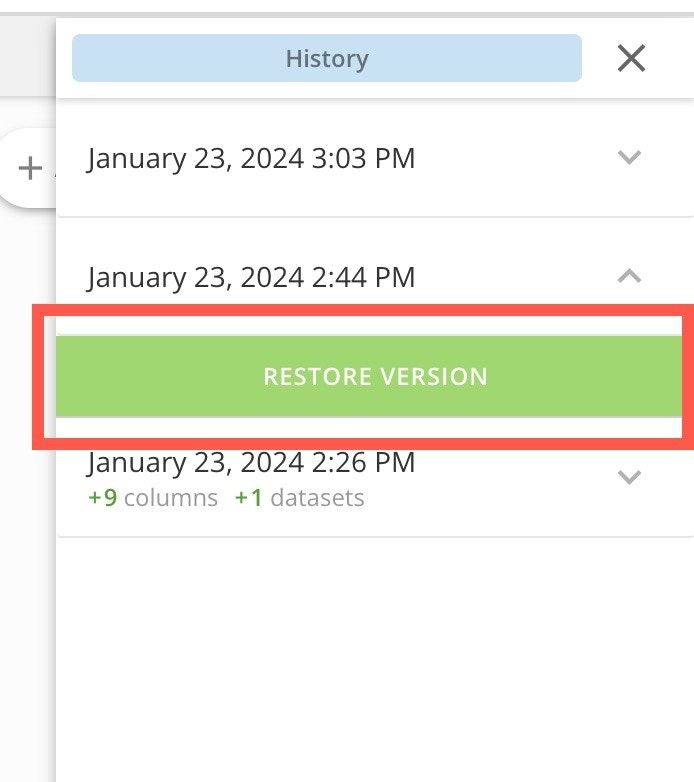
Use the version history to revert to a previous version of your DataSet View. In the ribbon at the top of your View, select History to open the History panel.
Find the version you want to revert to and select it.
Select Restore Version.
History to open the History panel.
Find the version you want to revert to and select it.
Select Restore Version.
Change Controls
In the top navigation, there are three controls you can use as you make changes to your View.- Undo —
Use
 Undo to undo your last change.
 - Redo —
If you Undo something by mistake, use
 Redo to redo the undone change.
 - Revert to original —
Use
 Revert to undo all of your changes to this View.

 Close to close the DataSet View without saving.
Save DataSet View
After making changes to your data, you can save it as a new DataSet View. In the top navigation, select Save As. In the modal, choose a new name for your View and select Save.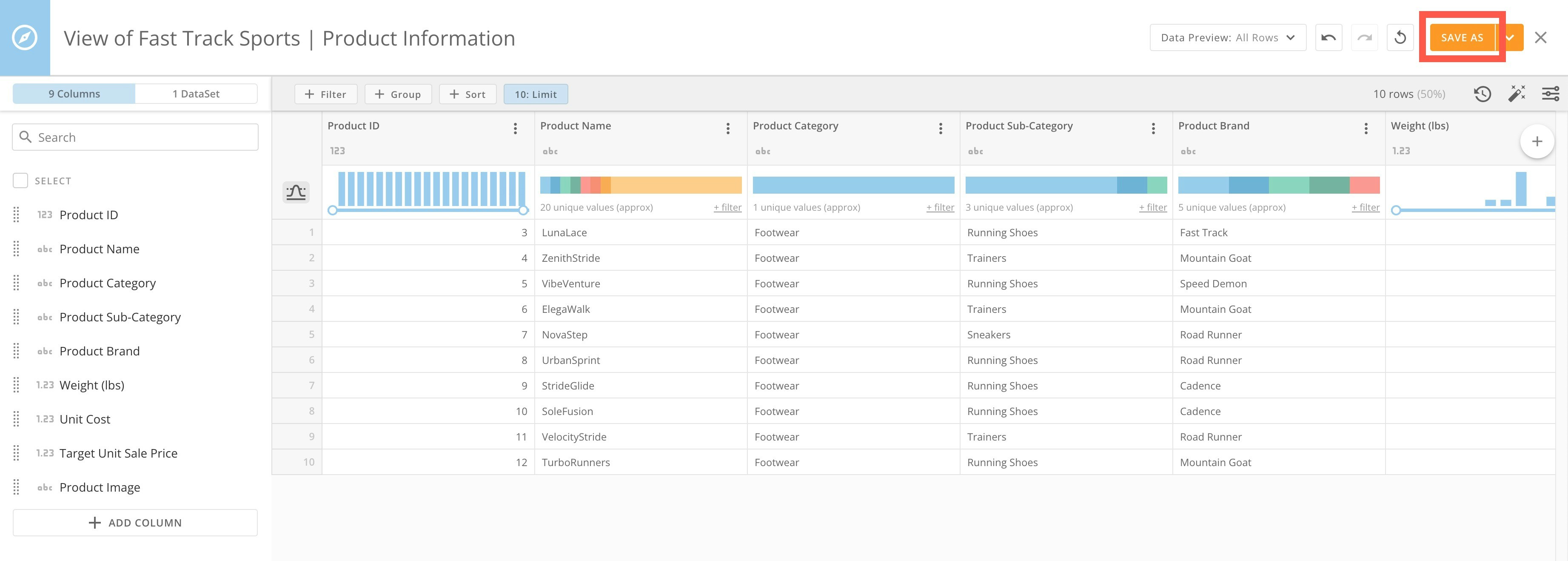

 You can share your DataSet View with others.
Export DataSet View
To export your DataSet View, select > Export. The DataSet View is exported as a CSV file.

Advanced SQL Editor
The Advanced SQL editor for DataSet Views allows you to get help from an AI Assistant to translate natural human language into complex data queries. See the FAQ for answers to common questions.Use the Advanced SQL Editor
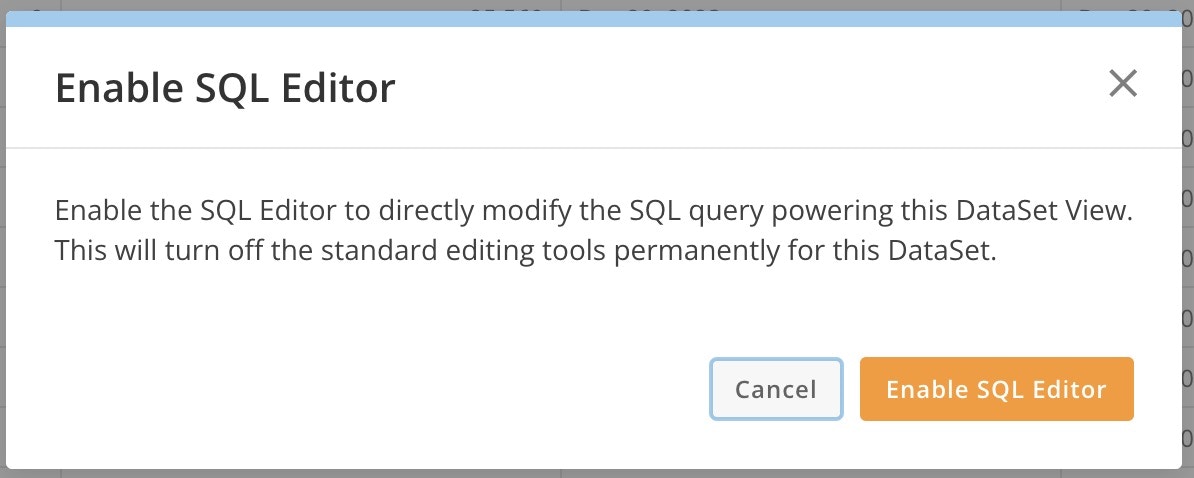
In Views Explorer, select SQL Editor to open the Advanced SQL Editor.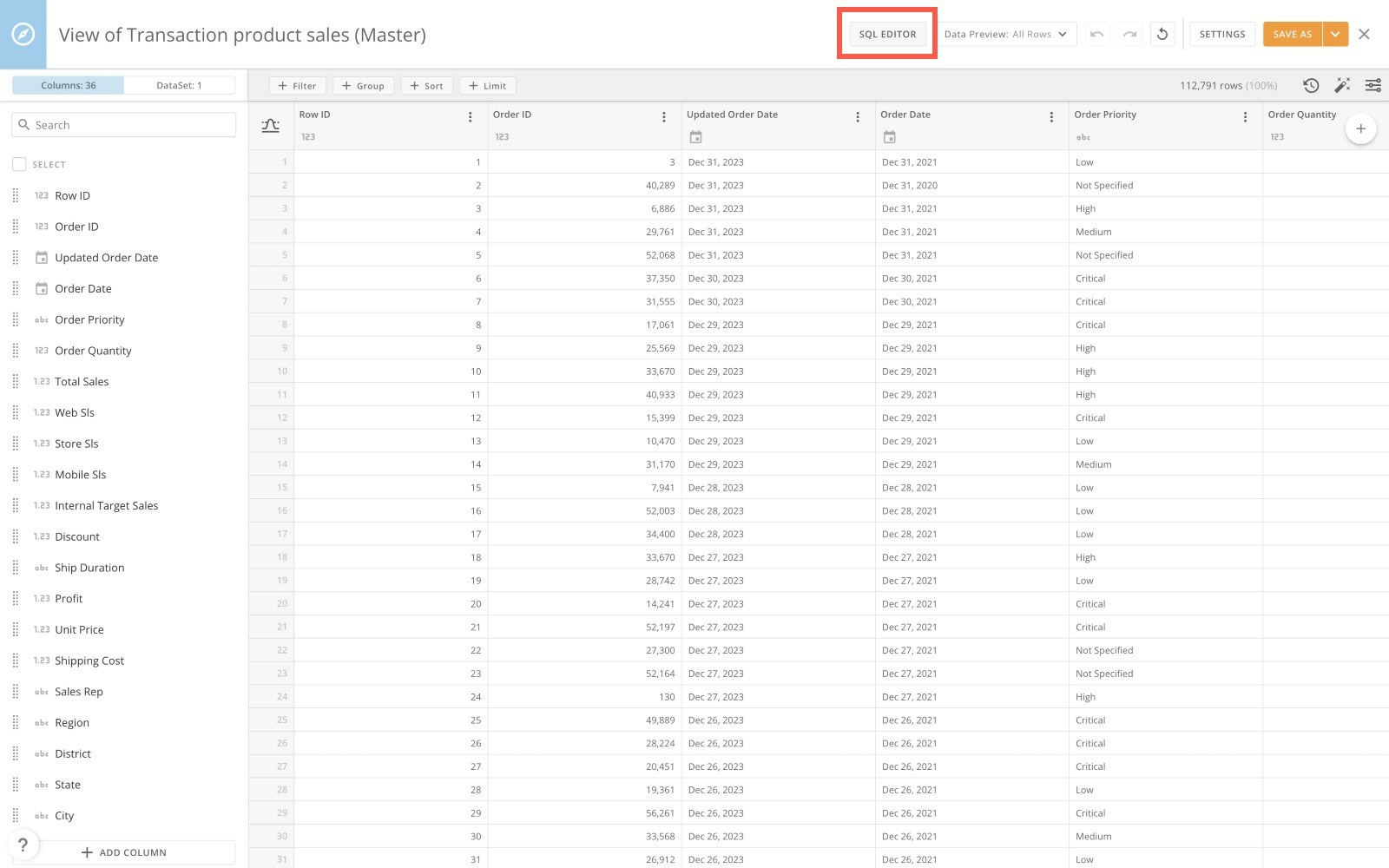

Use AI Assistant to Write a Query
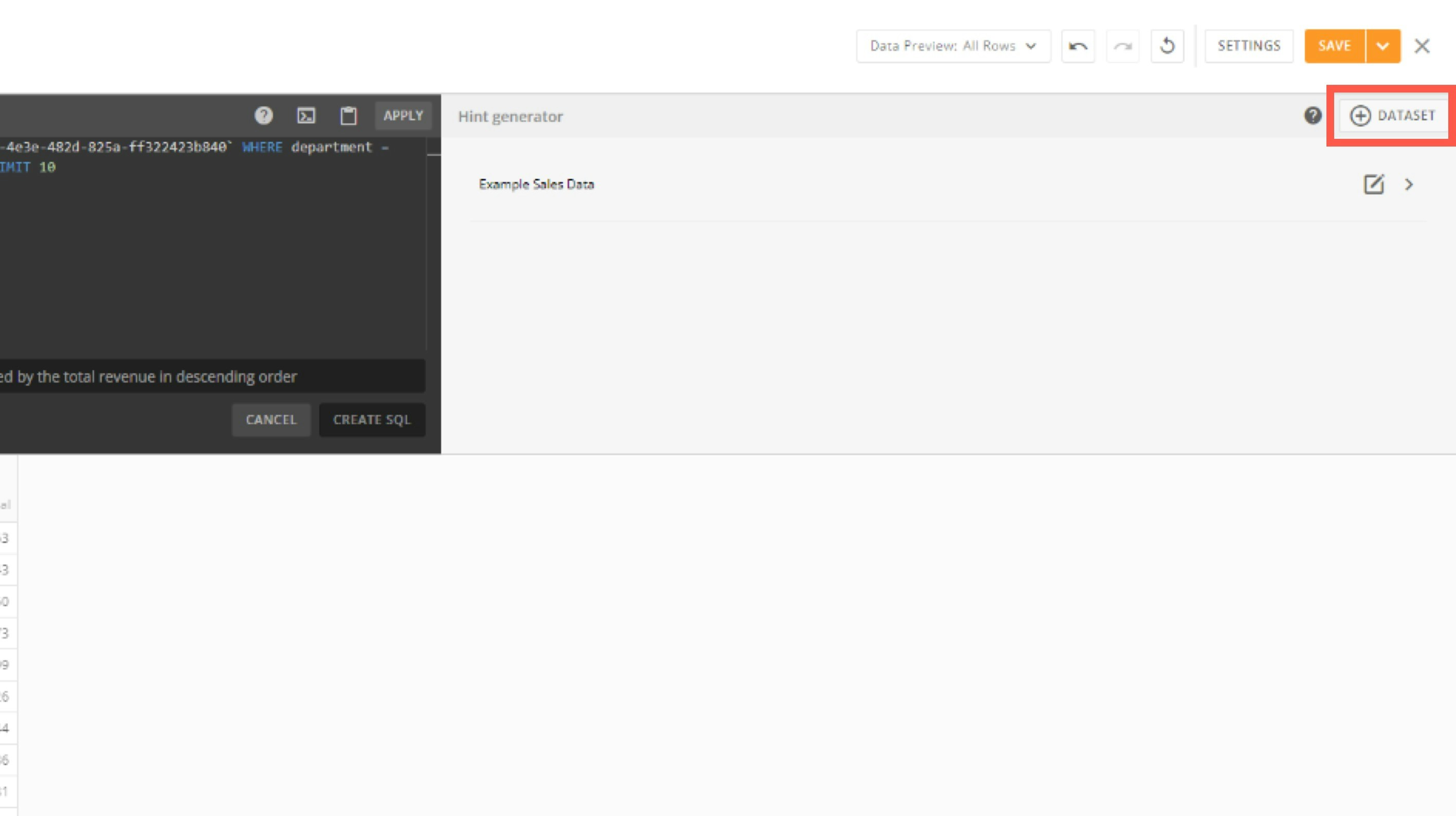
In the SQL editor, write any text in natural language that describes the results you want to see and then press Enter or select Create SQL.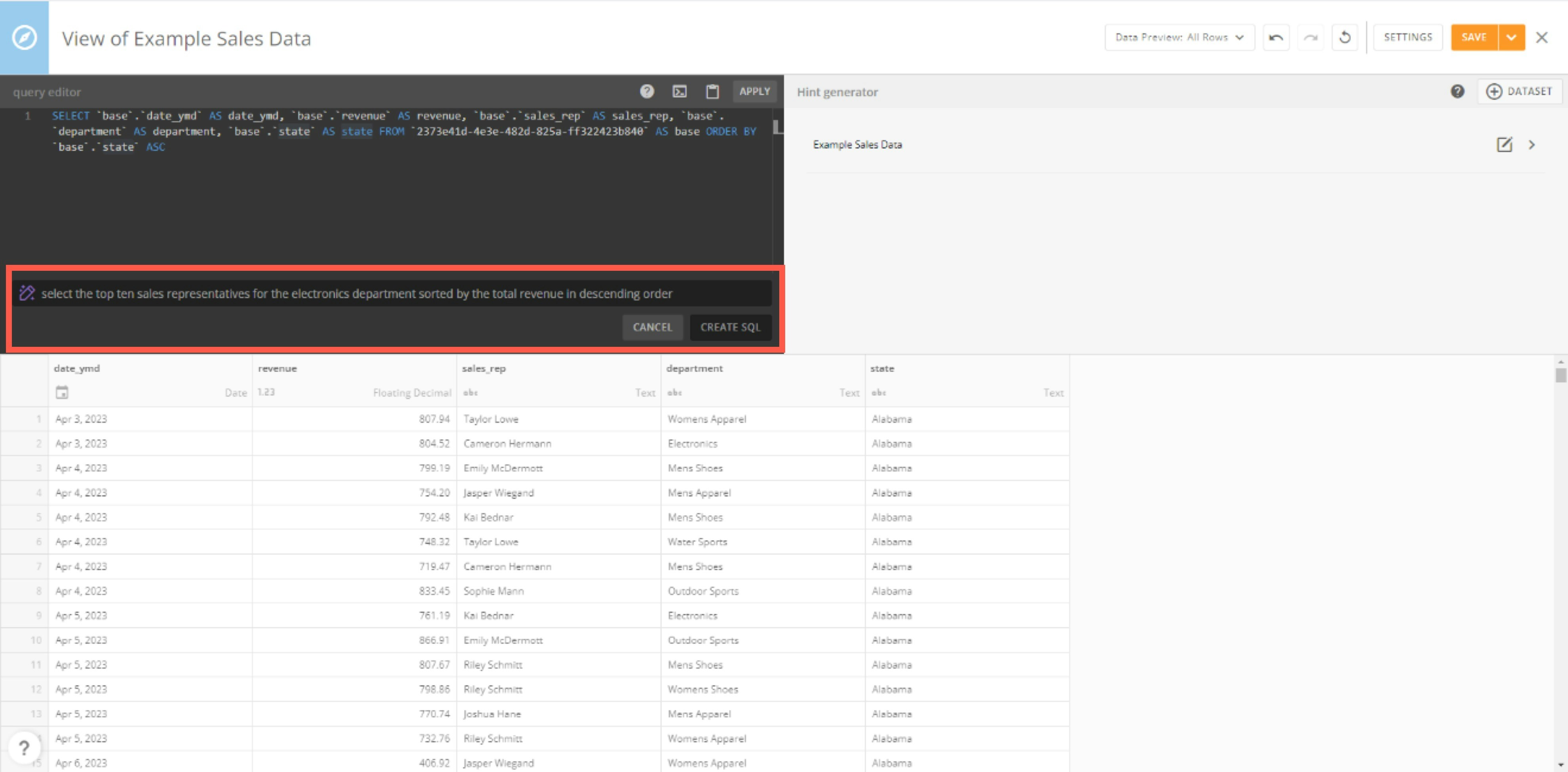
FAQ
How do DataSet Views treat NULL values?
How do DataSet Views treat NULL values?
Null values are not considered to be equal or not equal to any other value. This means that comparing a column with a null value to another column using either = or!= (<>) will always return false for that row.
My View is based on federated DataSets. Why does the row count remain unchanged despite updates to the underlying data?
My View is based on federated DataSets. Why does the row count remain unchanged despite updates to the underlying data?
The row count metadata for views on federated DataSets will always show the row count as of when the View was created.
I am seeing a 0 row count for my View over federated datsets. What could be happening?
I am seeing a 0 row count for my View over federated datsets. What could be happening?
We support creating Views for published federated datasets on the subscriber side; however, the row count is not supported.
Can I use a DataSet View inside of a MySQL DataFlow?
Can I use a DataSet View inside of a MySQL DataFlow?
DataSetViews are not supported inside of MySQL DataFlows.
Can I join DomoStat reports or other Adrenaline DataSets to federated DataSets?
Can I join DomoStat reports or other Adrenaline DataSets to federated DataSets?
No. These are not supported and will result in an error.
Advanced SQL Editor with AI Assistant
Does Domo send all the data to the AI service (like ChatGPT)?
Does Domo send all the data to the AI service (like ChatGPT)?
No, only the schemas of any DataSet included in the list of DataSets on the right side of the editor are included in the prompt to the AI service. This allows the AI model to return the correct column names and DataSet names to be used in the SQL query.
Does the AI Assistant prompt always return the correct SQL?
Does the AI Assistant prompt always return the correct SQL?
No. Because we are prompting an AI service (like ChatGPT), results may vary. The AI Assistant is meant to be used as a tool to help you generate the SQL for the data you want to include in your Dataset View.