

Intro
You can publish dashboard and App Studio content and DataSet Views to another organization via subscription. A subscriber instance can subscribe to publications individually (as invited) or auto-subscribe to receive all publications from a trusted publishing organization. This article describes how to configure a subscriber and establish a publication/subscription connection.Looking for Embed? To learn more about embedding, see Embed Content Outside of Domo.
- Access Publications
- Permissions and PDP
- Publishing tasks
- Subscription tasks
- PDP policies for published content
- Publish DataSet Views
- Notes
Access Publications
To create a publication and view the list of publications from your Domo environment, go to the Publications page by following these steps:- Navigate to Domo Everywhere.
- Select Publications.
Permissions and PDP
Anyone can publish as long as they have access to the content (dashboard, app, or DataSet) they want to publish. People with admin-level access in the publishing Domo environment can configure filters before publishing content so subscribers only see the appropriate data for their organization. To learn more, see Dynamic PDP below.Publishing Tasks
Prerequisite
Before configuring a publication, you must create your subscriber instance(s). Learn how.Create a Publication
- Access Publications.
-
In the Publications tab, select + Publication to open the creation modal.

- Enter a name and optional description for the publication in the appropriate fields.
-
Assign a publication owner. The owner must have access to all the content included in this publication. By default, the person creating the publication is the owner. On the subscriber end, the individual who accepts the subscription invitation to the published content is the subscription owner.
For example, Farah from Organization A publishes the content to Organization B. Farah is the publication owner. John in Organization B accepts the subscription invitation and becomes the subscription owner.

-
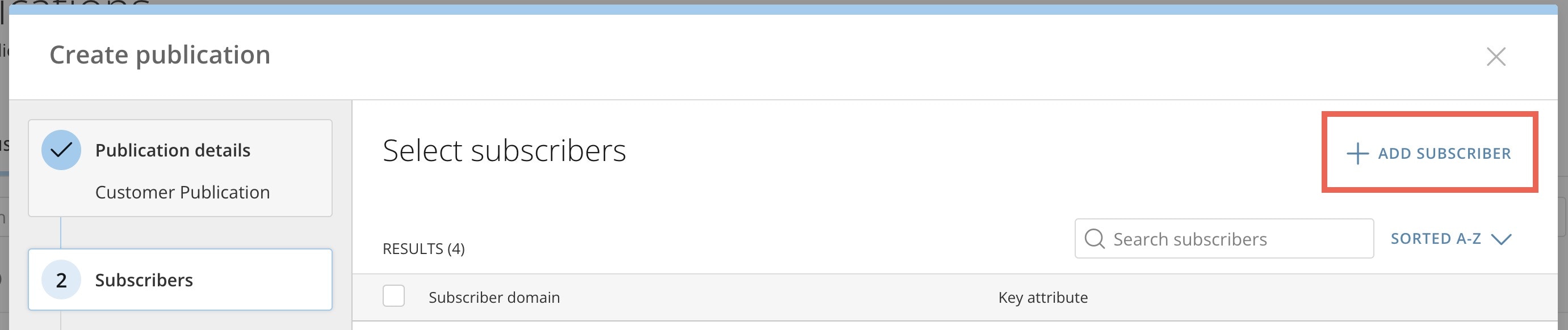
In the Subscribers section of the modal, check the boxes for all the subscribers you want to add to this publication. You can use the search bar and sort menu to filter the list of subscribers. If a subscriber you want to include doesn’t display in the list, complete the step below.
If a subscriber you want to publish to doesn’t display in the list, follow these steps:
-
Select + Add Subscriber.
-
Enter the URL for the subscriber domain in the Subscriber Organization field in this format: << domain>>.domo.com.

- Enter the Key attribute. This is the same as the key attribute used when creating the subscriber organization. Learn where to find the key attribute.
- Select + Add. The subscriber organization displays in the list of subscribers.
- Check the box to choose this subscriber.
-
Select + Add Subscriber.
-
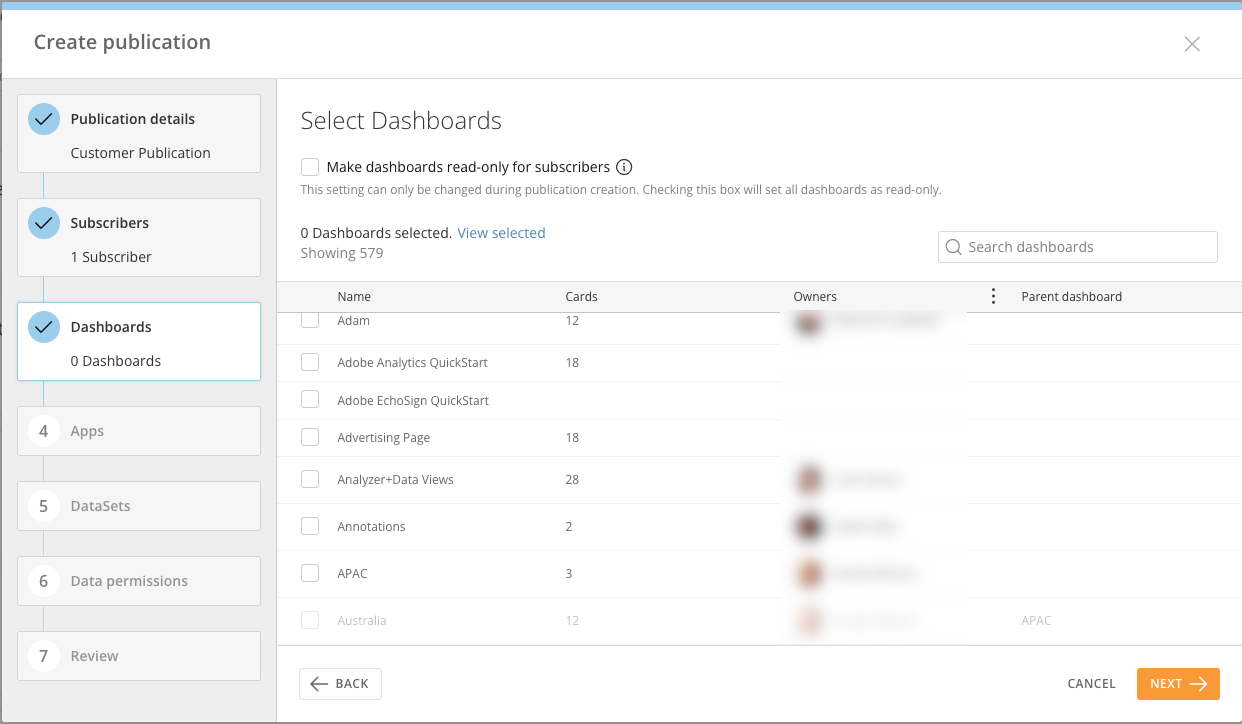
Use the next sections of the modal to choose the dashboards, apps, or DataSets that you want to include in the publication.
-
After adding all publication content, configure Personalized Data Permissions (PDP) for each DataSet. See
PDP Policies for Published Content below or learn about PDP in the Knowledge Base.

-
To publish all rows in a given DataSet, check the All Rows box.
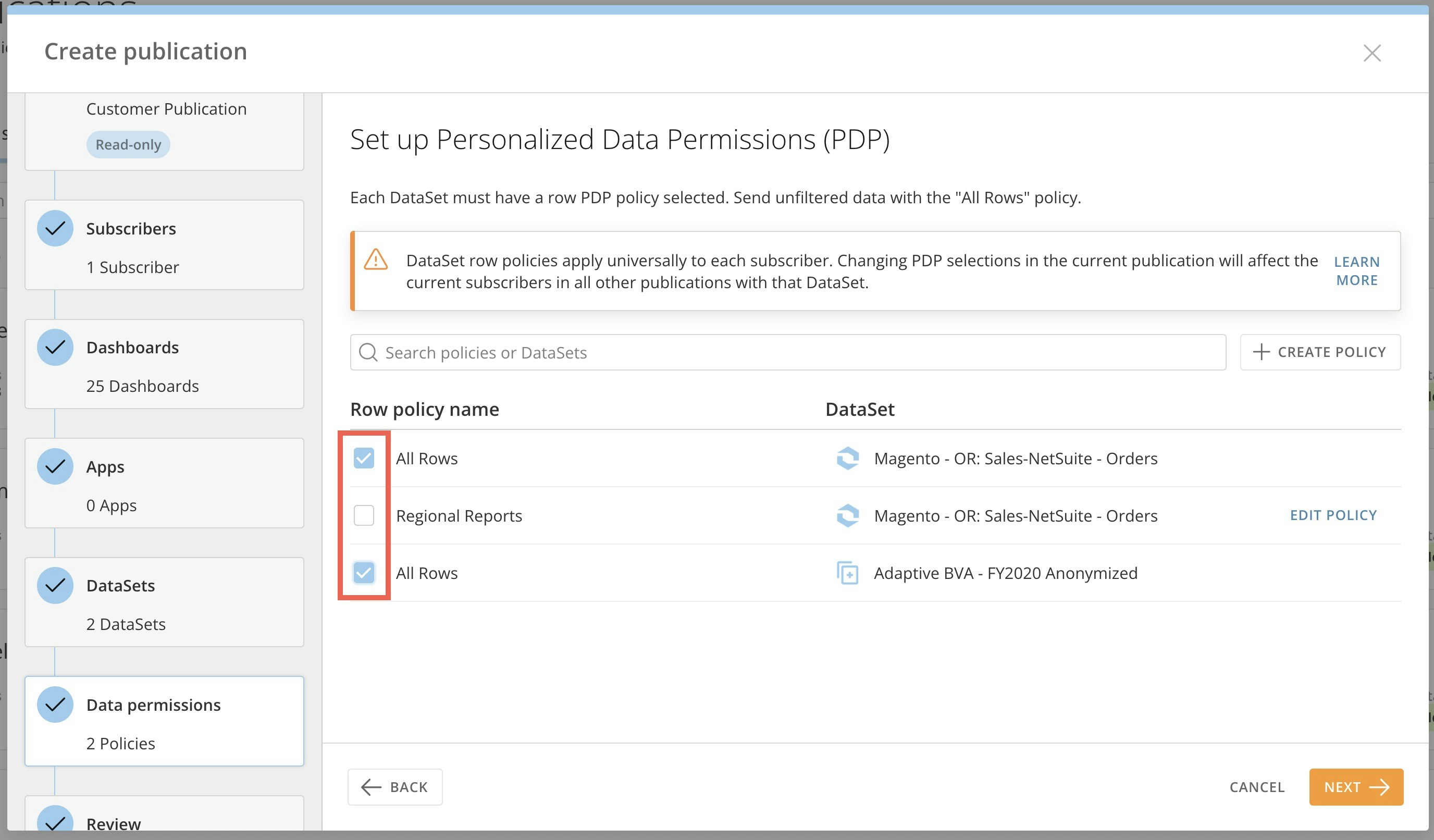
- To share a filtered version of the data, select + Create Policy. The New Permission modal displays. Follow the instructions below to create a PDP policy.
-
To publish all rows in a given DataSet, check the All Rows box.
-
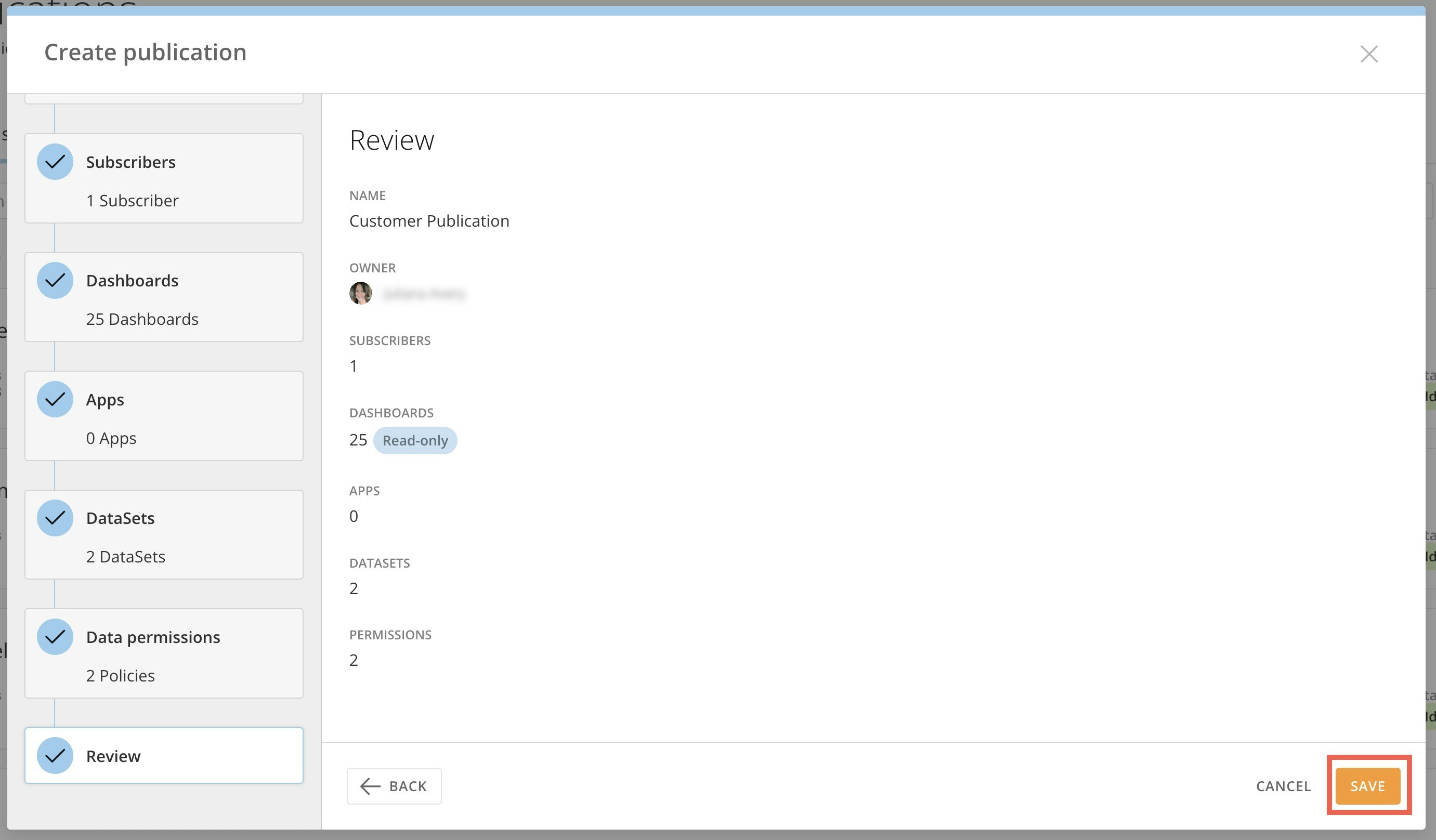
Review all the publication details, and save to close.
Publish Read-Only Content
You can publish read-only content to your subscribers when creating publications. Read-only content behaves like embedded content, meaning that:- Subscribers cannot alter or make copies of content.
- Dashboards in a read-only publication are embedded and do not have PDP (Personalized Data Permissions) applied on the subscriber side. The dashboards will reflect whatever PDP are applied to the publication owner. By default, the DataSets are not accessible to subscribers. If you manually add DataSets to the publication, those DataSets will be shared separately with subscribers, and PDP will be applied based on each subscriber’s permissions. However, even if shared, these DataSets do not power the dashboards themselves—the dashboards continue to display data via the embedded content, without subscriber-specific PDP filtering.
- Changes to dashboard content propagate immediately to the subscriber with no refresh required.

Create a PDP Policy
Follow these steps to add a PDP policy while creating a publication:-
In the Data permissions section of the modal, select + Create Policy to open the new policy modal.

- In the modal, enter a name for the policy.
-
From the Dataset dropdown, select the DataSet to which to apply the permission.
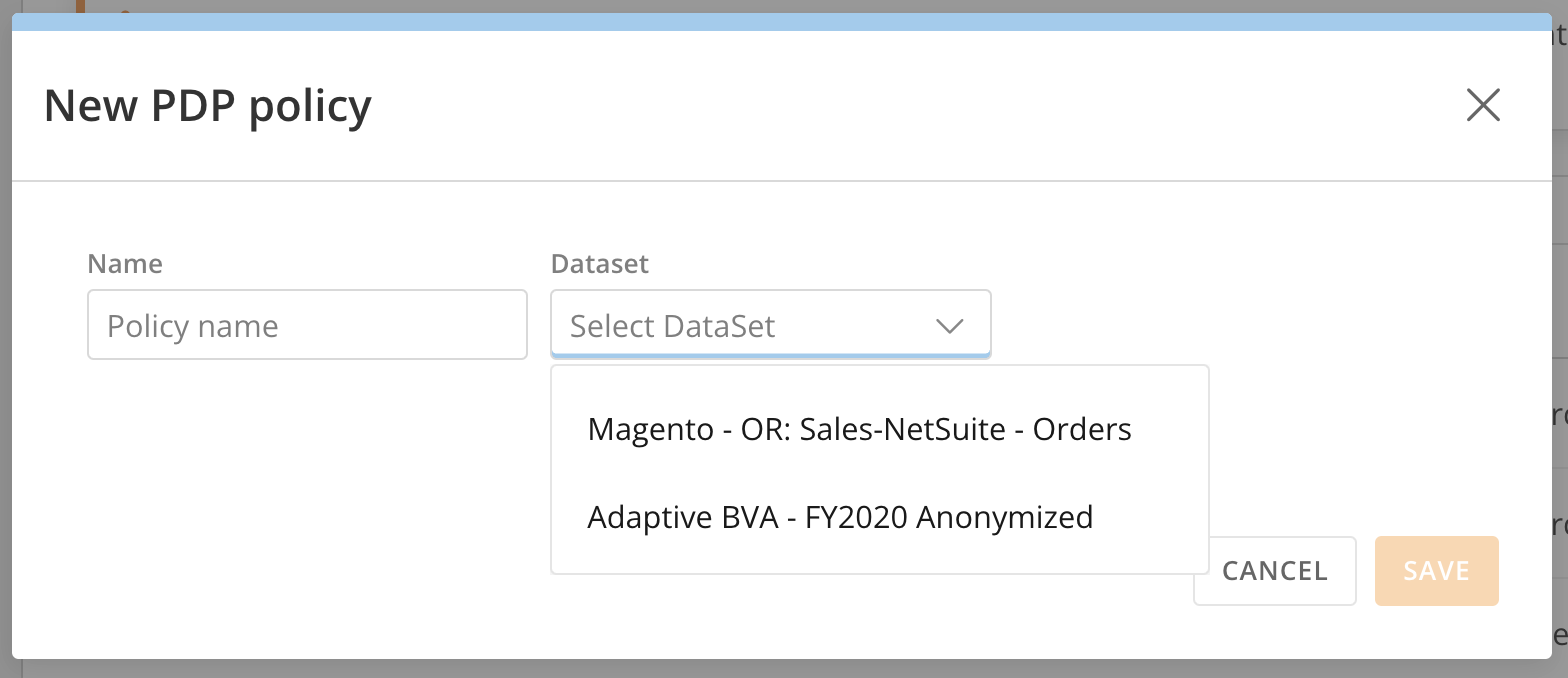
- Select + Add Filter.
- Select a column from the dropdown.
- Choose the filter type. If you are using Dynamic PDP, select Dynamic PDP by Org ID. See PDP Policies for Published Content to learn more.
-
Select values.
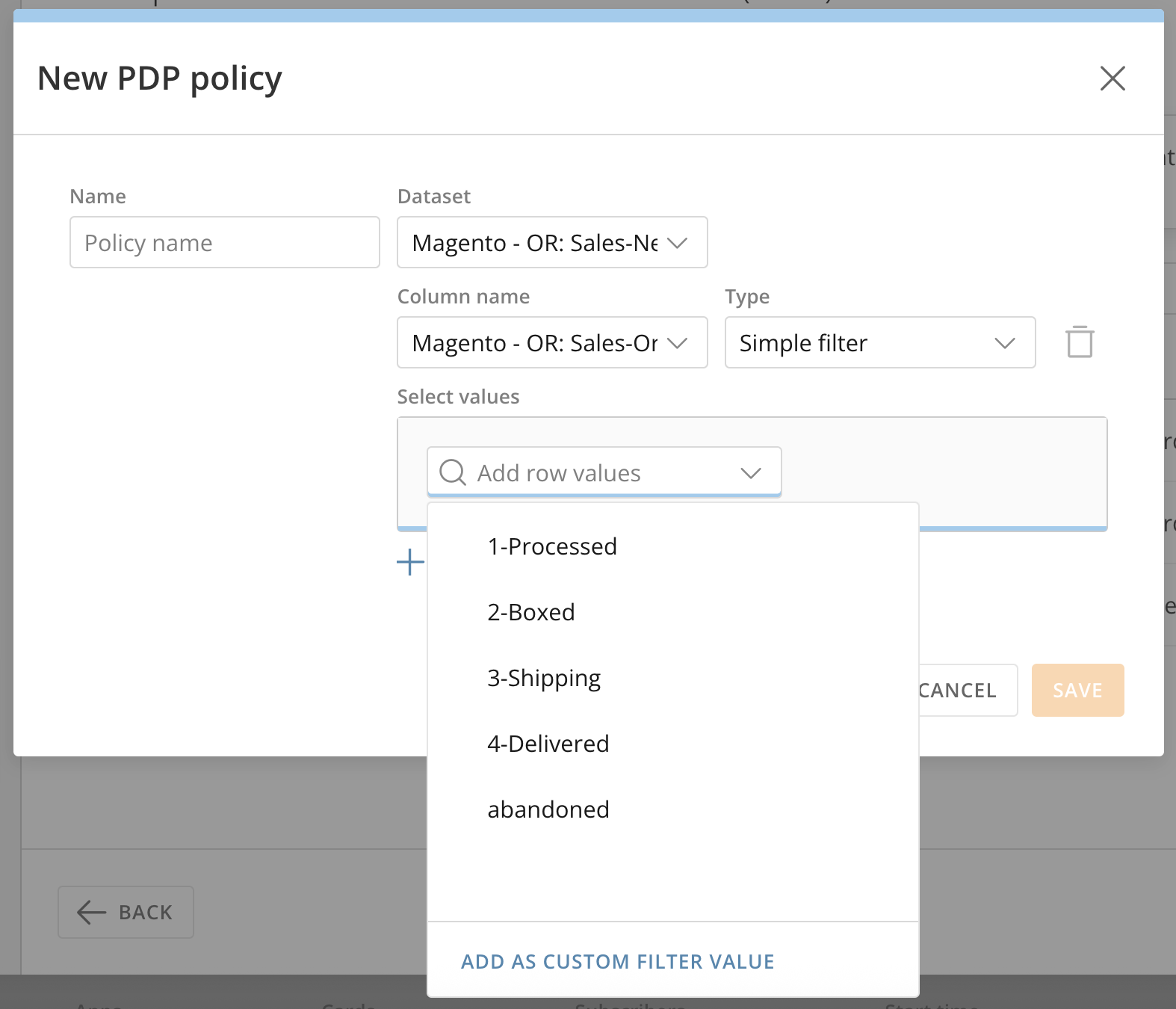
- Select Save to save and close the modal.
Update Publication Owner
If a publication owner ever changes their permissions or is no longer an active Domo user, their publications may not receive live data. To ensure that data for subscribing organizations is kept current, publication owners may be changed. Admins can follow the steps below to update a publication owner.- Access Publications.
-
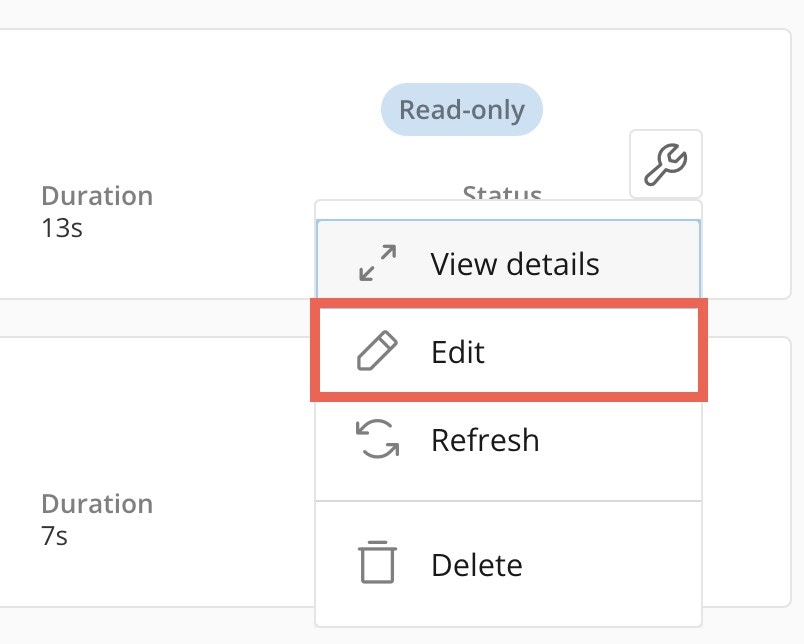
Hover over the publication where you want to change the owner and select
 Publication Options >
  Edit to open the edit modal.
-
In the Publication Name section, locate the Owner field. Find and select the new publication owner.
- Move through the modal, making any other changes to the publication.
- In the Review section of the modal, review your changes and select Save to close the modal and update the publication owner.
Manage Subscribers
You can add more subscribers to a publication by following these steps:- Access Publications.
-
Hover over the publication where you want to change the owner and select
 Publication Options >
  Edit to open the edit modal.
-
In the Subscribers section of the modal, you can add subscribers to your publication.

Refresh a Publication
If you change a published dashboard or a card on a published dashboard, you must refresh the publication to display the changes for a subscribing organization.- Access Publications.
- In the publications list, locate the publication you want to refresh.
-
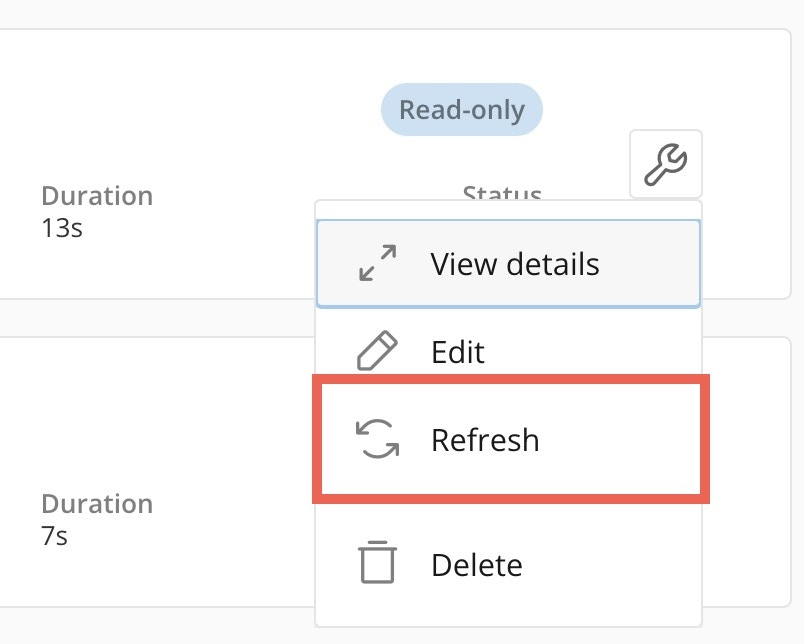
Hover over the publication and select
 Publication Options > Refresh to display the publication details.
- Check the boxes to perform a targeted refresh for the subscribers you select. You can sort the publications by status to see which subscribers have an error.
-
Select Refresh.

Delete a Publication
- Access Publications.
- In the publications list, locate the publication you want to refresh.
-
Hover over the publication and select
 Publication Options > Delete.
The Delete Publication dialog displays a warning and the amount of content you are removing. You must acknowledge the removal of the content before you can proceed.
Publication Options > Delete.
The Delete Publication dialog displays a warning and the amount of content you are removing. You must acknowledge the removal of the content before you can proceed.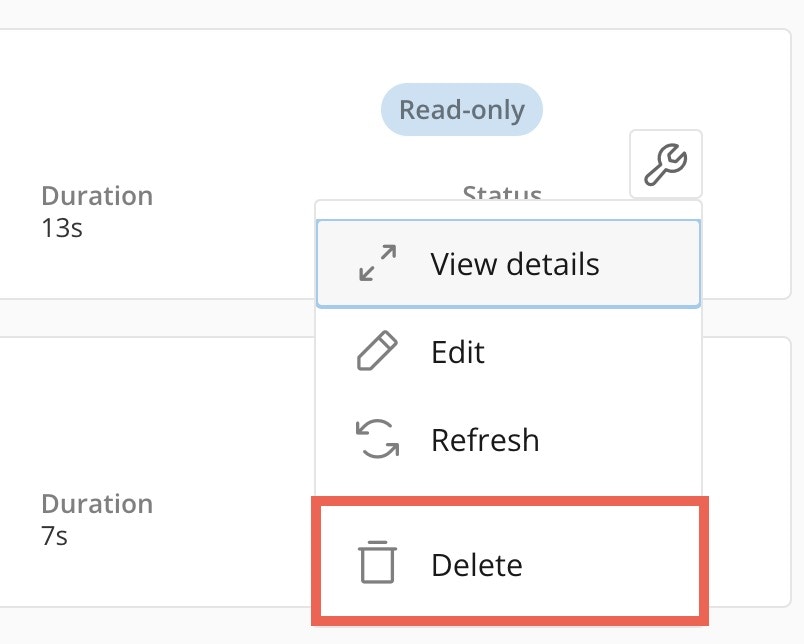
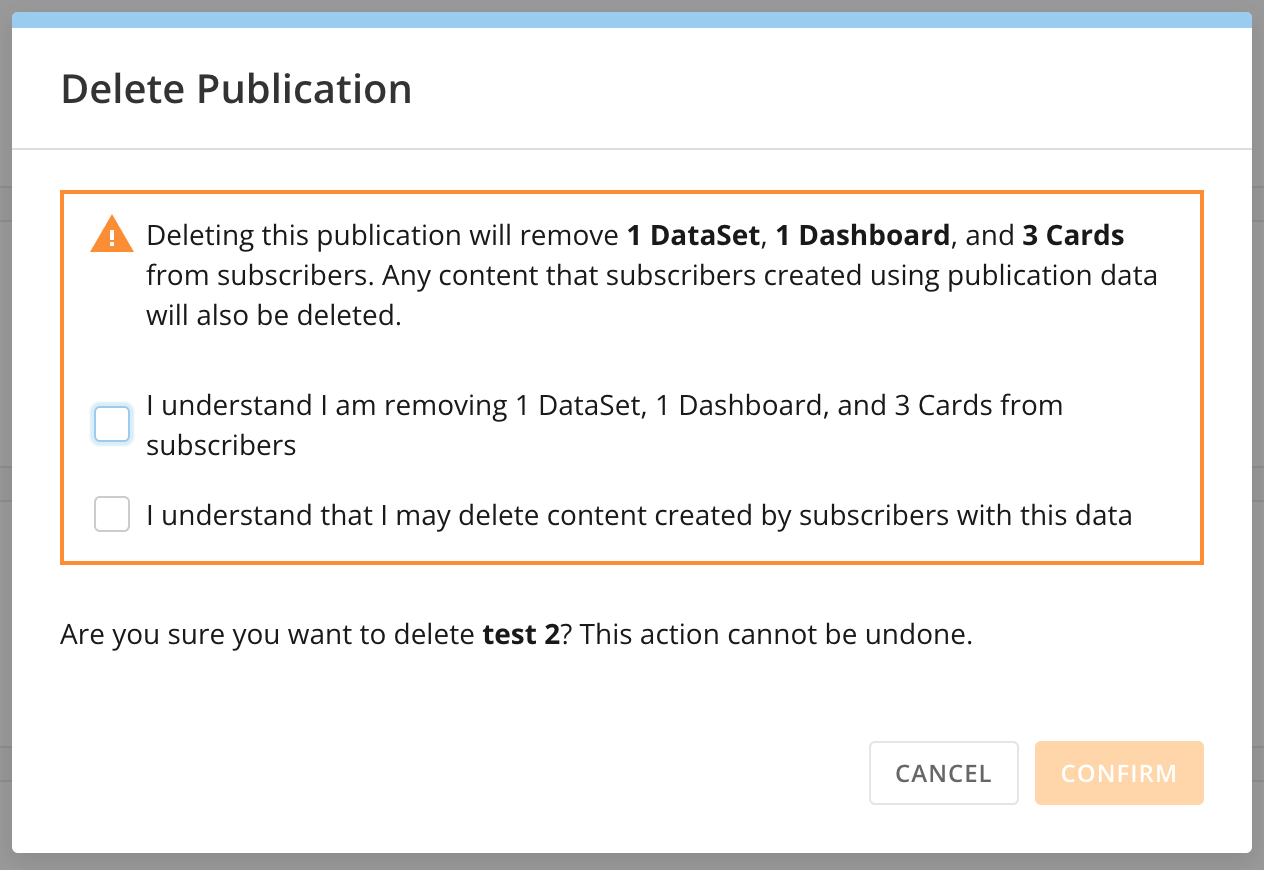
- Check both boxes to confirm the content you are removing from subscribers and that you understand you may delete content created by subscribers with this data.
-
Select Confirm to delete the publication.
Note: Confirming deletion immediately removes the dashboards, cards, and DataSets included in this publication from all subscriber instances.
Remove a Dashboard from a Publication
To preserve the DataSets powering a dashboard in a publication while removing the dashboard itself from the publication, confirm that all of the DataSets you want to keep are reselected in the DataSets section of the Publication Creation modal before saving the publication.Publish the Same DataSet in Two Publications
Each publication pushes all of the DataSets it contains to the subscribers, even if any of the DataSets already exist in the subscriber’s Domo environment due to an existing publication containing the DataSet(s). Within the subscriber instance, each copy of the DataSet has the same name, but different values forDataset\_Id. Each copy of the DataSet is tied to the specific publication it was published with.
Subscription Tasks
Configured subscribers can subscribe to an existing publication by invitation. With auto-subscription, a subscribing organization can trust and accept all subscriptions from a specific publishing organization rather than individually accepting every subscription.Subscribe to a Single Publication
The individual in the subscribing organization who accepts a subscription invitation from the publisher becomes the subscription owner. They own all the content that is published in that subscription. For example, Farah from Organization A publishes the content to Organization B. Farah is the publication owner. John in Organization B accepts the subscription invitation and is now the subscription owner. To receive the published content, an individual in the subscribing organization must follow the steps below:- Navigate to Domo Everywhere.
- Select Subscriptions.
-
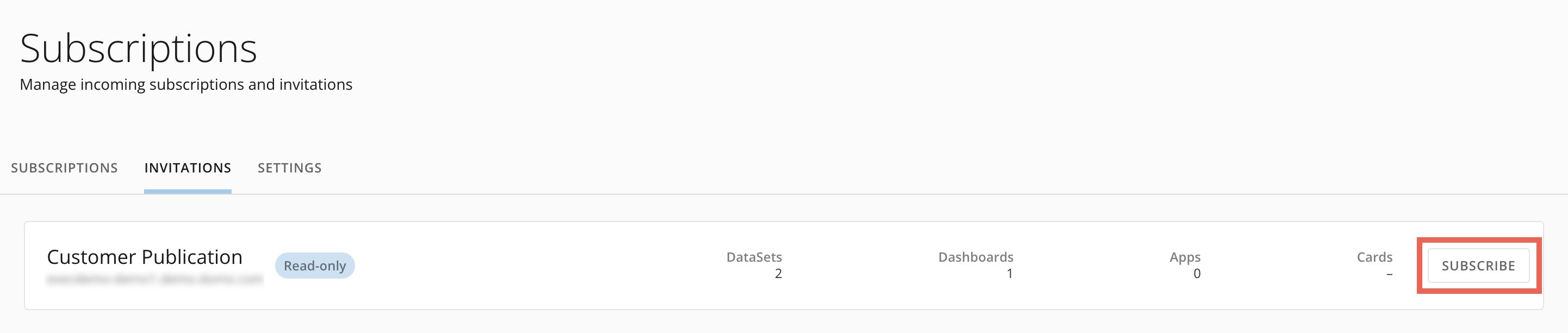
Go to the Invitations tab and select Subscribe for the invitation you want to accept.
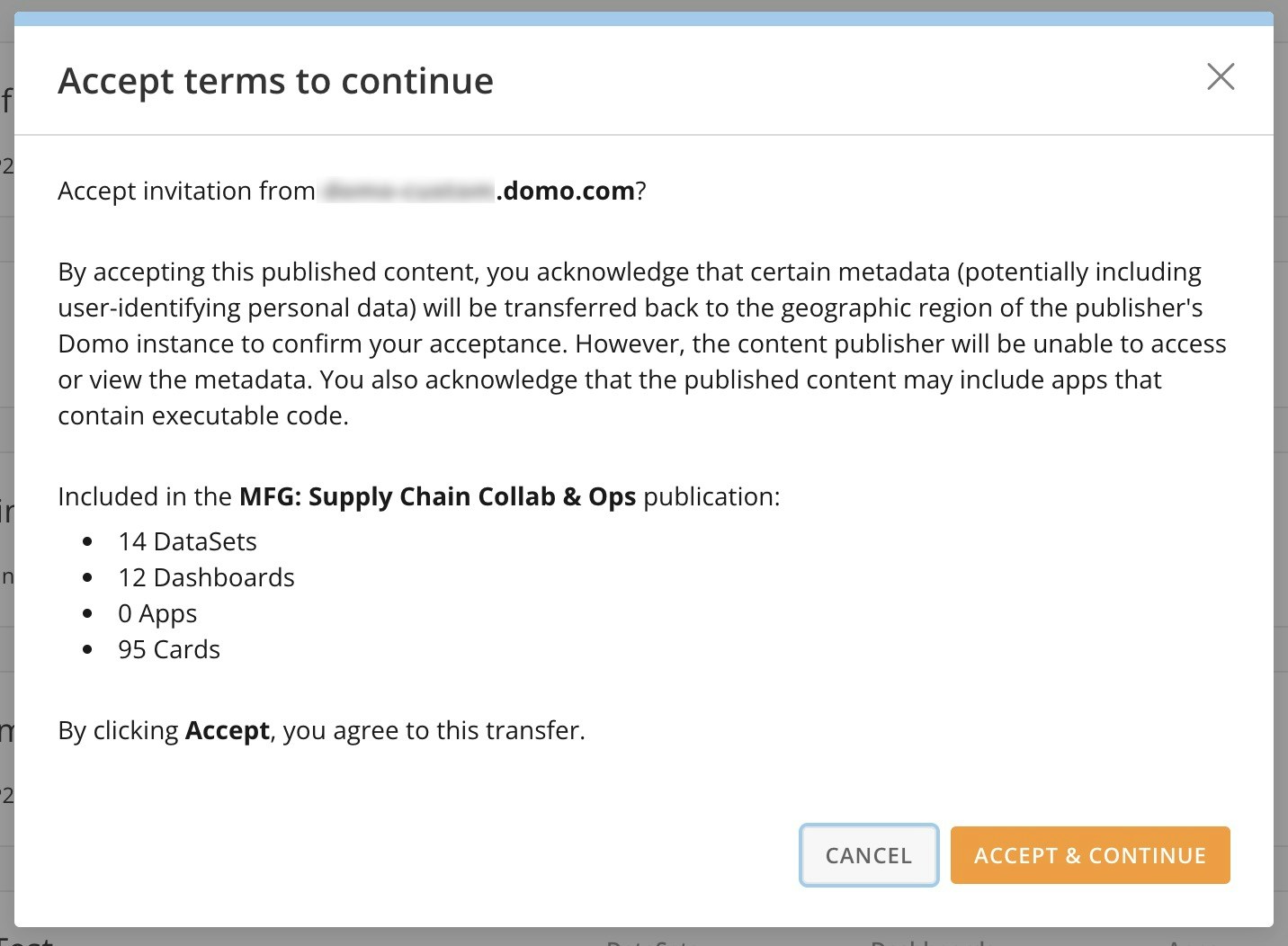
A dialog displays to confirm acceptance. Select Accept & Continue to confirm the subscription.
- Choose the subscription owner. This individual owns all the content that is published in the subscription.
- (Optional) Share the subscription with other individuals and groups.
- Select Complete. The published data populates in the subscriber instance. The process is complete when the invitation disappears from the Invitations tab and the new publication appears in the Subscriptions tab.
Auto-subscribe to All Publications From an Instance
Follow these steps to auto-subscribe to publications from a specific instance:- Navigate to Domo Everywhere
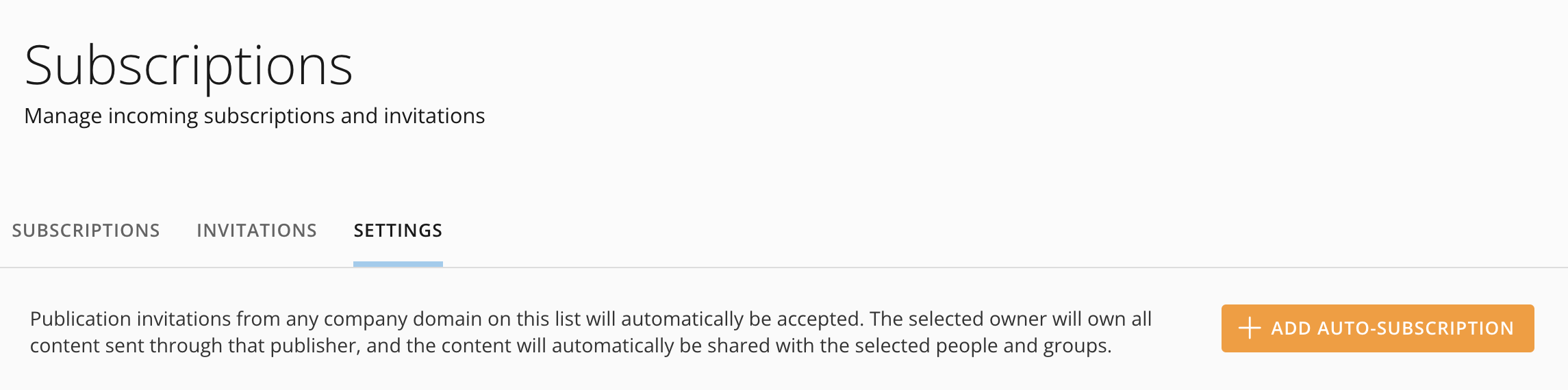
- Select Subscriptions and go to the Settings tab.
-
Select + Add Auto-Subscription to open the new auto-subscription modal.
-
In the modal’s Domain name field, enter the Domo domain name for the publishing organization. The format is <<companyname>>.domo. com.
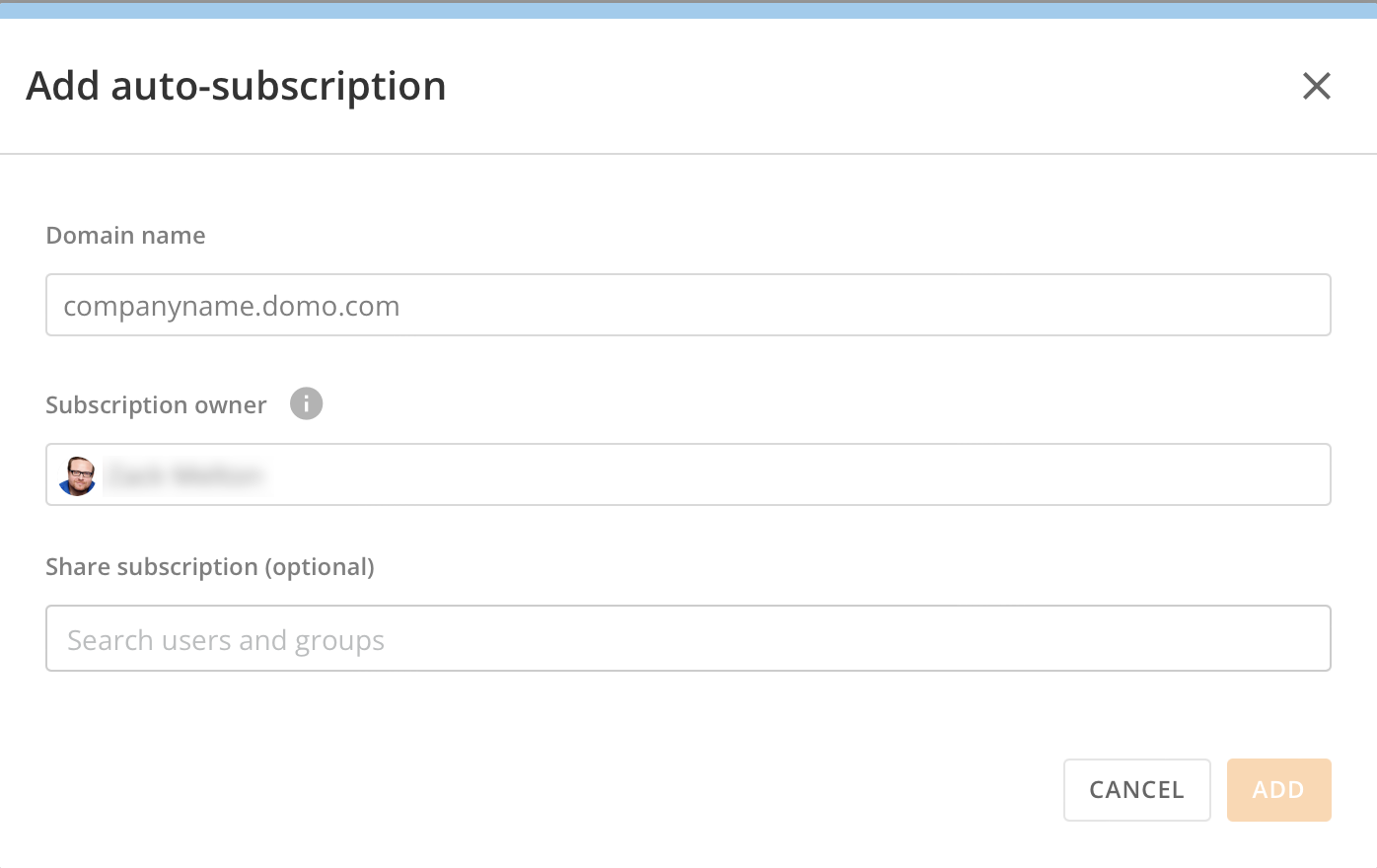
- In the Subscription owner field, enter a name for the subscription owner. By default, the subscription owner is the individual adding the auto-subscription. We recommend that the owner be a service account.
- (Optional) In the Share subscription field, search for and add individuals or groups to this auto-subscription. While this step is optional, this field is where you can configure Default Sharing, as described below.
- Select Add to add the auto-subscription.
Note: You can edit or remove the auto-subscription from the Settings tab. You cannot remove the auto-subscription from the subscriptions list in the Subscriptions tab.
Default Sharing
Default Sharing allows subscribers to automatically share all publications from a specified publishing instance to any number of individuals or groups.- In the Add auto-subscription modal, accessed while adding an auto-subscription, enter the Domo domain for the publishing instance you want to share publications from automatically.
- In the Share subscription field, enter any individuals or groups to push publications automatically.
Lock a Published Dashboard
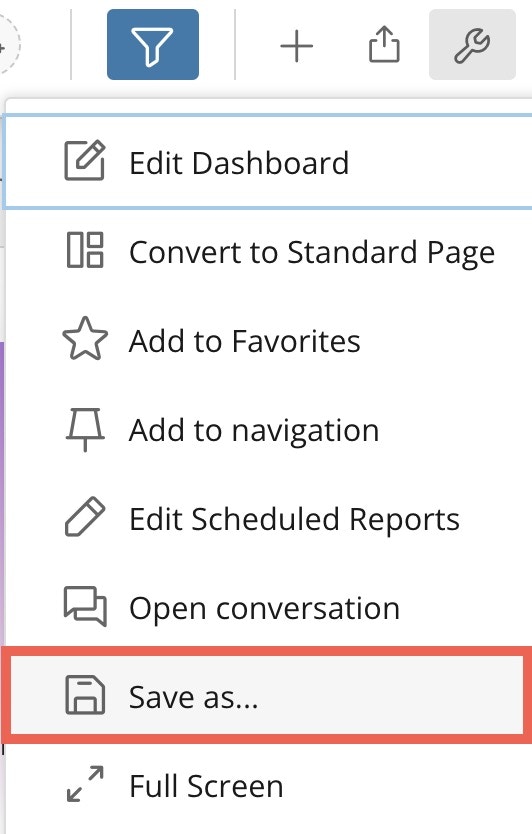
We recommend that subscribers lock published dashboards after successfully subscribing to a publication. The reason is that if the publisher updates the visualizations on their side, those changes automatically override any changes made by subscribers. Lock a dashboard by selecting Lock at the top of the dashboard.
 Dashboard options >
  Save as. After saving a duplicate of the dashboard, you can make changes to the duplicated version.
Unsubscribe from a Publication
- Access Publications.
-
In the Subscriptions tab, find the publication you want to unsubscribe from and hover over it until
 Subscription options displays.
-
Select
 Subscription options > Delete.

-
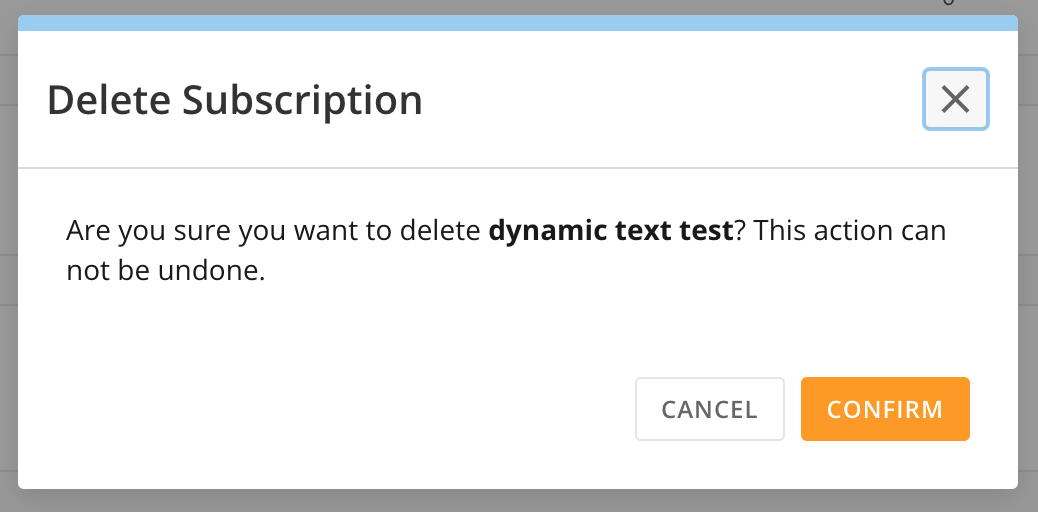
A confirmation dialog displays. This action cannot be undone.
-
Select Confirm to delete the subscription.
Note: Confirming deletion immediately initiates the removal of dashboards, cards, and DataSets included in the publication from the subscriber environment.
PDP Policies for Published Content
This section contains information about publishing content with Personalized Data Permissions (PDP).Keep in mind:
- If you publish the same DataSet in two publications to the same subscriber instance, the PDP policies of the most recently saved publication are used for data permissions.
- This means that i f you want to share the same DataSet to the same subscriber instance twice with different permissions, you must duplicate the DataSet in the publisher’s Domo environment.
Dynamic PDP
When you create a publication using the Dynamic PDP by Org ID permission type, only the part of the DataSet you want that subscriber to see is published to their Domo environment. This keeps your data more secure and you can always make a change to the data the subscriber receives at a later time. Dynamic PDP takes effect after the next refresh of the publication.Publish DataSet Views
You can use Domo Everywhere to publish DataSet Views. Learn more about DataSet Views.
Notes
The following notes provide more information about publishing processes.System Refresh
Occasionally, the system may have a cache issue and require 10–15 minutes for updates between the publishing and subscribing instances. If this happens, allow the system time between refreshes.Alerts for Published Content
Alerts do not copy from publisher to subscriber. Subscribers can create Card Alerts in their Domo instance to be triggered by numerical thresholds. DataSet Alerts for appending new rows or changing values are incompatible with the virtual DataSets from a publication. Subscribers can create DataSet Alerts for published DataSets in their Domo instance. These look and function differently than DataSet Alerts for standard, non-published DataSets. To create a DataSet Alert, select Create a new alert. Then follow the steps outlined in Creating an Alert for a DataSet. You cannot trigger alerts for published content every time the data updates, but you can schedule triggers (hourly, daily, etc).Calculations on Cards
Calculations on cards are only copied to the subscriber if they are being used in the published cards.Federated Data
You can publish federated data, but if the original source is federated, the published data cannot be run in a DataFlow.Color Palettes
You can publish an app in App Studio and include an instance chart color palette as a dependency. Whoever accepts the publication or invitation from the subscriber instance needs to have Admin rights to be informed of any color palette changes affecting the instance. Learn more about Color Palettes in App Studio.Filter Views
Default filter views do not support Beast Mode calculation fields in App Studio publications. This limitation is on the roadmap for future improvement.Need Support? If you need support with your publication after reviewing this document, contact us at support@domo.com.Include the following information in your request:
- Domo environment(s) where the behavior is occurring
- Publication name
- Description of behavior
- Screenshot of behavior (if applicable)
- Steps to recreate behavior (if known/applicable)