

Intro
Domo AI Chat lets you talk with your data from inside Domo using a familiar chat interface. AI Chat is context-aware, referencing DataSets and cards hosted either by an App Studio app or by the dashboard you are currently viewing. You can access a detailed breakdown of each step the model took to answer your question, and AI Chat also suggests additional questions to help you go deeper. AI Chat is session-specific, storing chats from past sessions that you can view in the chat history. As with all Domo AI tools, AI Chat has guardrails in place to ensure that your data stays safe and protected. Learn more about the Domo AI security and privacy standards.
Before you use AI Chat, review these resources:
standards.
Before you use AI Chat, review these resources:
-
Prepare your DataSets for AI
 .
.
-
Go through the
AI Chat implementation checklist
 .
.
-
See our
best practices for using AI Chat
 .
.
- Learn how to ask good questions about your data.
Reporting
The AI Chat Sessions DomoStats report contains information about user interactions with Domo AI Chat. See the detailed schema of the DataSet here.- Required grants
- AI Chat security
- Access AI Chat
- Use AI Chat
- Use AI Chat in the Domo mobile app
- Microsoft Teams integration (beta)
- Guidelines for good questions
- FAQ
Required Grants
To access AI Chat, all the following grants must be enabled for your role:- Use AI Services — Allows you to access AI services in Domo apps, Domo Bricks, Jupyter Workspaces, and Workflows. This grant should be given to anyone who needs to use AI services but does not need to manage them.
- Use AI Chat — Allows you to access and use the Domo AI Chat feature throughout Domo. Those with Privileged- and Participant-level roles have this grant enabled by default.
AI Chat Security
Domo AI Chat uses DomoGPT to ensure that your data is secure and maintains the same security settings seen throughout Domo. Learn more about Domo AI Security and DomoGPT .
.
Access AI Chat
AI Chat is available when viewing cards, dashboards, and DataSets, including inside App Studio. You can select AI Chat in the Domo navigation to access the AI Chat feature.
Note: Learn how to access AI Chat in App Studio.

Use AI Chat
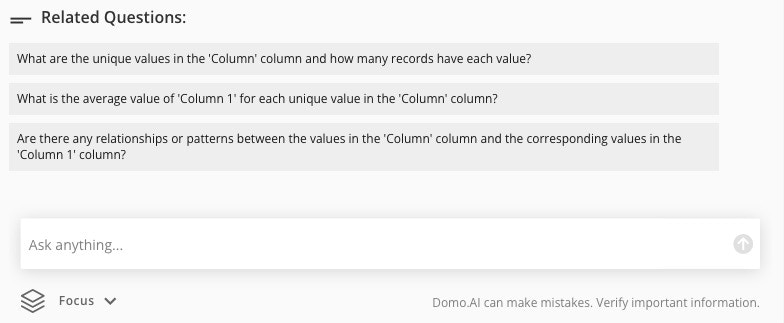
Because AI Chat is context-aware, you can ask questions while viewing a dashboard, card, DataSet, or App Studio app in Domo. When starting a new chat in the chat box, you can select one of the prompts AI Chat provides or enter your own. After submitting your question, AI Chat processes the prompt and displays every step it takes under Process steps. Learn about process steps. Answers always contain a written statement and a visualization. Learn more about visualizations in AI Chat.
Note: After receiving an answer, select Retry to have AI Chat retry to answer the question. This option is also available for AI Chat in the Domo mobile app.
Minimize/Close AI Chat
You can minimize or close AI Chat using the Minimize and Close actions.
Start a New Session
AI Chat logs a new session every time you leave your Domo instance and navigate back. You can also start a new session by selecting New Chat.
Access a Previous Session
To view old sessions, select History. The Chat history displays a searchable list of all of the conversations you have had with AI Chat in this instance. You can view, edit, or delete an individual conversation.

View Process Steps
AI Chat displays the steps taken to answer your questions as they are generated. These are called Process steps.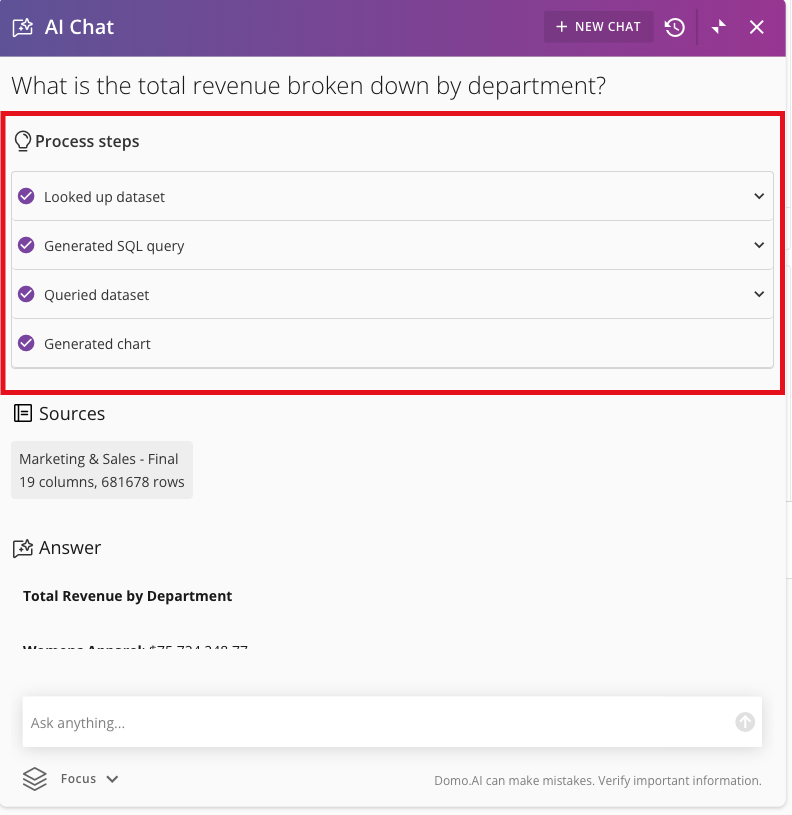
Sales by Sales Rep in Different Segments card. AI Chat displays each step taken, including looking up the DataSet, generating the SQL query, querying the DataSet, and generating a chart. The sources used by AI Chat to answer your question also display.
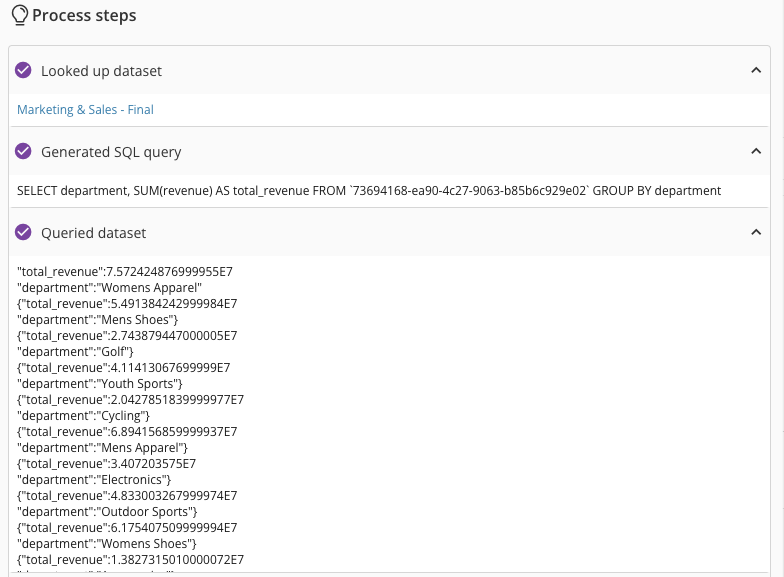
Each process step can be expanded to show additional information, such as a link to the DataSet used, the exact SQL query used to find the answer, or the query used on the relevant DataSets.
View Source List
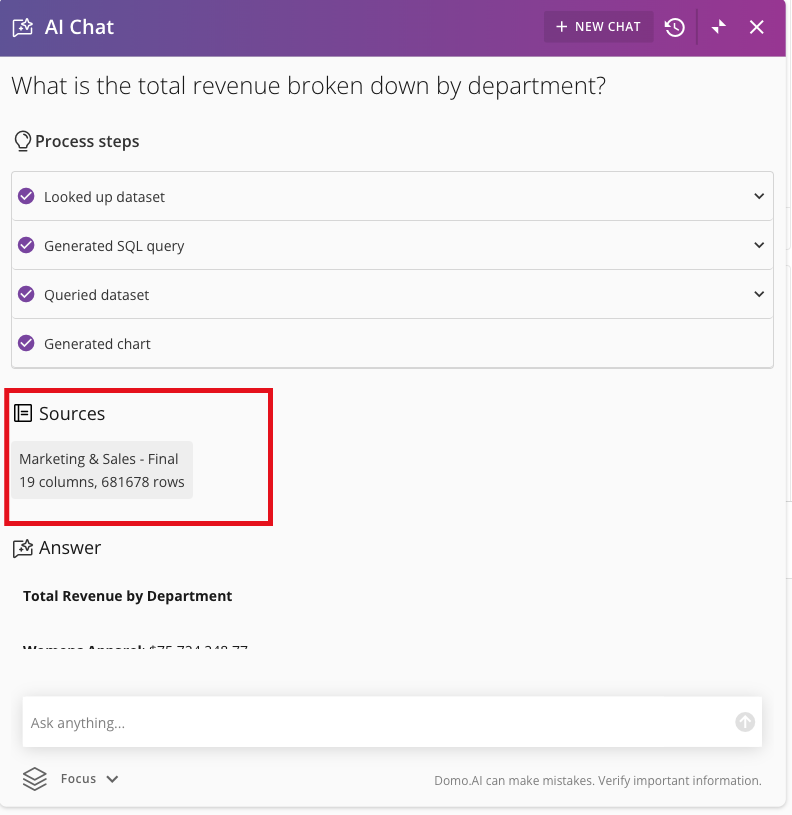
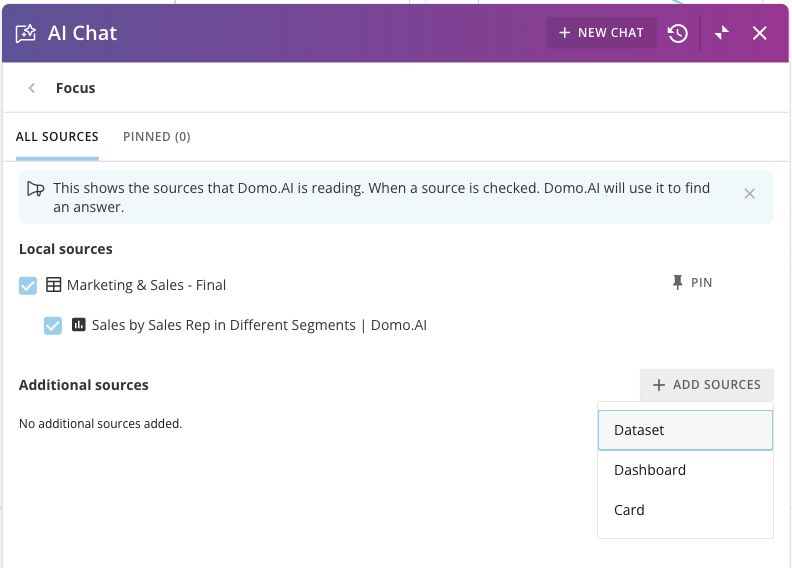
To answer your question, AI Chat uses the DataSets and cards on your dashboard or in your app. You can view the list of sources used in the query under the Sources header.Important: For DataSets with more than 50 columns and no defined Data Dictionary, a ‘Not all columns used!’ prompt displays under Sources. Learn more about defining a dictionary in our AI Readiness article.

Choose the Answer Visualization Type
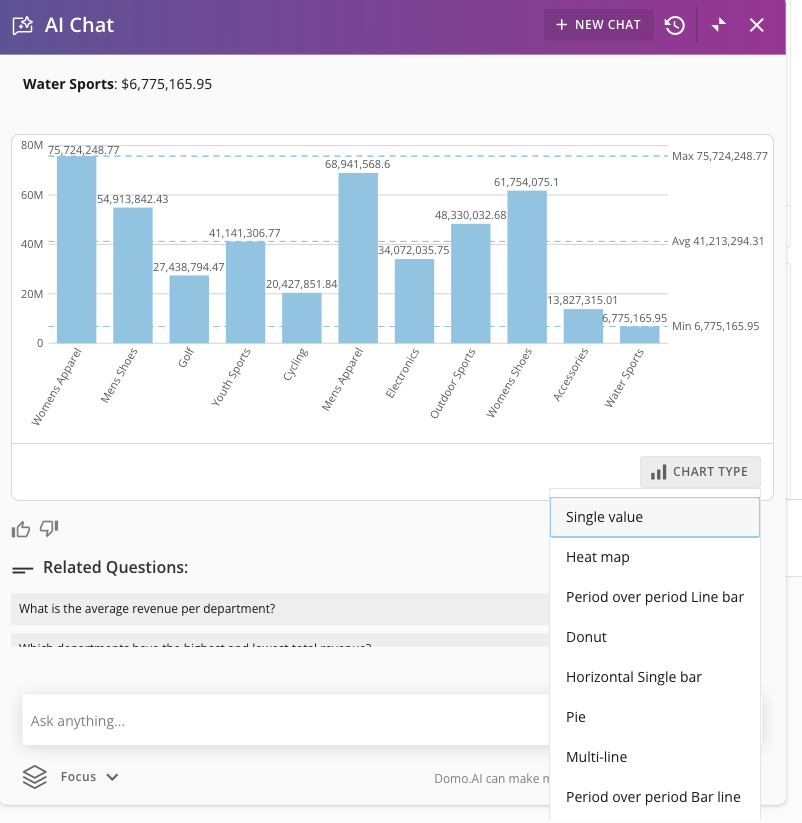
The answer to your question always displays as a visualization and a written statement.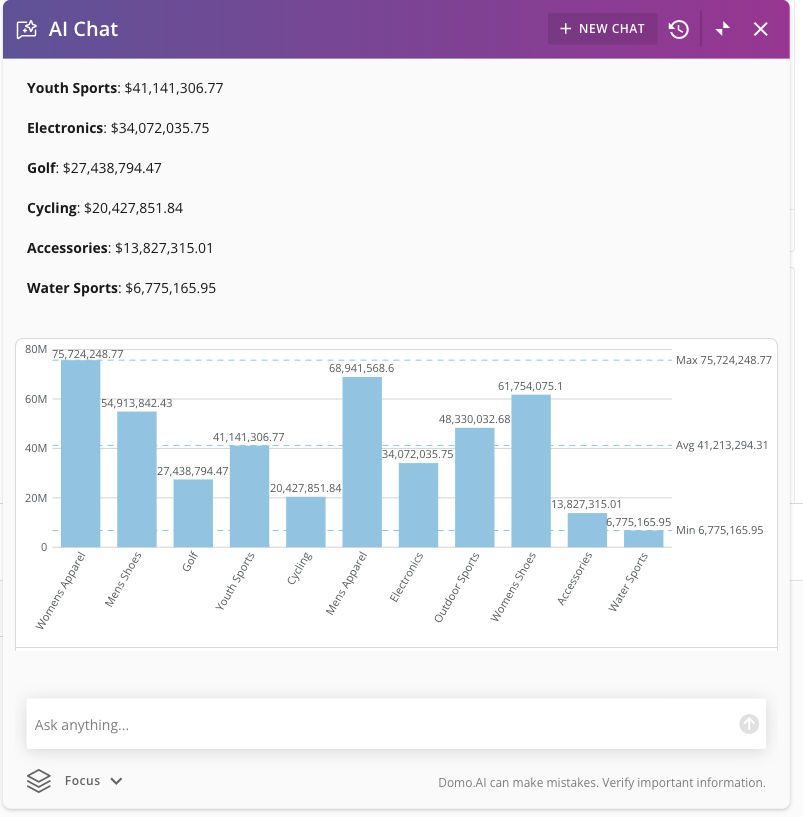
Leave Feedback
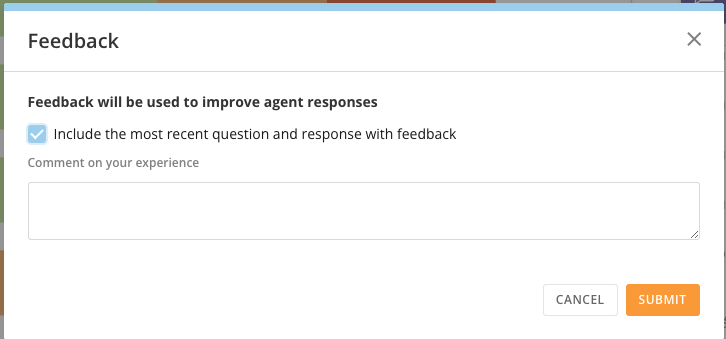
You can provide feedback to the AI Chat development team, including information about unexpected results or questions. Select the thumbs up or thumbs down icons in the chat to indicate an answer’s usefulness or select Leave Feedback to comment on your experience and include examples from your session. This option is also available for AI Chat in the Domo mobile app.
Use AI Chat in the Domo Mobile App
You can also use AI Chat in the Domo mobile app to answer business questions and generate corresponding visualizations. AI Chat is available for all Domo mobile users and does not require any grants or permissions.Access AI Chat for Mobile
In the Domo mobile app, select More (three horizontal lines icon) > AI.
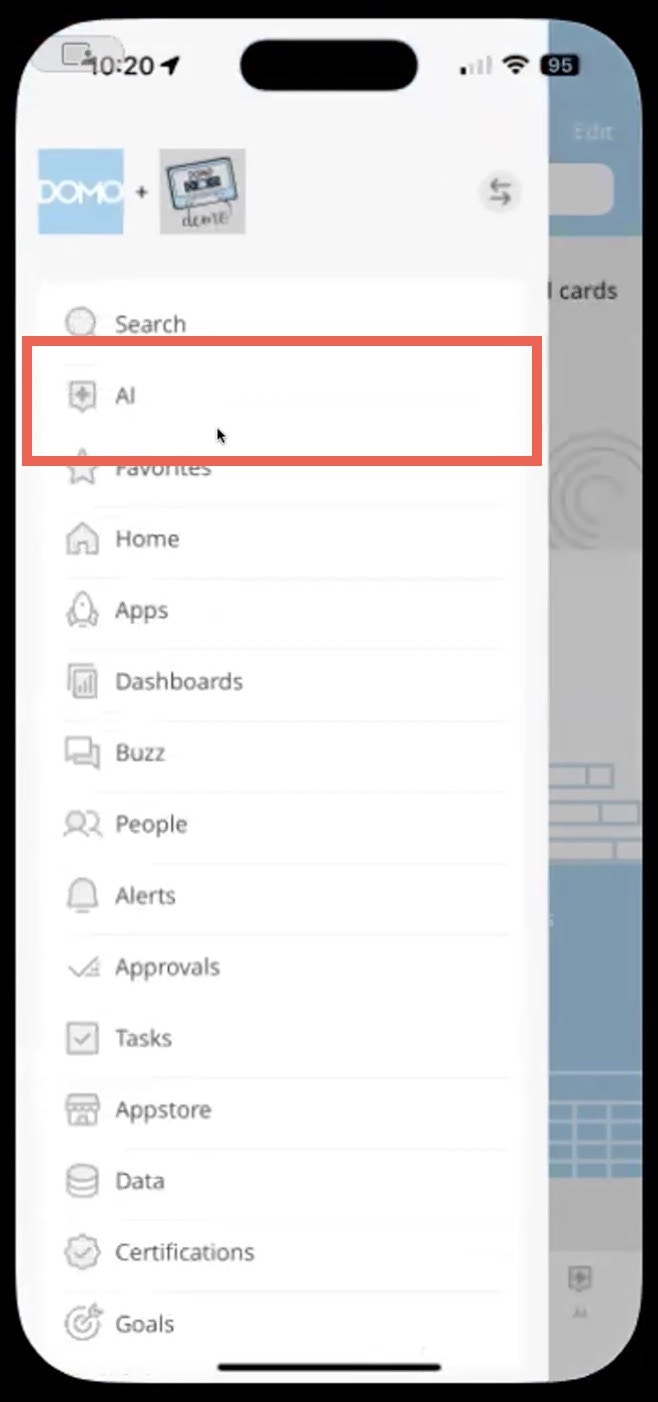
Note: By default, AI also displays in the app’s bottom navigation. To change this, learn how to customize the Domo mobile app.
Choose Domo Data to Focus On
AI Chat for mobile allows you to choose a specific Domo DataSet, or “focus item,” to use when answering your prompt or query. To choose your focus item, follow the steps below:- In the Domo mobile app, access AI Chat.
-
Select Focus below the prompt field.
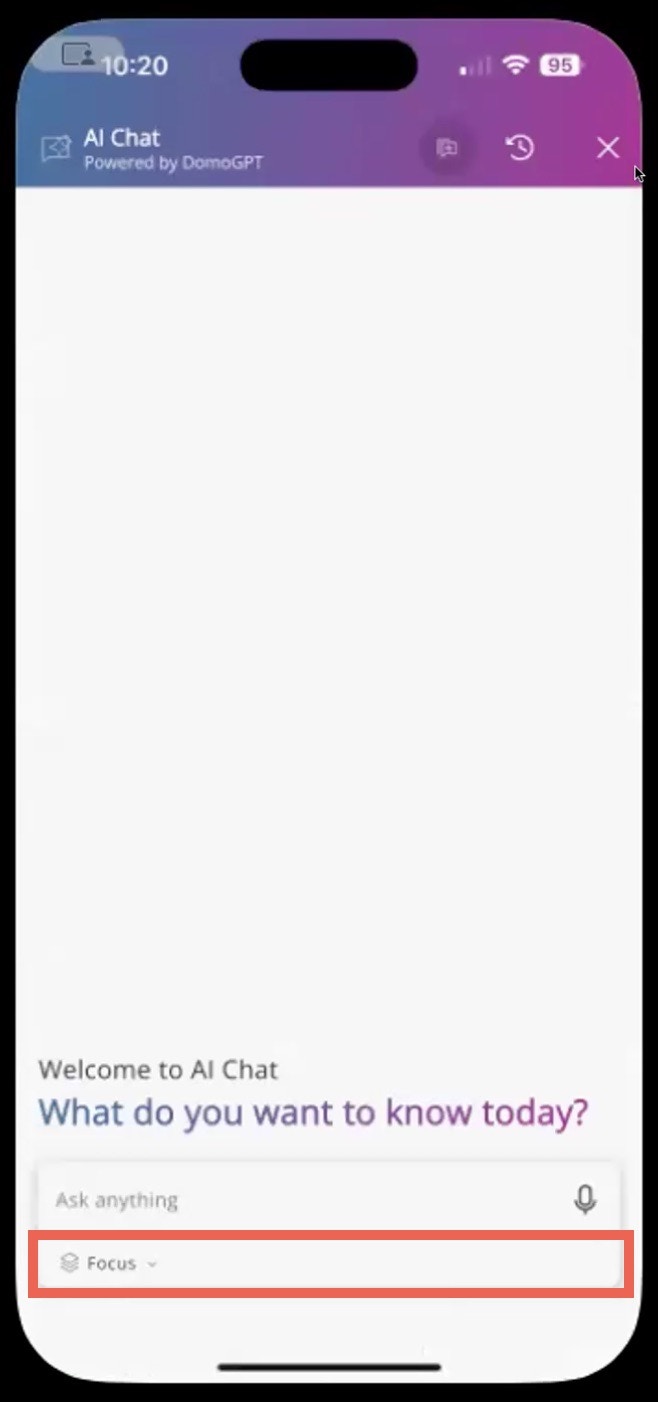
-
Select Add Focus Item.
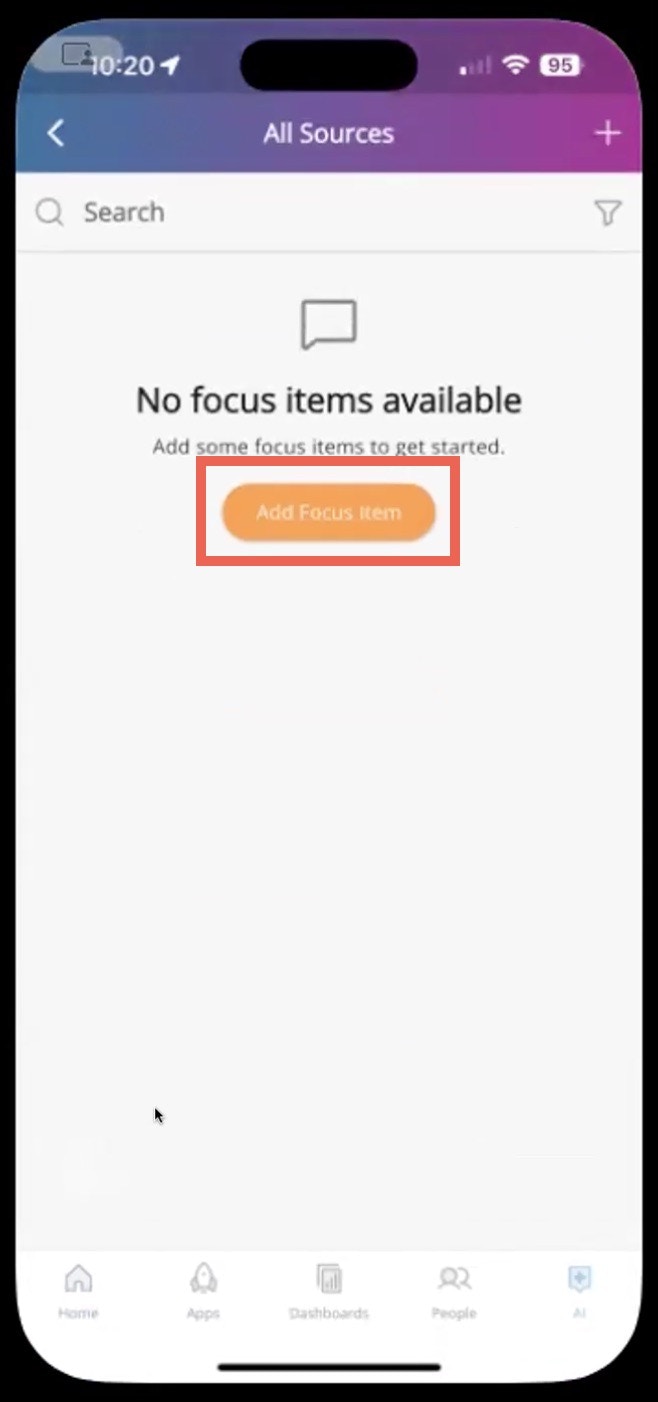
-
Use the search tool to find and select the DataSet(s) to bring into the chat. Selected DataSets have a blue toggle.
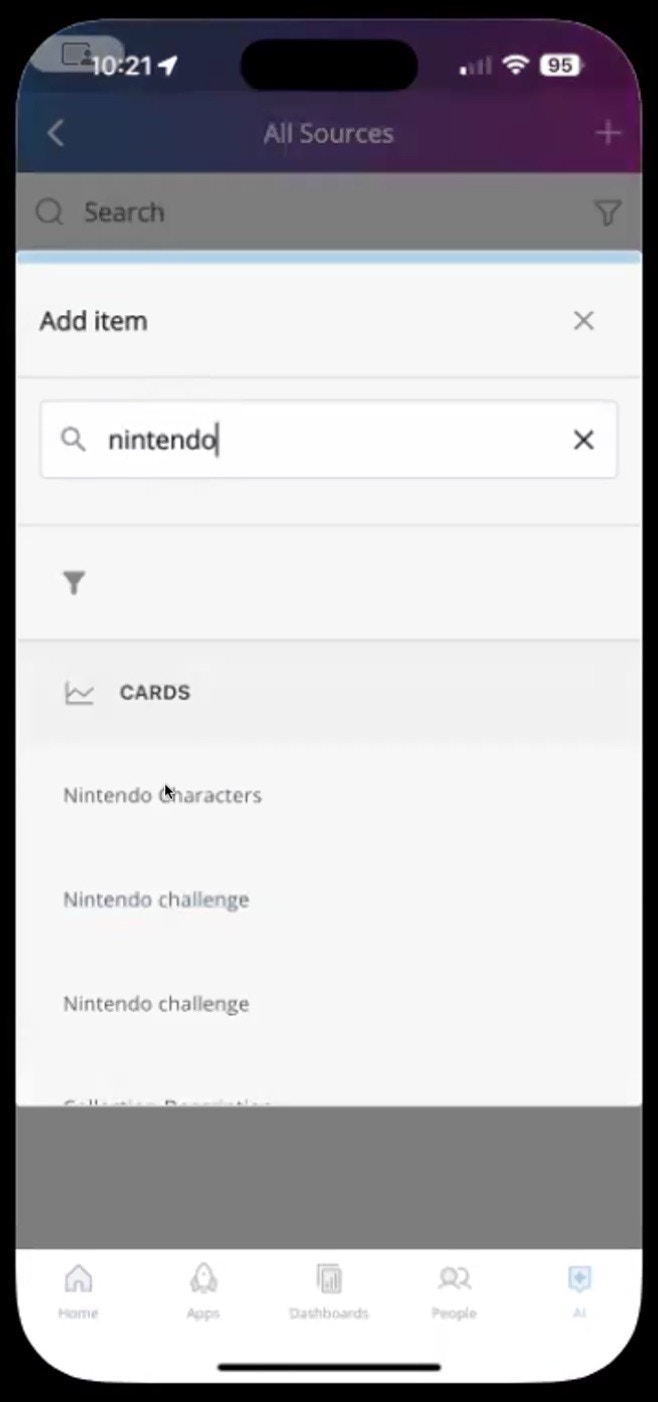
 Tip: You can pin frequently used DataSets to the Focus window for easy access. Select the
 Pin icon.
Ask Questions with AI Chat for Mobile
- In the Domo mobile app, access AI Chat.
-
In the prompt field (text in the field says “Ask anything”), enter your prompt or question and select Enter/Return on your device keyboard.
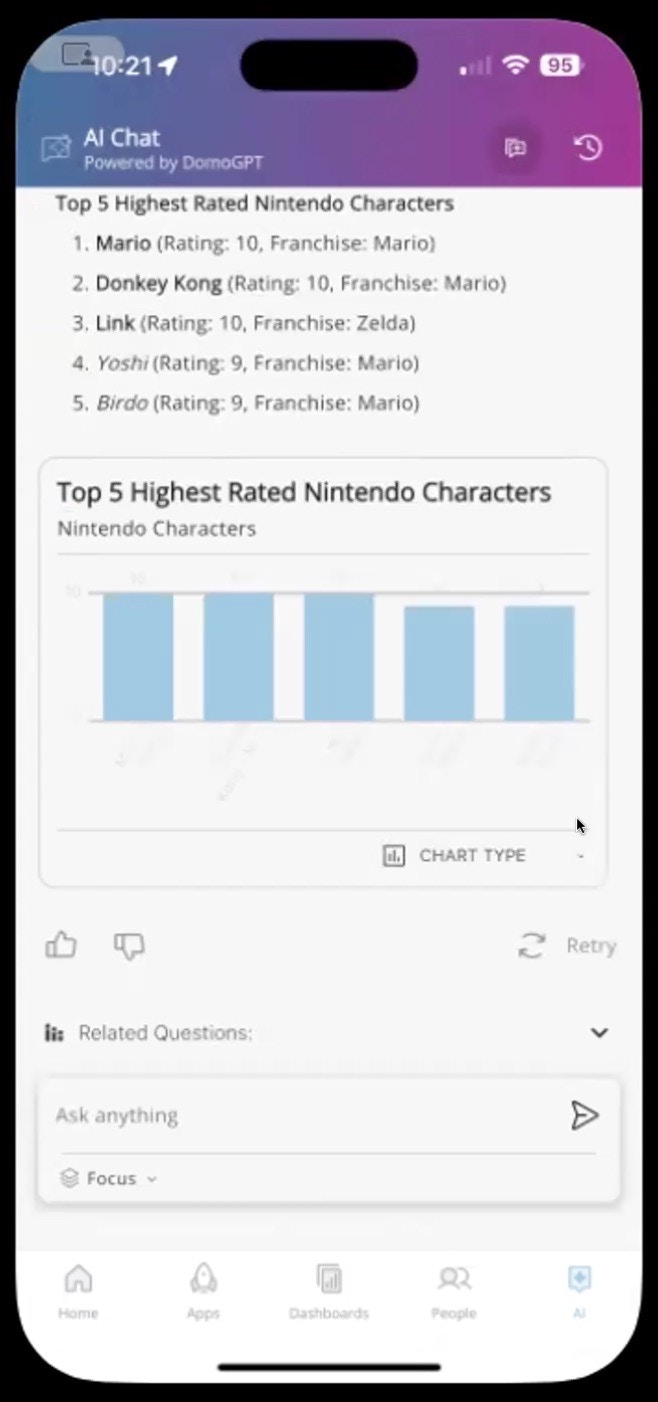
AI Chat generates an answer using the data you chose to focus on.
-
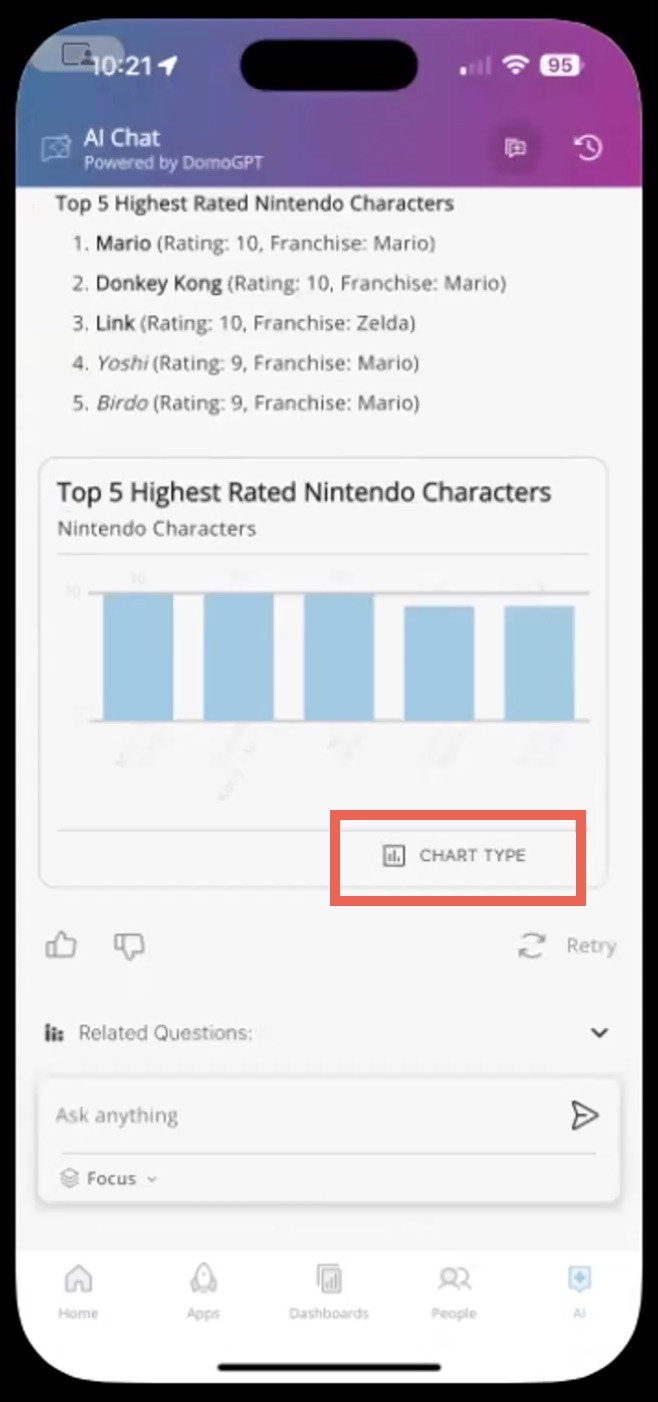
(Optional) Change the visualization type.
AI Chat answers your prompt with both text and a visualization chart. Change the visualization type in the chat by using the Chart Type dropdown menu below the generated chart.

Microsoft Teams Integration (Beta)
AI Chat in Microsoft Teams lets you talk with your Domo content and data from the MS Teams app. To get access to this feature, reach out to your Domo account team. There are two options for distributing the app:- Your MS Teams administrator can add the installer to the Added by your org or Built for your org sections in the Teams’ Apps menu.
- You can install the app manually using a zip file provided by the Domo team.
-
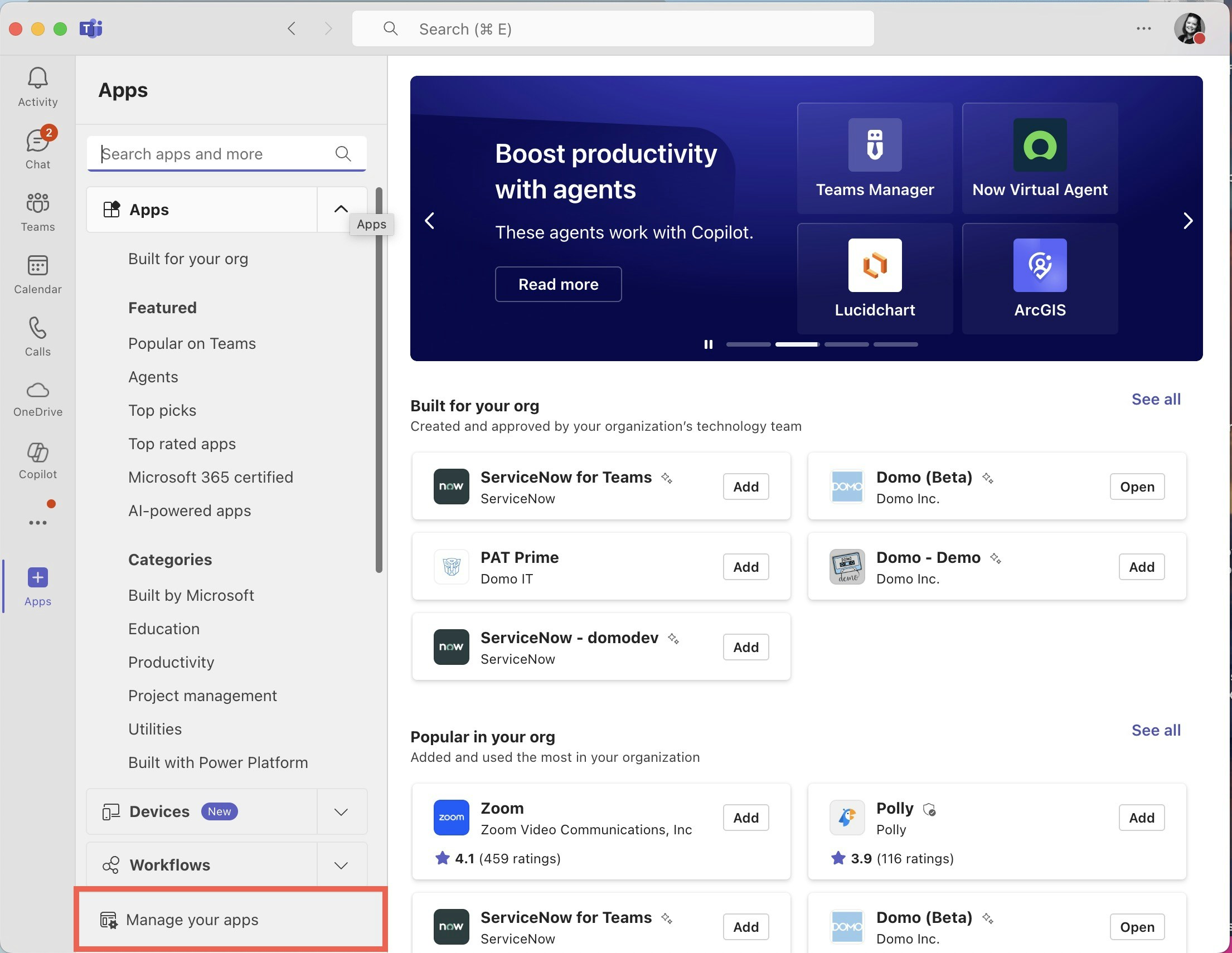
Inside MS Teams, go to Apps > Manage your apps.
-
On the Manage your apps page, search for the Domo app and select the arrow next to the app logo to expand the entry.

-
Remove the app by selecting the trash icon. In the confirmation dialog that displays, select Remove.


Install AI Chat with the MS Teams App Store
If your MS Teams admin has enabled AI Chat, follow these steps to install it in your app:- Inside MS Teams. navigate to Apps.
-
In the sidebar under Apps, choose Added by your org OR Built for your org.

-
Find the Domo app and select Add.

-
In the modal that displays, select Open to head to the app.

Install AI Chat Using a Zip File
If you want to install the app manually, contact your Domo team for access to the AI Chat zip file. This allows you to install the app directly in MS Teams. Follow these steps once you have access to the zip file:-
In MS Teams, go to Apps > Manage your apps.
-
Select Upload an app.

-
Select Upload a custom app.

-
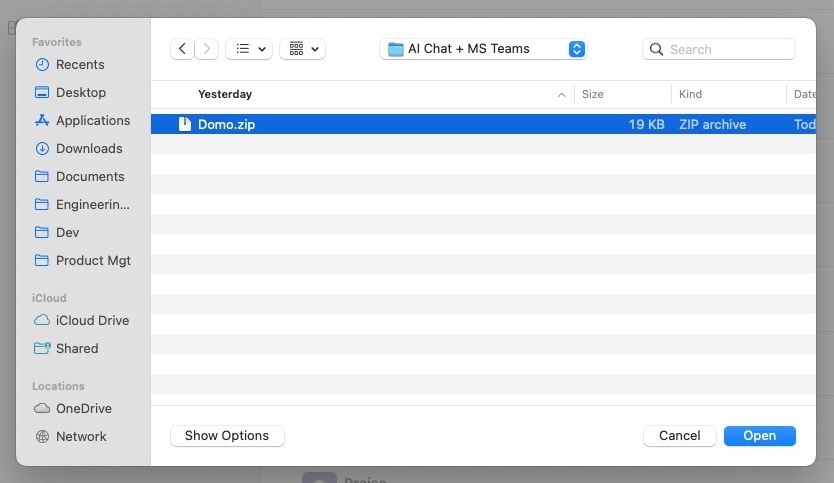
Find the provided zip file on your machine and select Open to upload it.
-
Select Add to install the app on MS Teams.
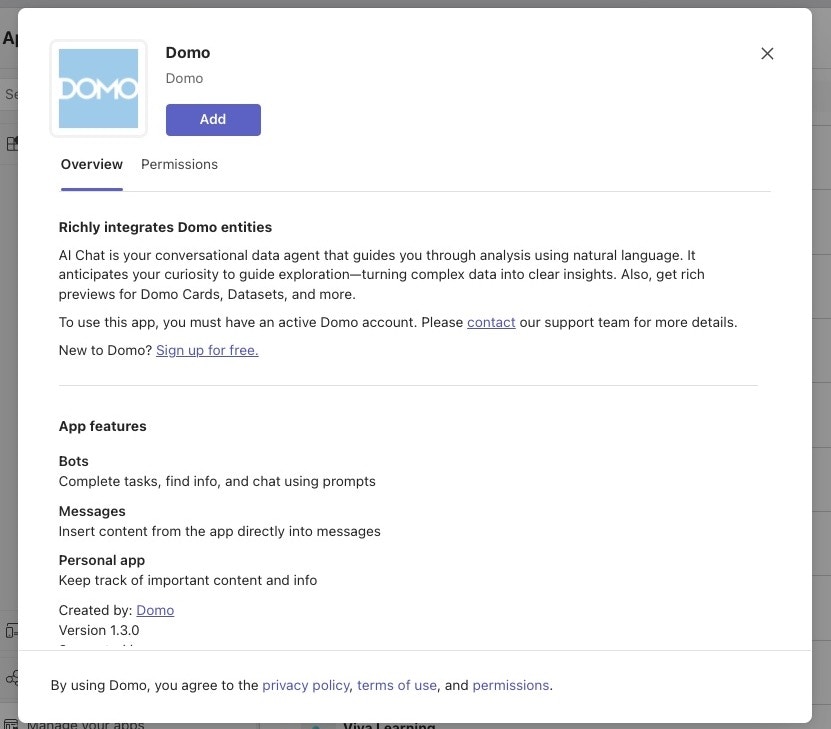
- After the app has finished installing, select Open to begin using AI Chat in MS Teams.
Sign into AI Chat in MS Teams
Follow these steps to start a new chat after you’ve installed the zip file to MS Teams:-
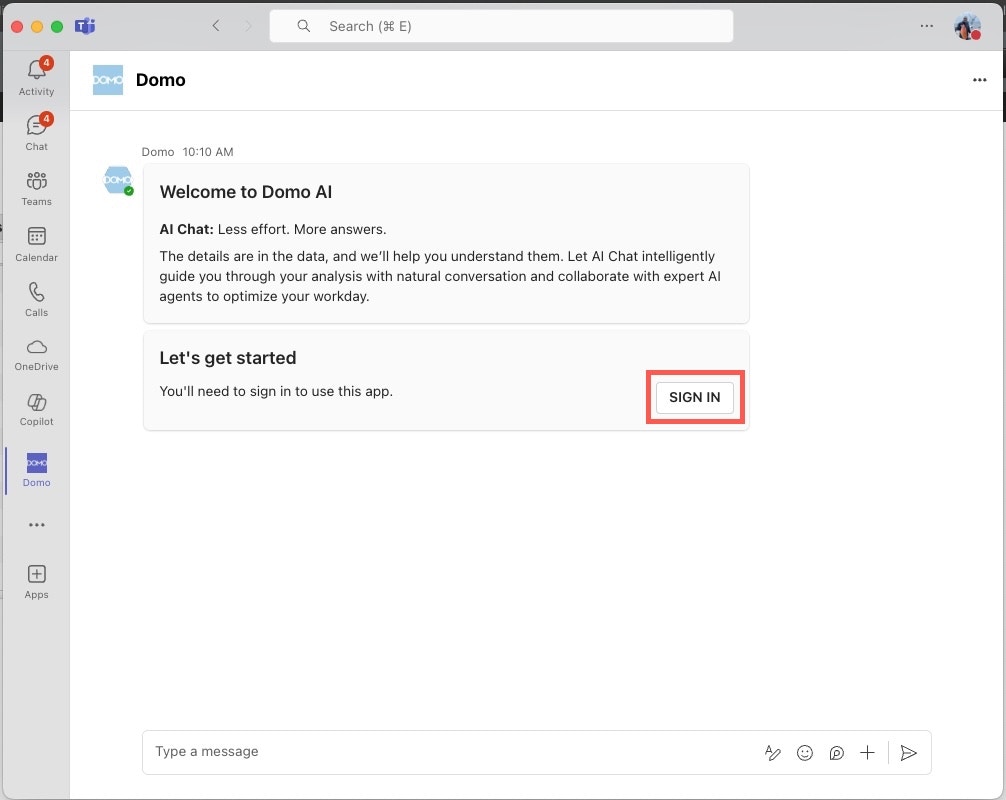
Use the Teams navigation to go to Domo.

-
Select Sign In to be redirected to authenticate with Domo.
Follow your organization’s authentication steps.
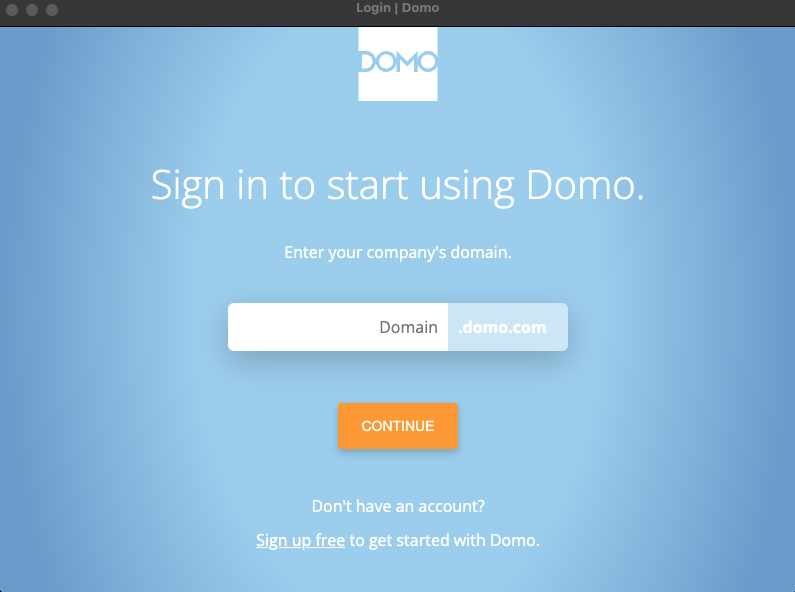
- Grant permissions for the app to access your data in MS Teams. After accepting the permissions, you can begin using AI Chat in MS Teams.
Use AI Chat in MS Teams
After installing the app, you can use AI Chat in MS Teams to interact with your Domo content, including cards, dashboards, and DataSets from your connected Domo instance. Follow these steps to begin using AI Chat in MS Teams.- Navigate to your chat window with AI Chat.
-
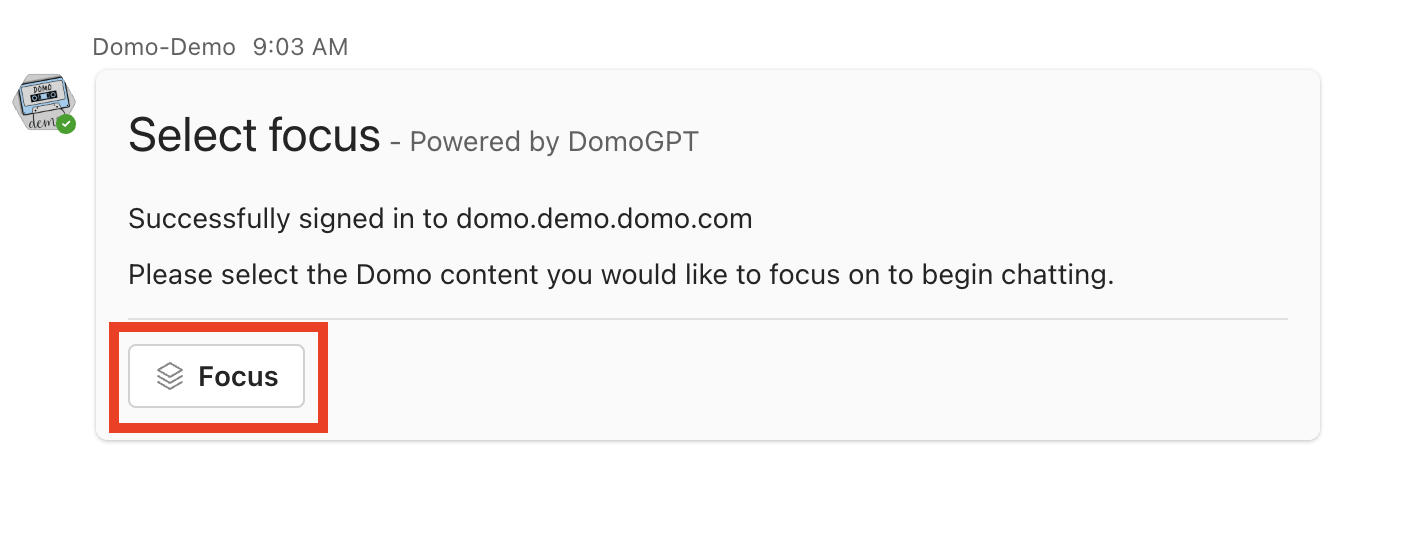
To begin interacting with the Domo content you want to focus on, select Focus.
-
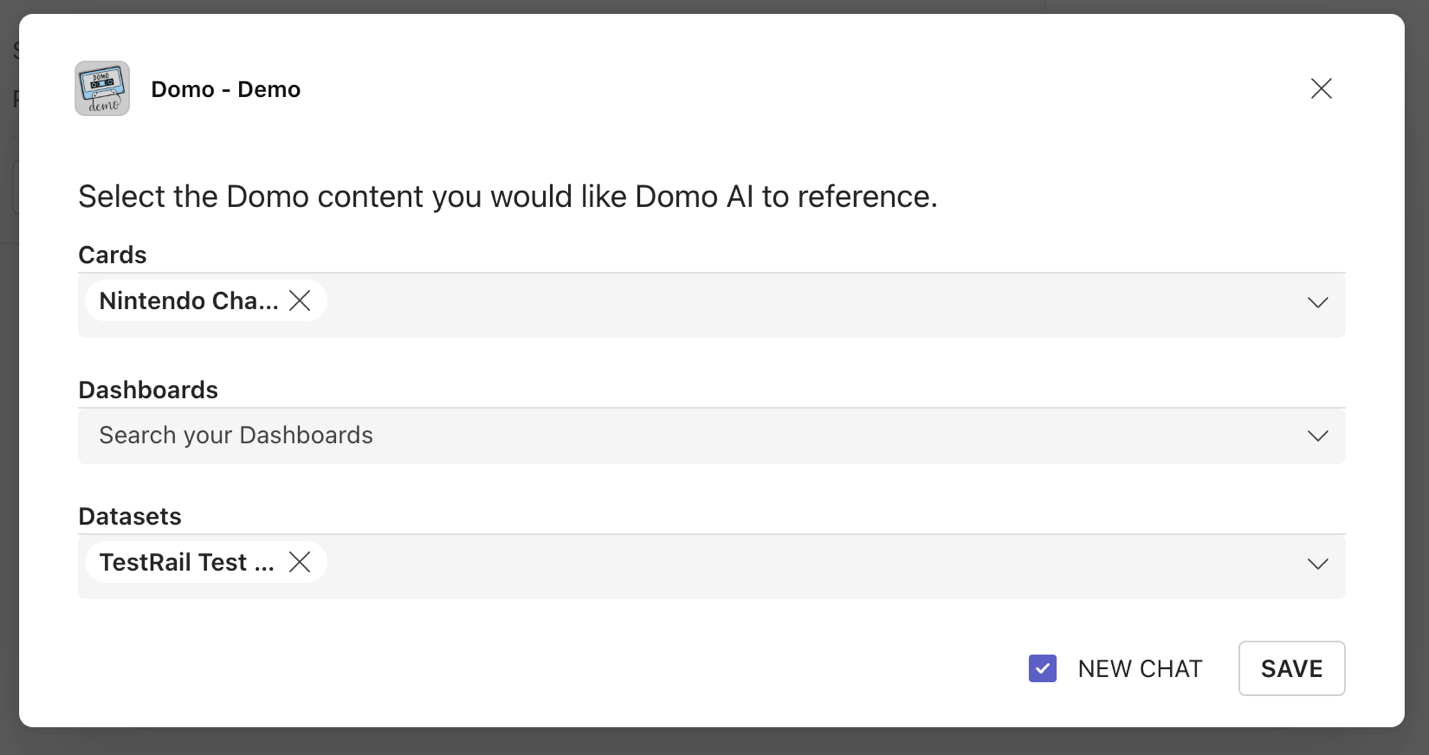
A new model opens. Select the cards, dashboards, and DataSets you want to use as context for your conversation with AI Chat and click Save. Selecting the New Chat checkbox opens a new chat window every time you start a new Focus session.
A confirmation message displays with the context you’ve selected.

-
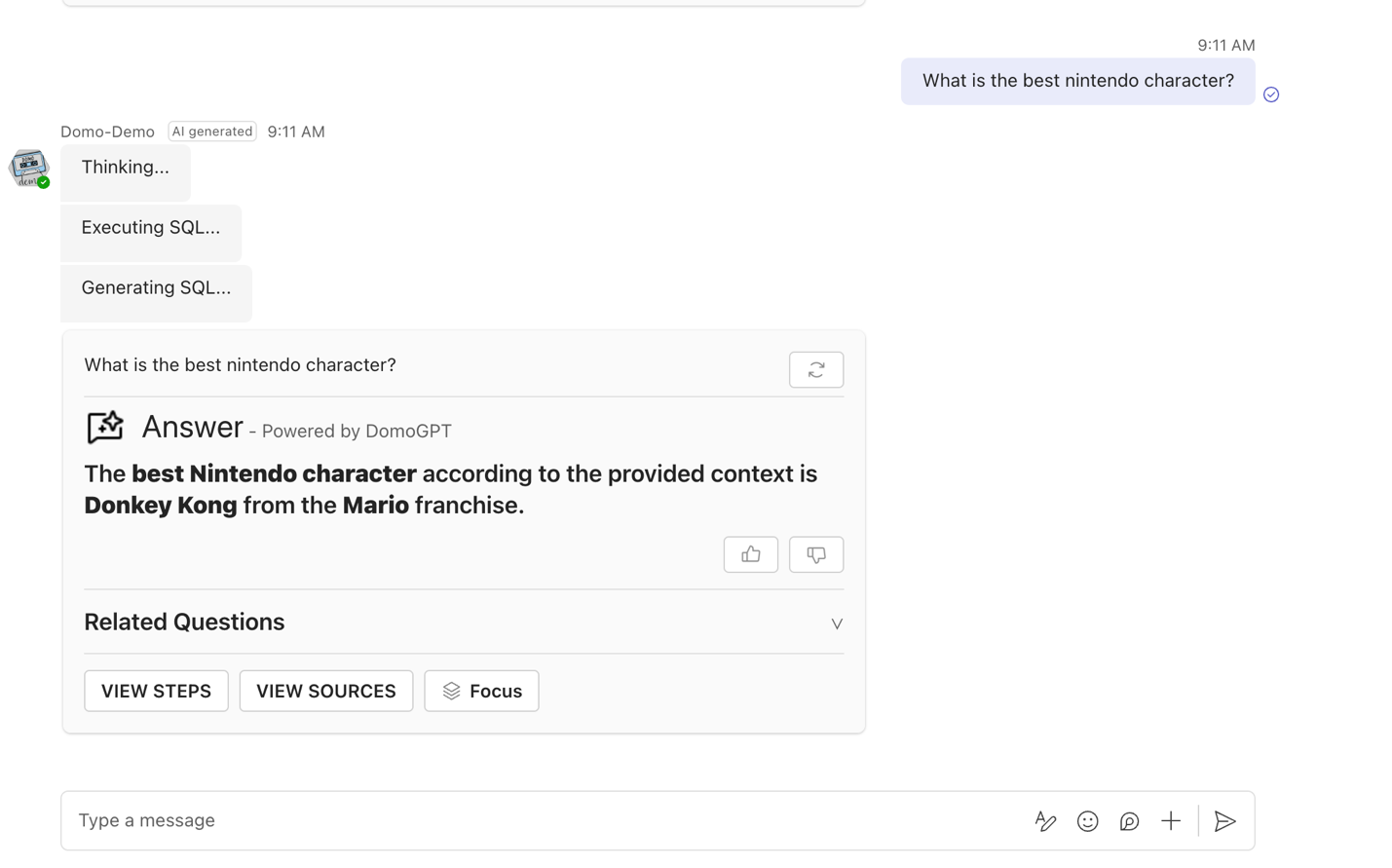
Start a new conversation by typing a question and selecting Enter in your chat window with AI Chat. AI Chat automatically analyzes your question, takes the necessary actions to answer it, and provides an answer.
-
Select Related Questions to see a list of related questions generated by AI Chat, allowing you to explore additional insights from your data.

-
Select View Steps to see the steps taken to find that specific answer. You can also view the SQL query generated by AI Chat.

-
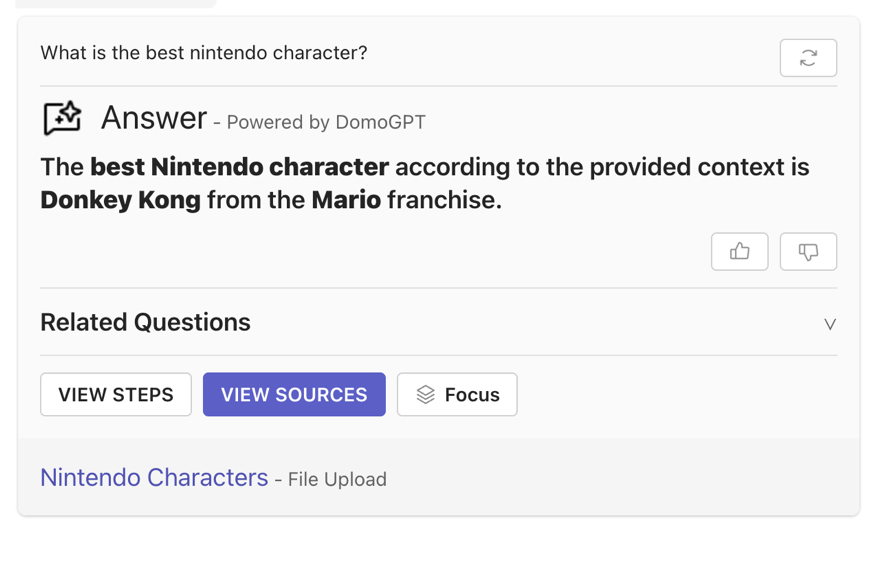
Select View Sources to review the datasources used to find the answer to your question.
Log Out
Follow these steps to log out of Domo AI Chat:-
In your AI Chat window, s elect
 More (plus icon) in the input message bar.
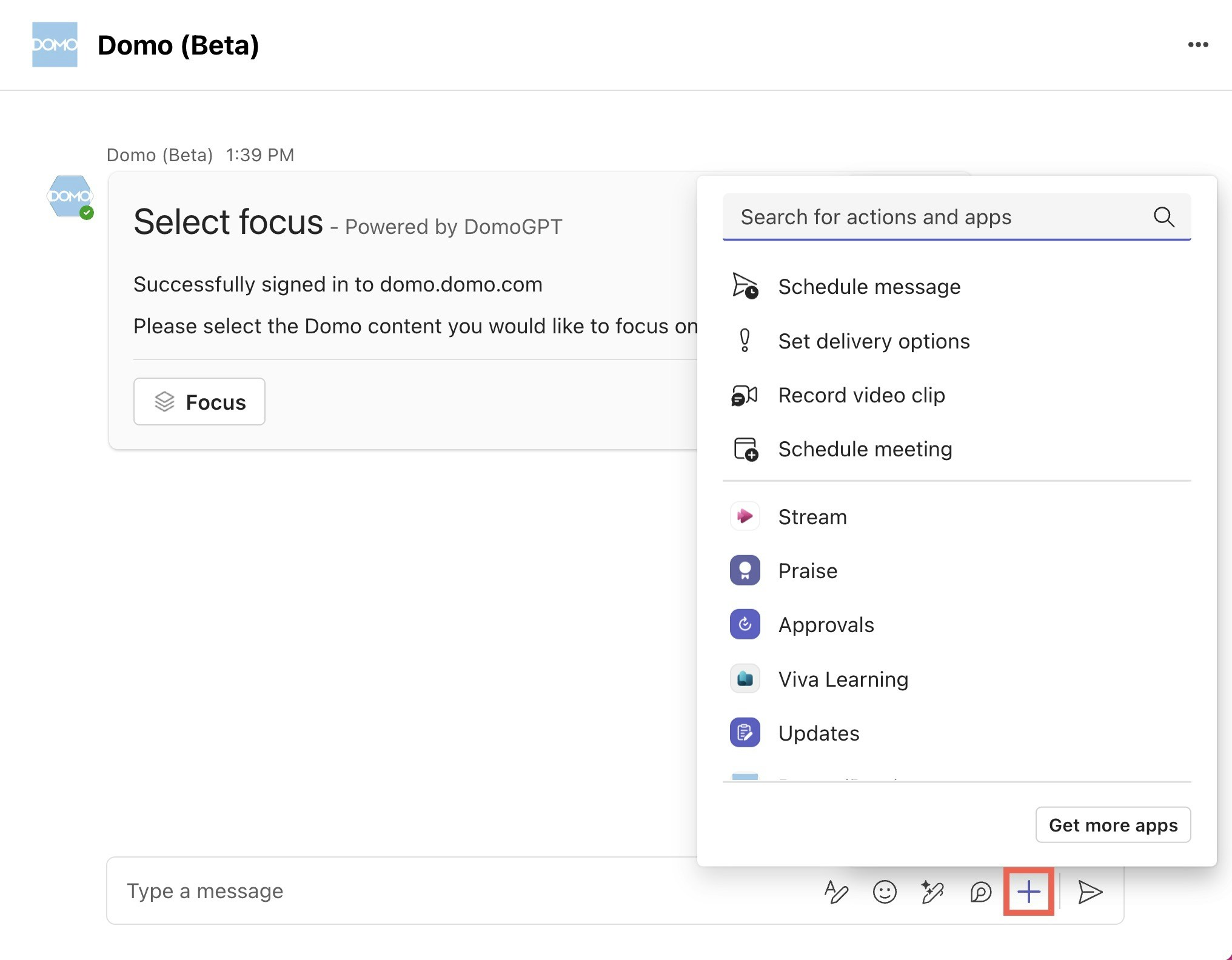
- Find and select the Domo app with the search tool.
-
Select Logout.

Guidelines for Good Questions
Need some help deciding what to ask AI Chat? Here are some guidelines for good questions:- Be explicit.
- Example: What is the Giants pass percentage?
- Is there a time component?
- Example: What was the Giants’ pass percentage in 2023?
- How are you referring to values in your DataSet?
- Example: What was the New York Giants pass percentage in 2023?
- Don’t leave out important details.
- Example: What was the New York Giants pass percentage against the Green Bay Packers in 2023?
- Provide context. Ask AI Chat to answer the question from the perspective of a person, process, or object.
- Example: What was New York Giants quarterback Daniel Jones’s pass percentage in 2023?
- Ask questions based on previous questions and responses.
- Example: Is a pass percentage of 53.3% good in relation to other NFL teams?
FAQ
Is AI Chat free to use, or are there pricing tiers?
Is AI Chat free to use, or are there pricing tiers?
General use of Domo AI features is free for users on a consumption contract. If you decide to apply a model to a large DataSet in Magic ETL or programmatically call the AI APIs, there is tiered pricing. Contact your Domo account team to learn more.
How do I get started?
How do I get started?
Domo AI is integrated throughout the Domo platform and is available through the following features:
- Beast Mode Editor
- Views SQL Editor
- Magic ETL - AI Inference Tile
- Run AI Models in Magic ETL
- Workflows automation
- Jupyter Workspaces
- AI Chat
- AI Readiness
Who can access the AI features?
Who can access the AI features?
All Domo AI functionality is grant-based; you can choose which roles and users can access the AI functionality.The related grants include:
- Use AI Services — Allows users to use the AI Playground and any Domo integrations with AI (see the list in the answer above).
- Create AI Service Models — Allows users to create and use models they have access to in AI Model Management.
- Manage AI Services — This is an admin-level grant that allows users to see and use all models and manage the AI Service Layer settings.
- Use AI Chat — Allows users to use AI Chat. See Required Grants.
Why is AI Chat struggling to answer my questions?
Why is AI Chat struggling to answer my questions?
Our AI Readiness feature complements AI Chat. In the Data Center, you can access the AI Readiness tab on a DataSet and provide all the necessary metadata to enable AI Chat to provide you with the best answers.Learn about AI Readiness.
Who do I contact for more details or support?
Who do I contact for more details or support?
You can email ai@domo.com with questions or feedback.
How does AI Chat change or replace the existing tools and services I use today?
How does AI Chat change or replace the existing tools and services I use today?
AI Chat is for everyone who wants to learn more about their Domo data. The AI feature suite can simplify everyday tasks.