

Intro
This article explains how to configure scheduled data freshness checks and data caching for a Cloud Integration, including how to set a default cache duration and override it for individual DataSets.Overview
Cloud Integrations DataSets stay current through two mechanisms that you configure per integration:- Data freshness checks — Domo polls your source cloud warehouse on a schedule to detect when the underlying data has changed. When an update is detected, connected cards, alerts, and DataFlows reflect the new data on their next load. Domo also performs on-demand freshness checks when a query is executed and the configured cache duration (TTL) has expired, providing more responsive data without relying solely on scheduled polling.
- Data caching — Domo stores the results of card queries temporarily. When a user opens a card, Domo returns the cached result if one exists rather than sending a new query to the warehouse. This reduces query load on your warehouse. You can set a default cache duration for the integration and override it for individual DataSets.
Note: Data freshness checks and caching require a service account. They aren’t available for integrations that use U2M OAuth only, until you add a service account to the integration.
Open the Integration Settings
To configure data freshness and caching for an existing integration:- Navigate to Data Warehouse > Connect Data > Manage existing integrations.
- Select the tile for your integration type, such as Snowflake or BigQuery.
-
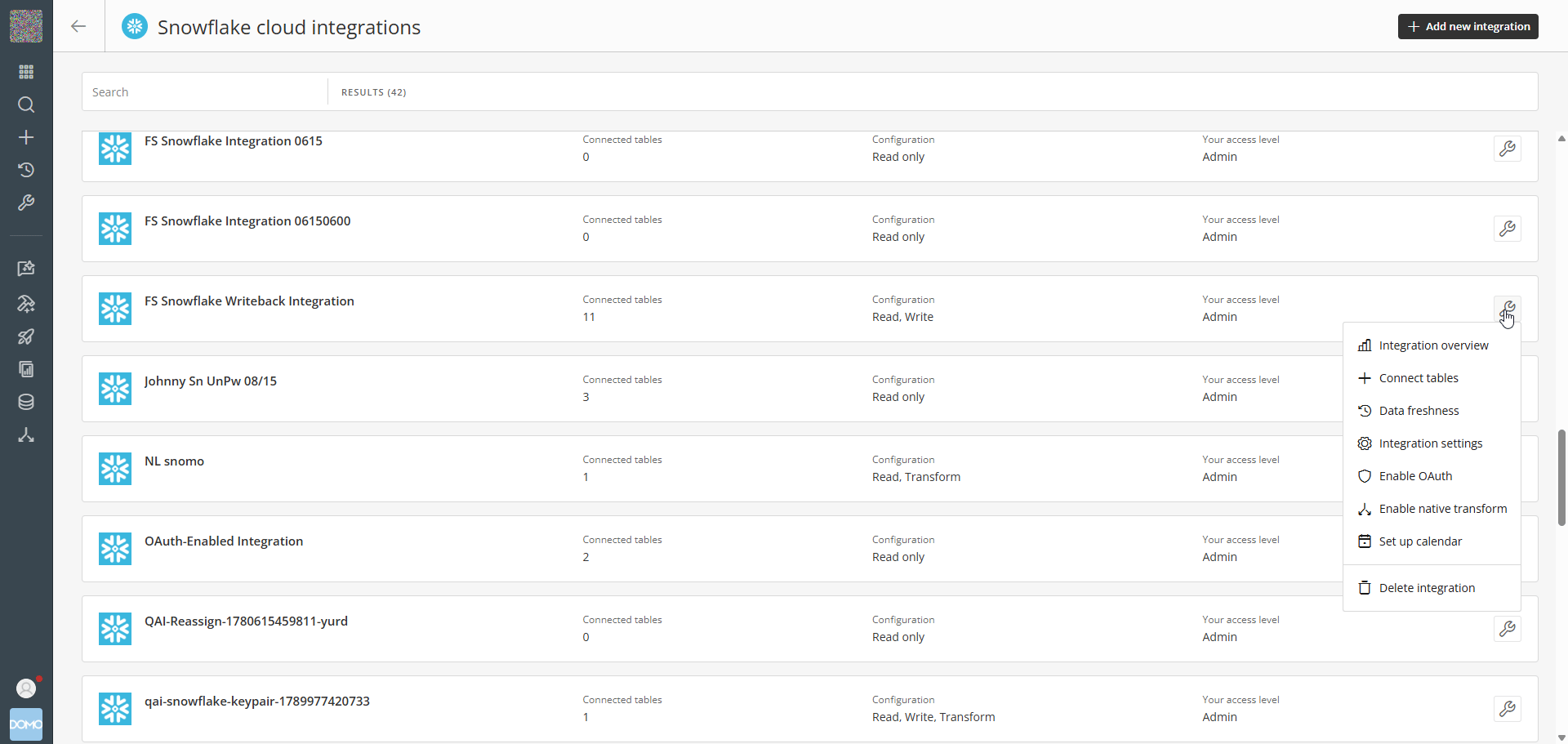
Find the integration you want to configure, select the wrench icon , and then select Integration settings.
-
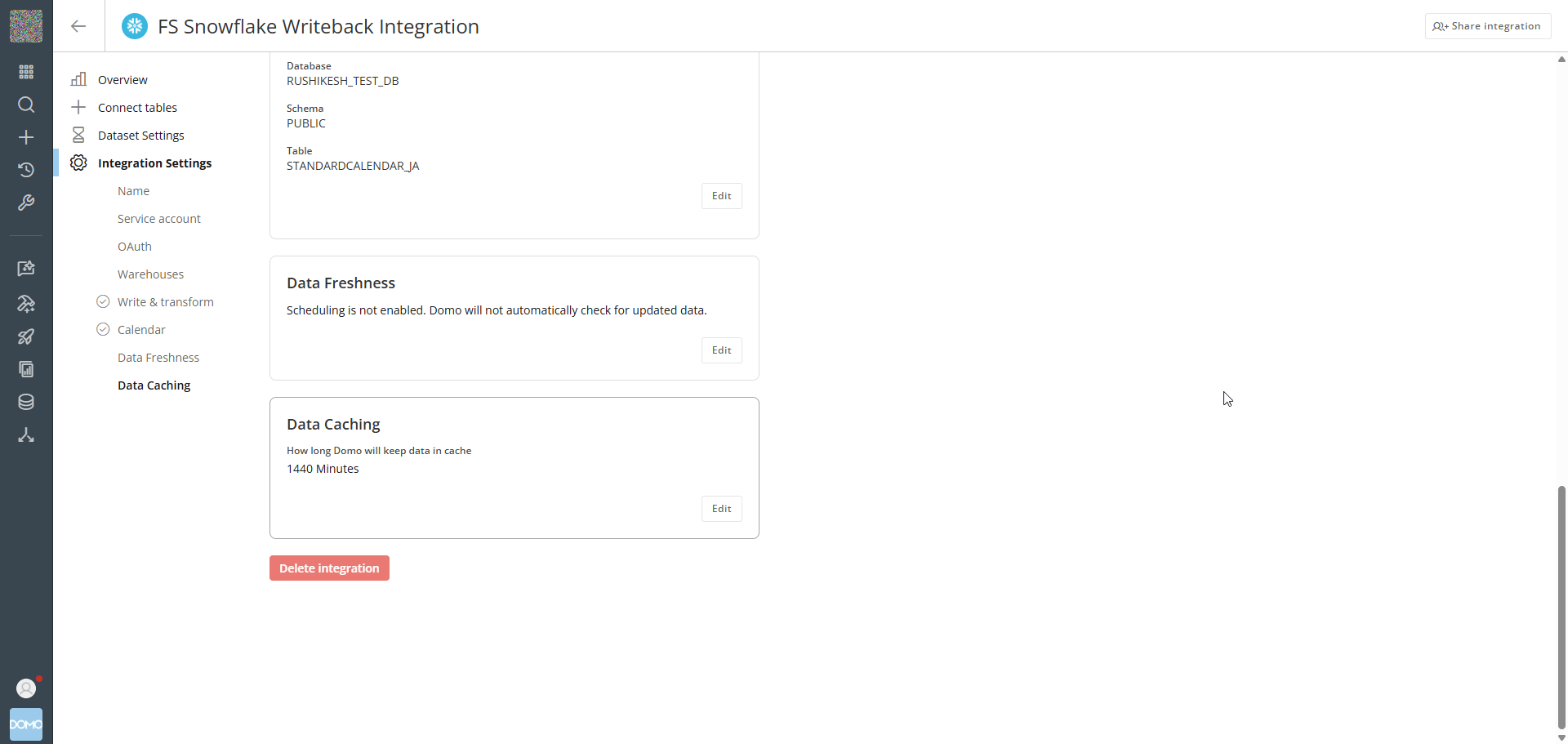
Scroll to the Data Freshness and Data Caching cards, or select them in the left menu.
Configure Data Freshness Checks
- On the Data Freshness card, select Edit.
- Enable the Schedule data freshness checks toggle.
- Select the Basic or Advanced tab to set when Domo checks for updates.
Basic
Basic mode lets you choose a preset update interval from a dropdown. Set the Start Time and Time Zone to control when within the interval checks begin. For sub-daily intervals (every 15 minutes, every 30 minutes, every hour), you can also enable Active hours to restrict checks to a defined time window.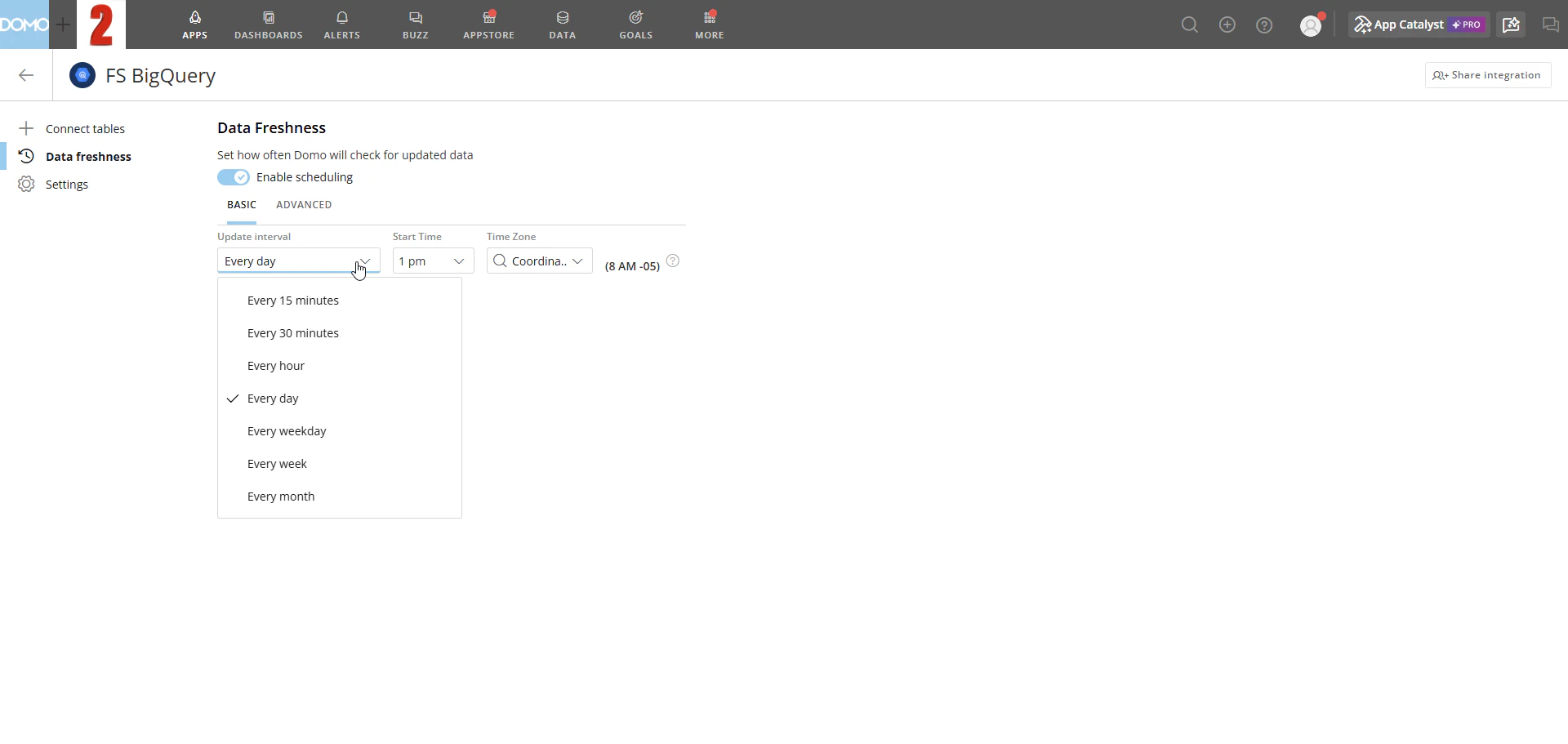
Advanced
Advanced mode gives you granular control over check frequency, day of the week, and monthly schedule. Configure all three settings to define exactly when checks run.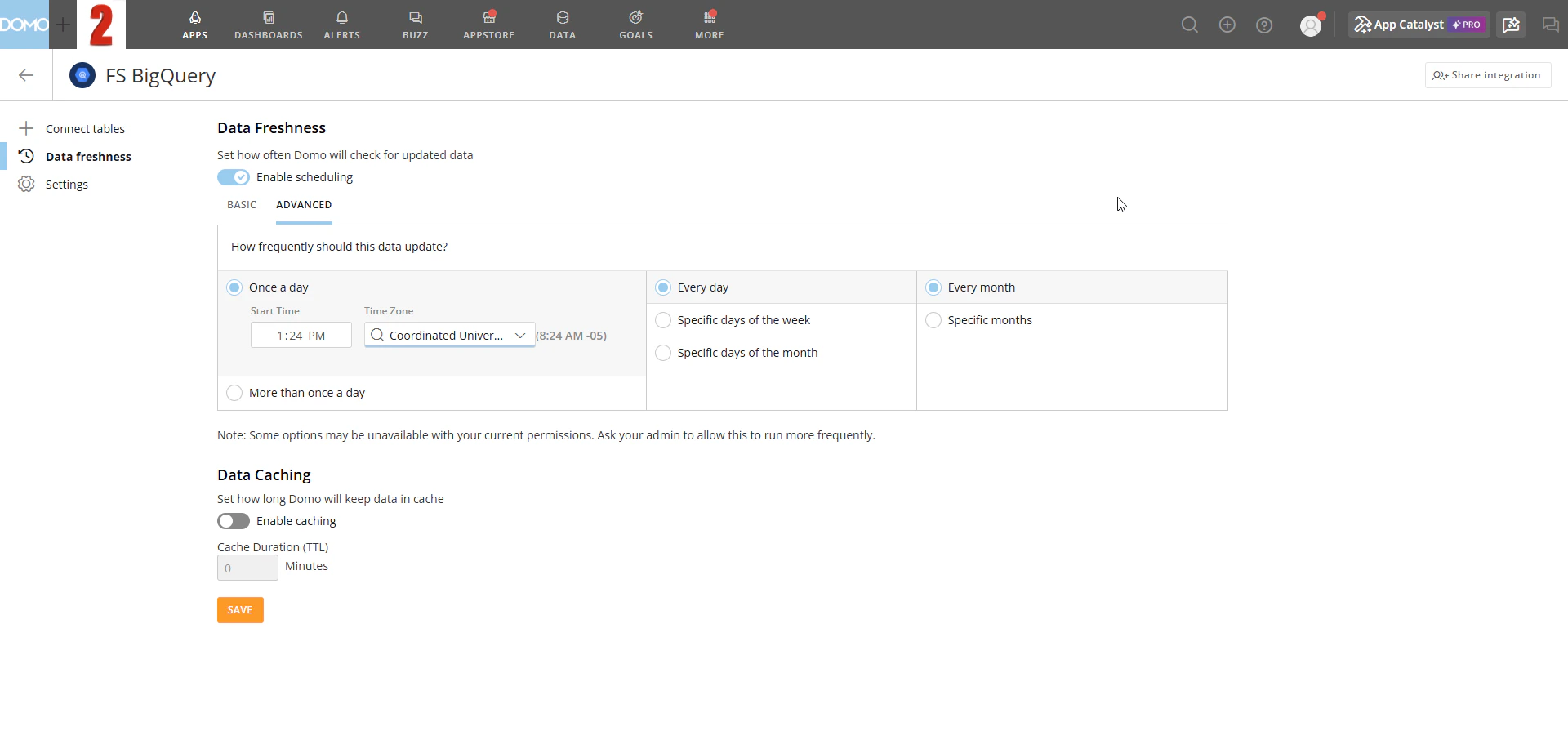
- Once a day — Checks run once per day at the time and time zone you specify.
- More than once a day — Checks repeat throughout the day at the interval you specify. Enable Active hours to restrict checks to a defined window, such as 8 AM–6 PM.
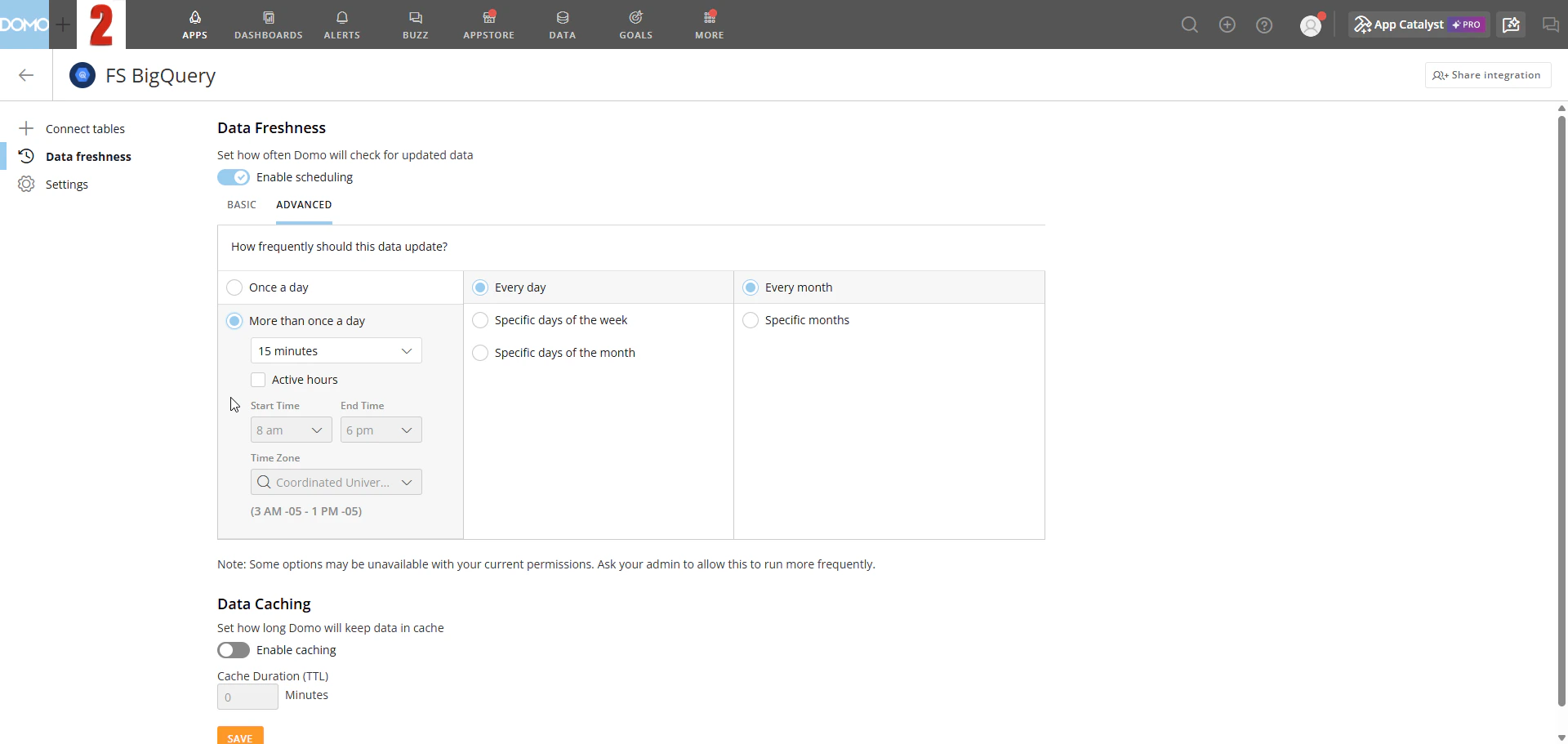
- Every day — Checks run every day of the week.
- Specific days of the week — Checks run only on the days you select.
- Specific days of the month — Checks run only on the calendar dates you select.
- Every month — Checks run every month.
- Specific months — Checks run only in the months you select.
Configure Data Caching
Caching uses a default cache duration set for the integration. You can override the default for individual DataSets.Set the Default Cache Duration
The default cache duration applies to every DataSet in the integration that doesn’t have its own cache duration.- On the Data Caching card, select Edit. You can also go to Dataset Settings and select Edit default.
- Make sure the Enable caching toggle is on.
-
Select a Cache duration (TTL). The maximum is 1 day.
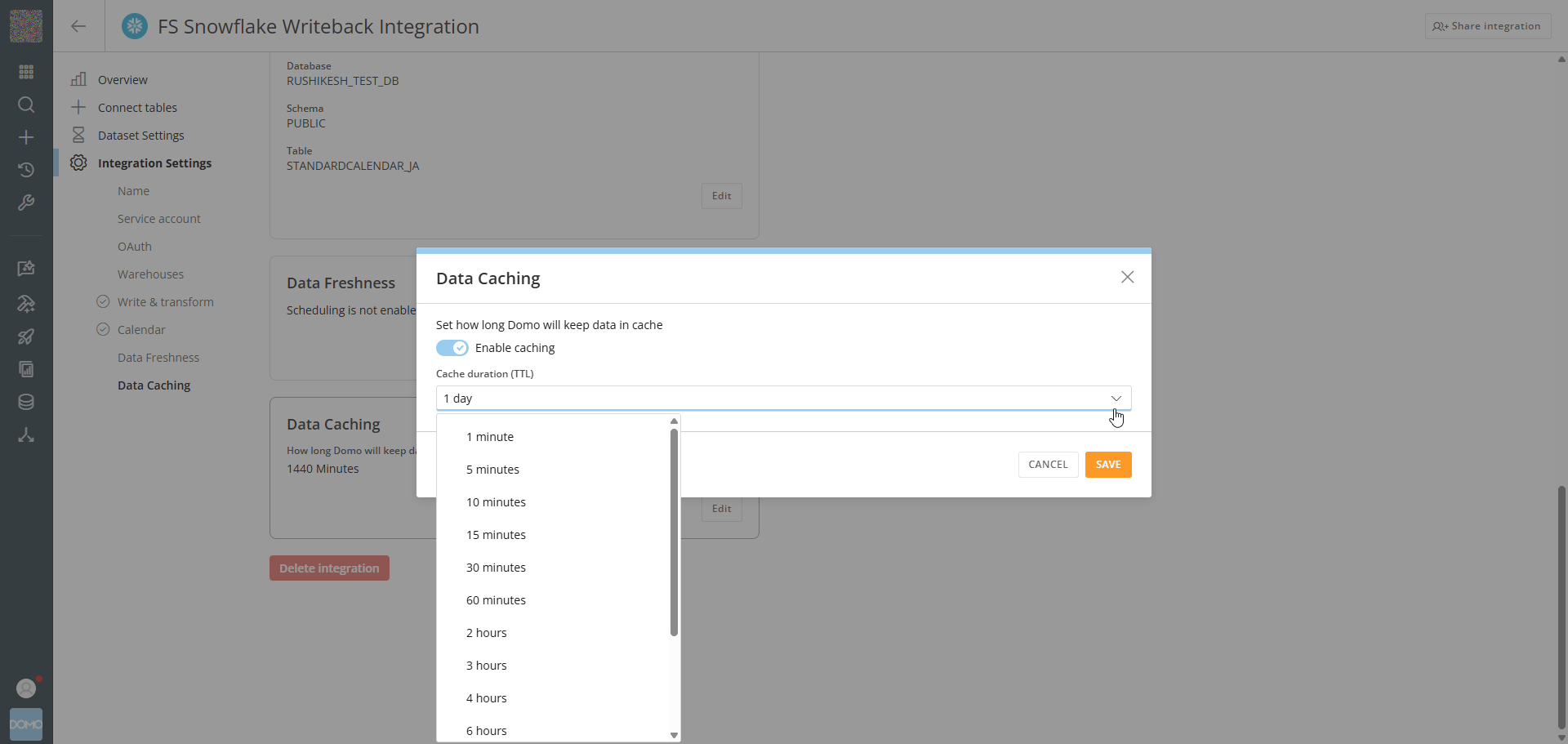
- Select Save.
Set the Cache Duration for a DataSet
-
In the integration’s left menu, select Dataset Settings.
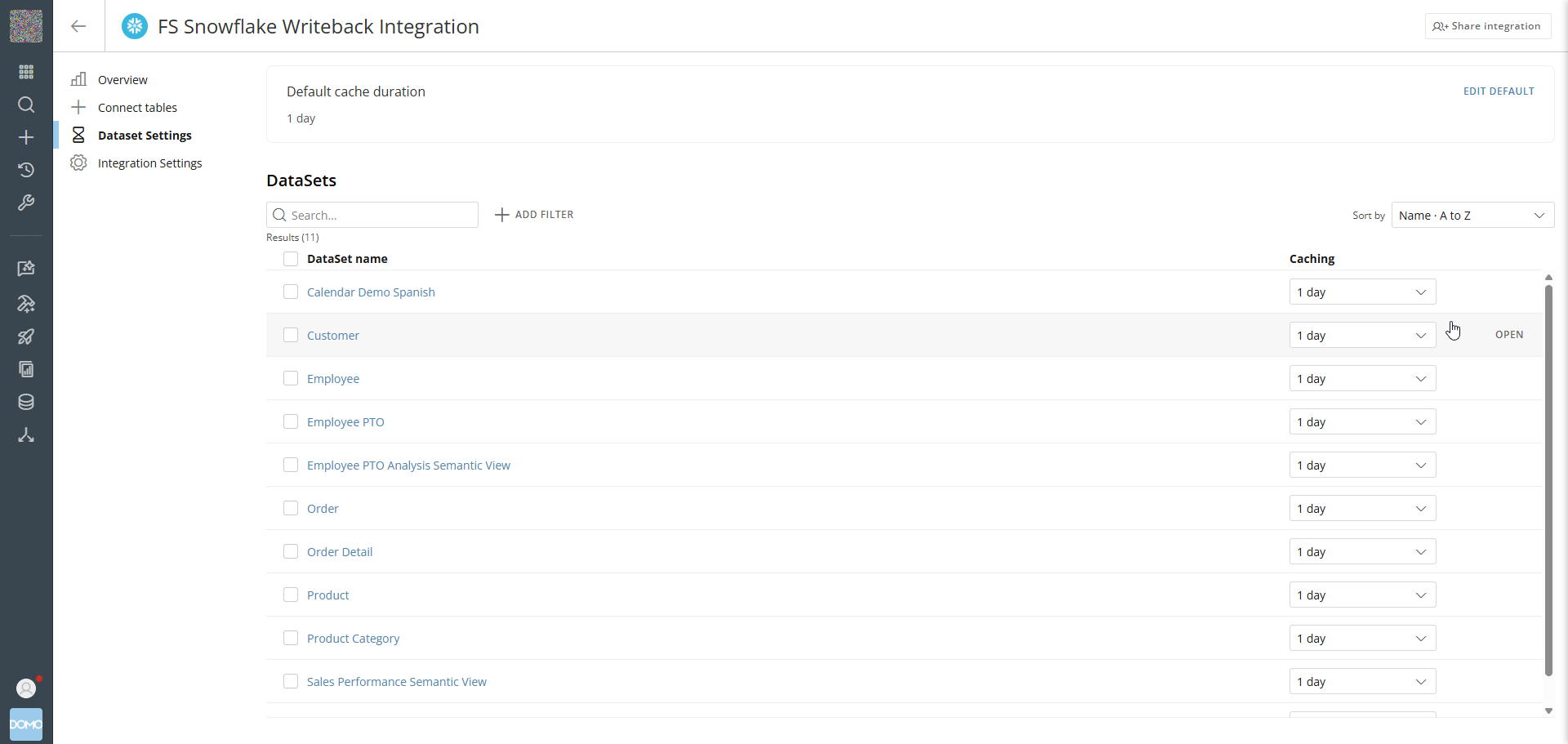
- Find the DataSet. You can use Search, Add filter, or Sort by.
-
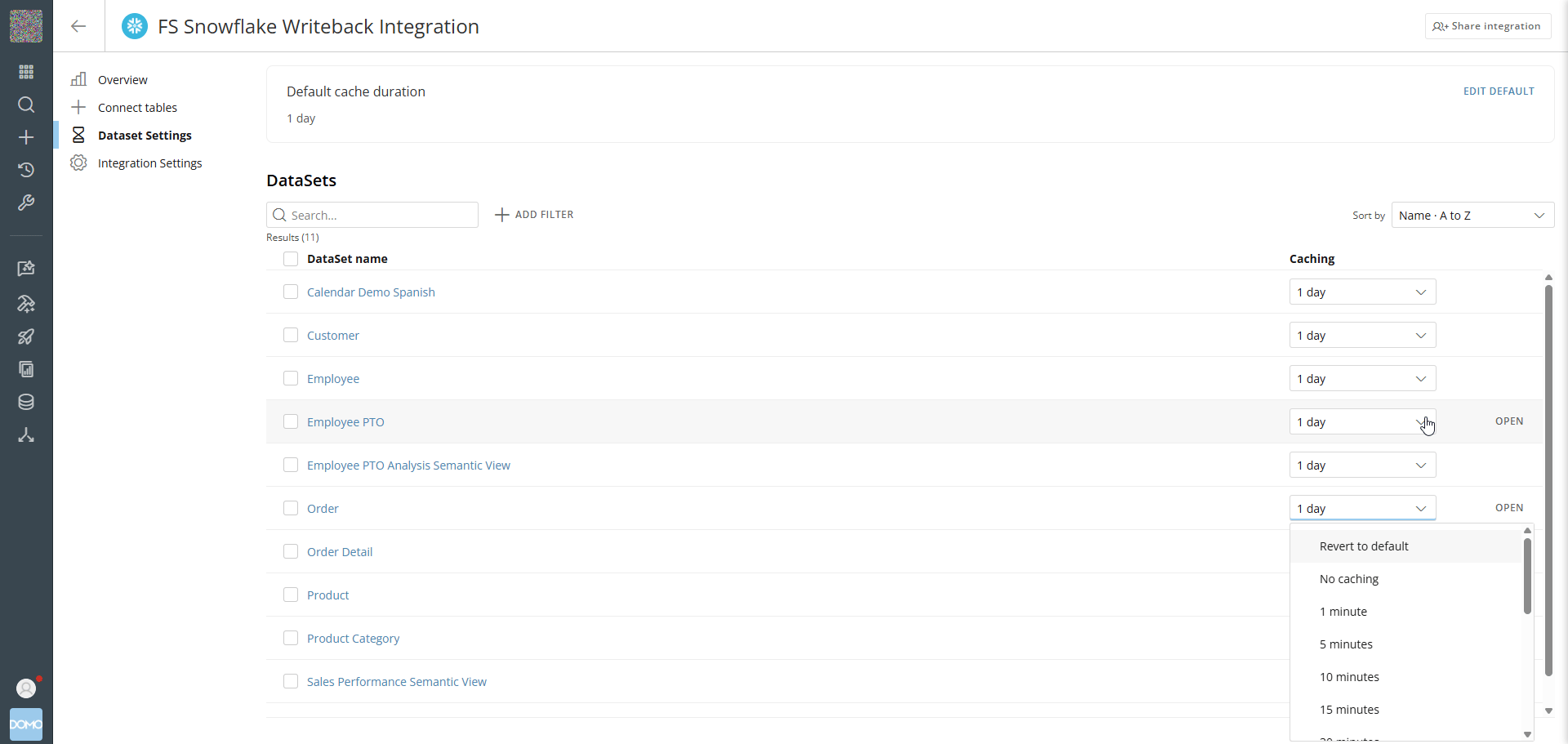
In the Caching column, select a duration from the DataSet’s dropdown. To always query the warehouse for this DataSet, select No caching.
Set the Cache Duration for Multiple DataSets
-
On the Dataset Settings page, select the checkbox for each DataSet.
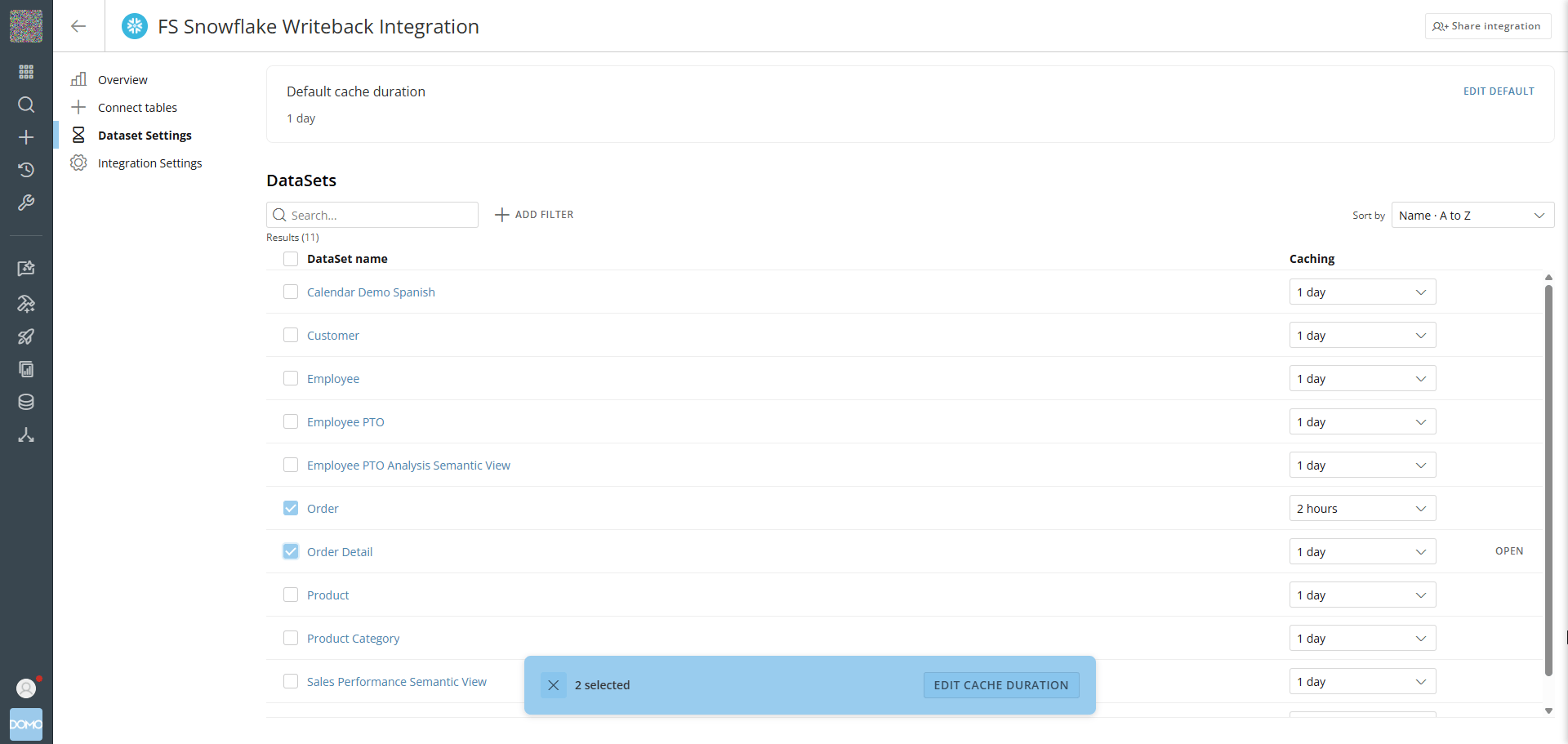
- Select Edit cache duration.
-
Select Override default caching schedule, and then select a Cache duration (TTL).
To remove the overrides and use the default instead, select Reset to default caching schedule.
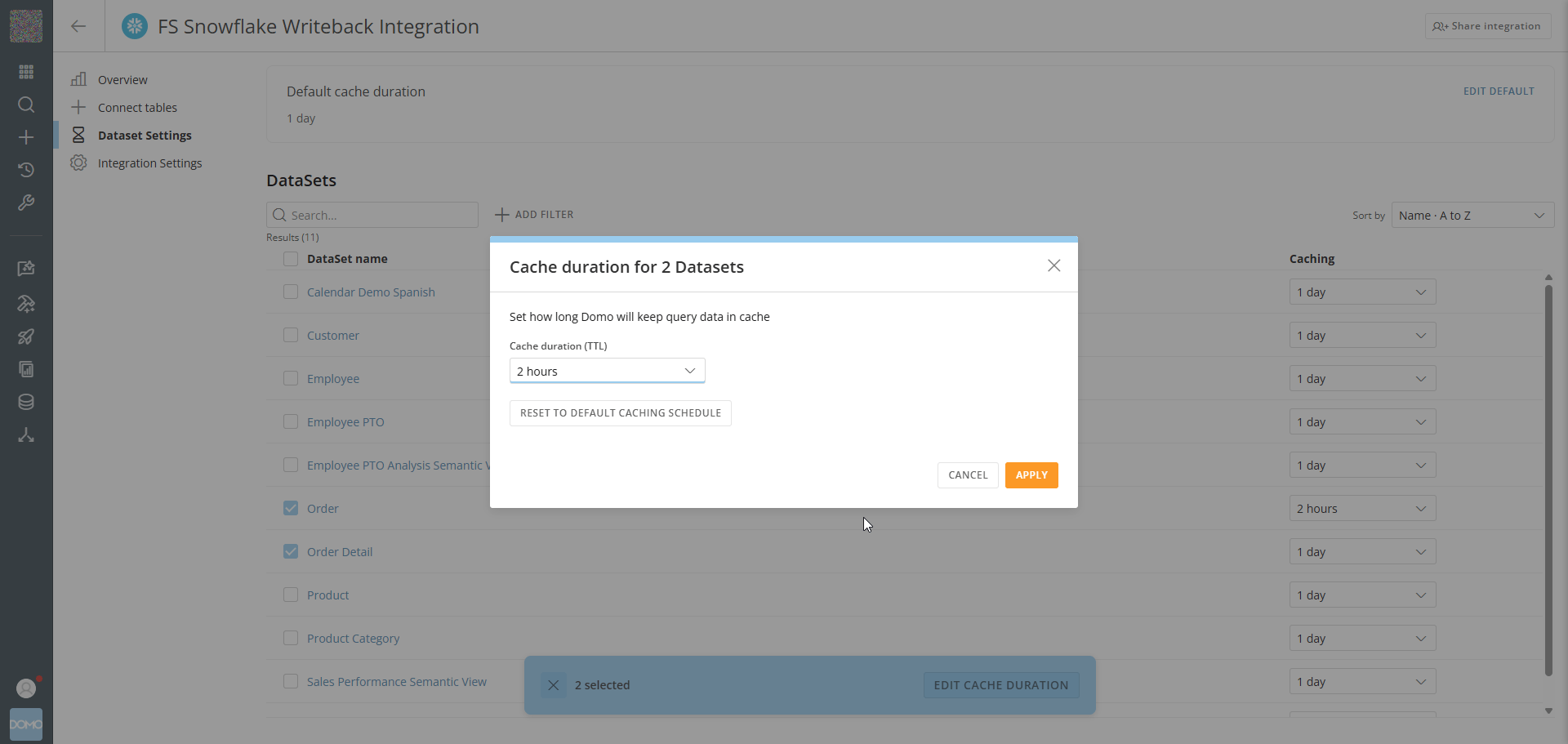
- Select Apply.
Note: The Dataset Settings page doesn’t mark which DataSets have their own cache duration. A DataSet has an override when its Caching value differs from the Default cache duration.
FAQ
Data Freshness
Why doesn't my data appear to be up to date?
Why doesn't my data appear to be up to date?
Make sure data freshness is enabled and configured to an interval that suits your use case. If data freshness is disabled, card query results may be cached for up to 24 hours.
Does data freshness work when my integration uses OAuth authentication?
Does data freshness work when my integration uses OAuth authentication?
It depends on whether the integration also has a service account. Data freshness checks and caching run under the service account, so they work for integrations that use OAuth together with a service account. For integrations that use U2M OAuth only, these features aren’t available until you add a service account.
Caching
When does Domo always query the warehouse instead of using the cache?
When does Domo always query the warehouse instead of using the cache?
Domo bypasses the cache and always sends a fresh query in these situations:
- Viewing the DataSet preview on the DataSet’s Details page
- Loading a DataSet View
- Loading a DataSet into Magic ETL
- Dynamic SQL functions: Queries that include functions such as NOW(), CURRENT_DATE(), or CURRENT_TIMESTAMP() generate a unique SQL string on each execution. Caching is keyed on the exact SQL query, so these queries do not reuse cached results regardless of TTL setting.
Is the warehouse queried every time you view a card?
Is the warehouse queried every time you view a card?
No. When you view a card, Domo first checks for a cached result. If one exists, Domo returns the cached data. If none exists, Domo queries the warehouse.
Is the warehouse queried when someone edits a card?
Is the warehouse queried when someone edits a card?
Yes. When building or editing a card in Analyzer, each change triggers a new query if Auto Preview is enabled.
How long are card query results cached?
How long are card query results cached?
Domo caches card query results until the cache duration (TTL) expires. The cache duration is set by the integration’s default or by a DataSet’s own cache duration, and the maximum is 1 day.
Is there a limit on the number of queries Domo will cache?
Is there a limit on the number of queries Domo will cache?
No. There is no explicit limit on the number of cached query results.
Is there a data size limit on what Domo will cache?
Is there a data size limit on what Domo will cache?
No. There is no row or data size limit on what is saved in the card cache.
Can I set a different cache duration for individual DataSets?
Can I set a different cache duration for individual DataSets?
Yes. Set a default cache duration for the integration, then override it for individual DataSets on the Dataset Settings page. For more information, see Set the Cache Duration for a DataSet.
What happens to DataSets with their own cache duration when I change the default?
What happens to DataSets with their own cache duration when I change the default?
They keep their own cache duration. Only DataSets without an override use the new default.