
Load the Output DataSet as an Input
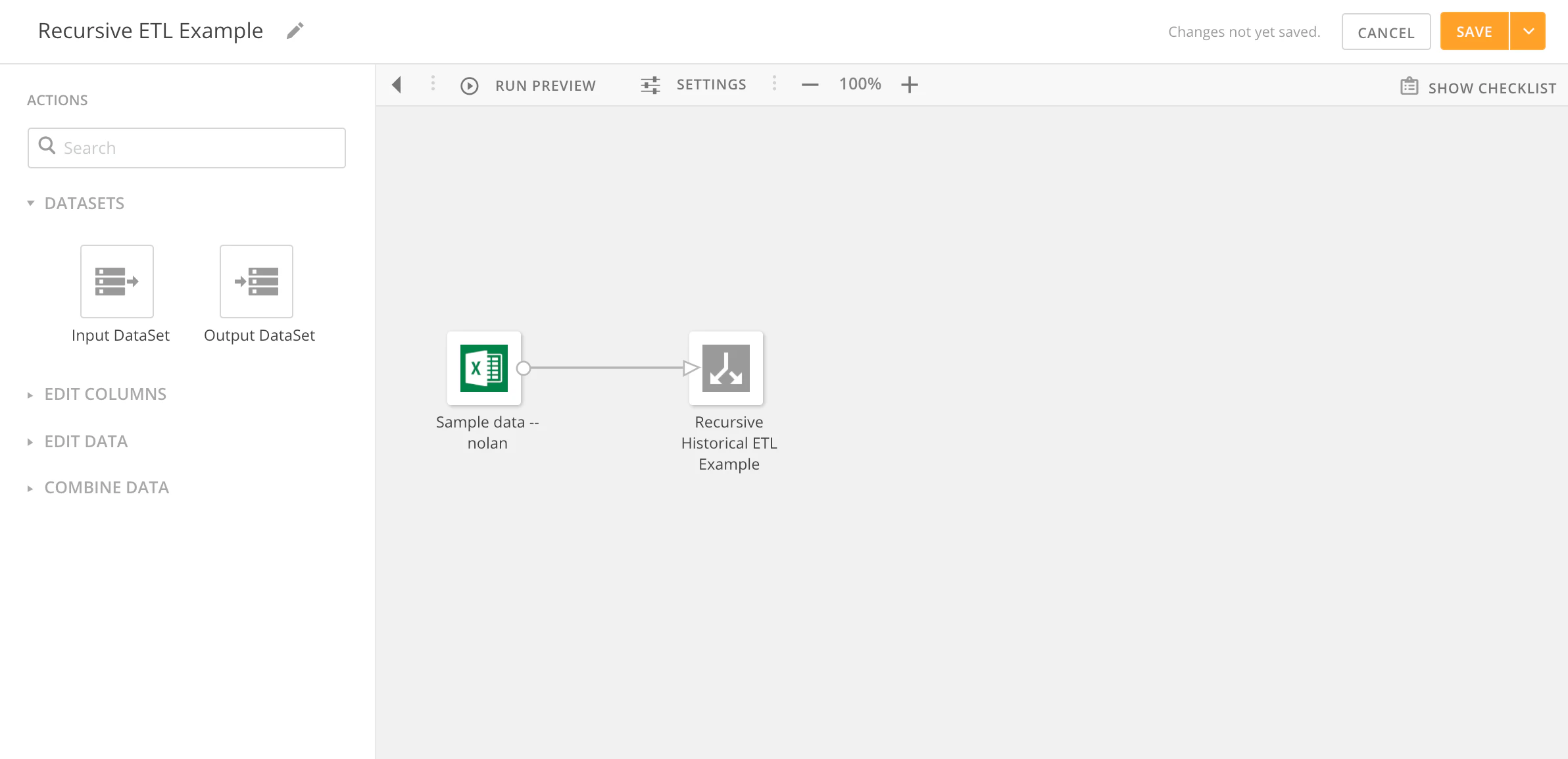
Once the DataFlow has finished running, load the output DataSet as an input DataSet.
The DataSet name will show the output DataSet name followed by “1.”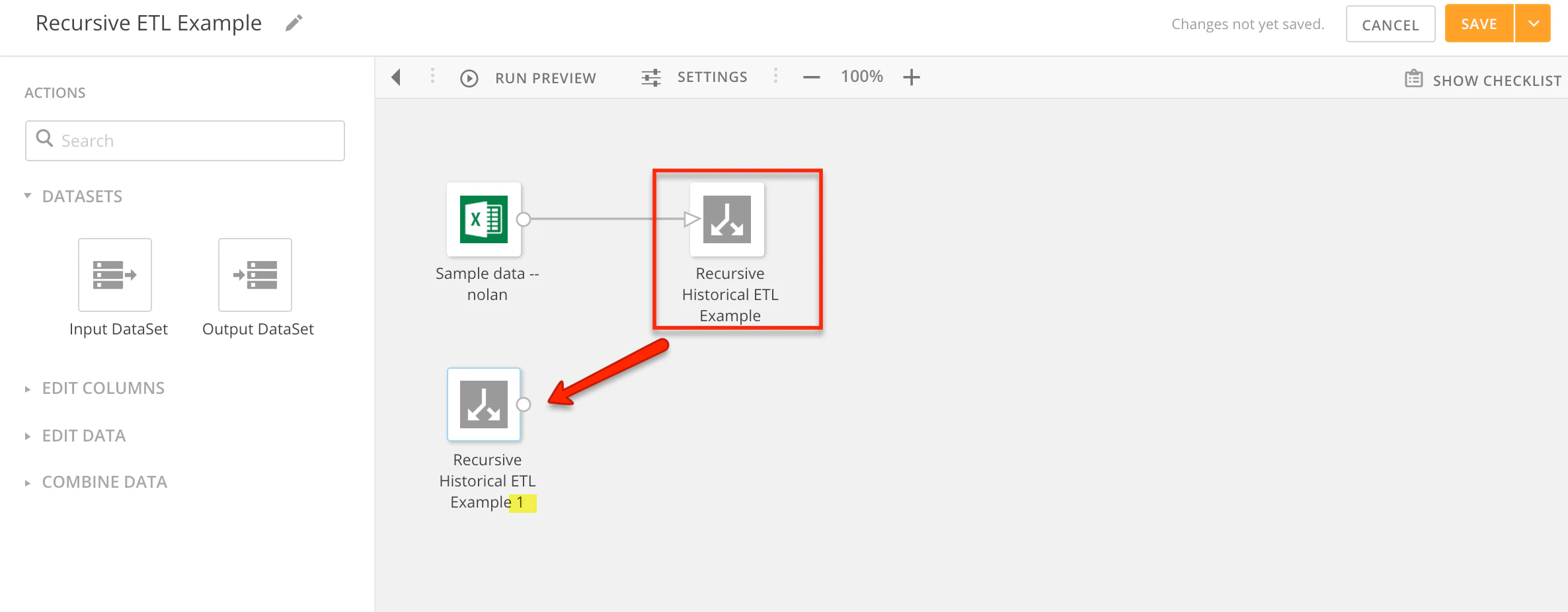
Date column as a constraint.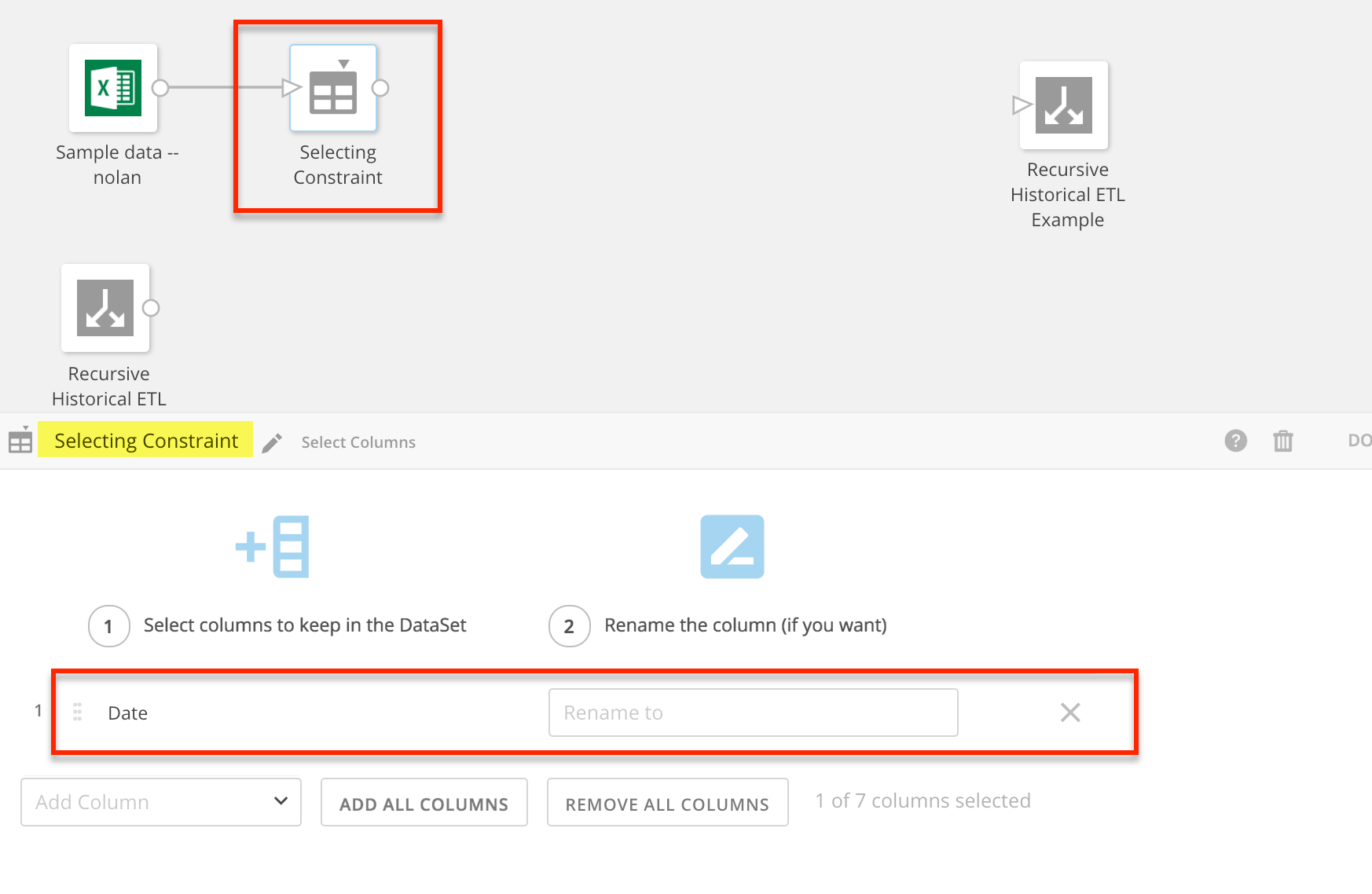
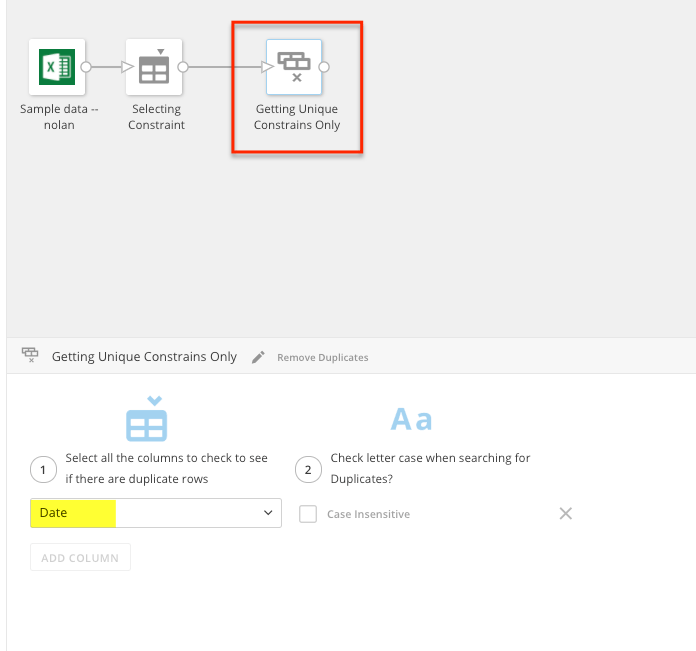
Add a Deletion-Identifying Column
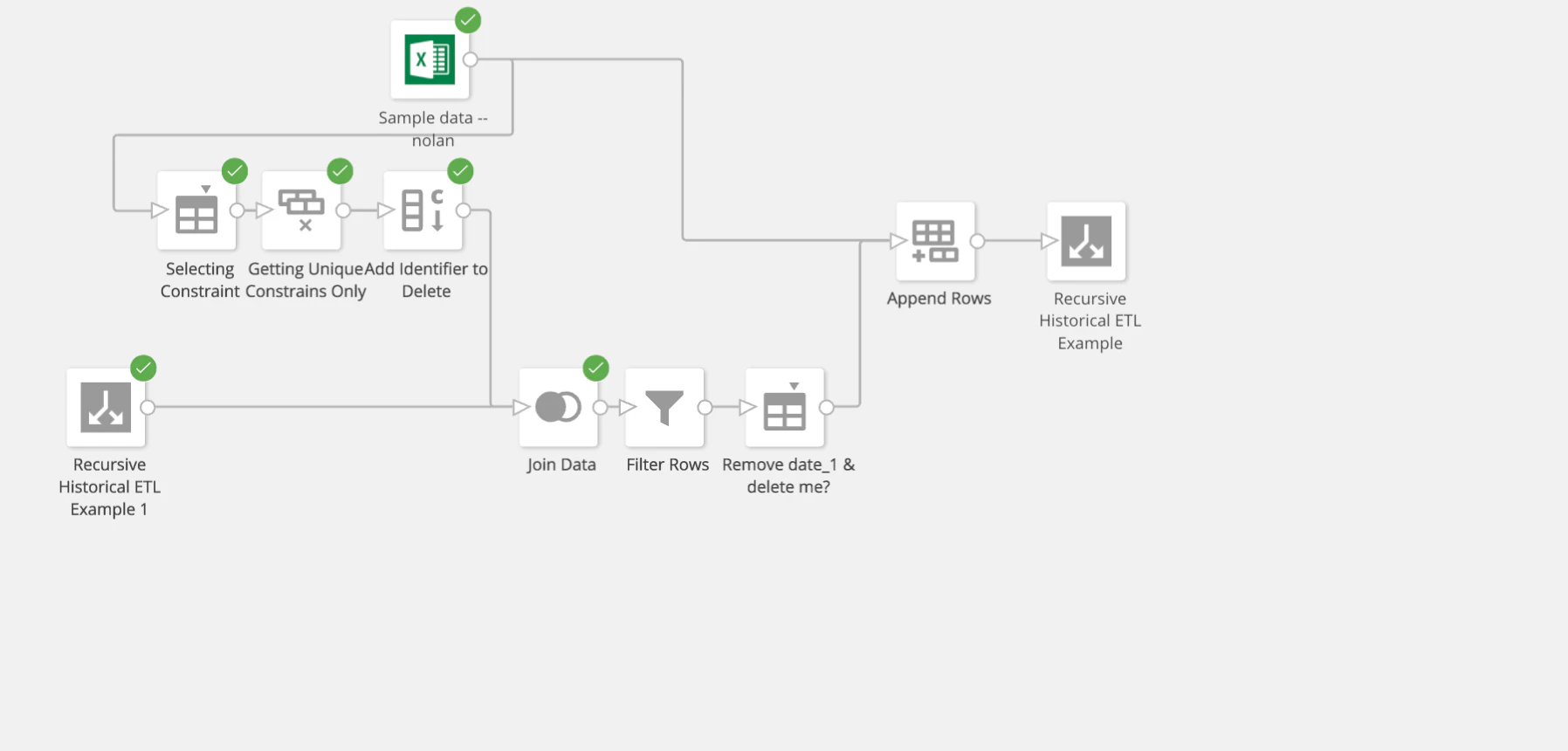
Use Add Constants to create a new column that tells you when a row needs to be deleted.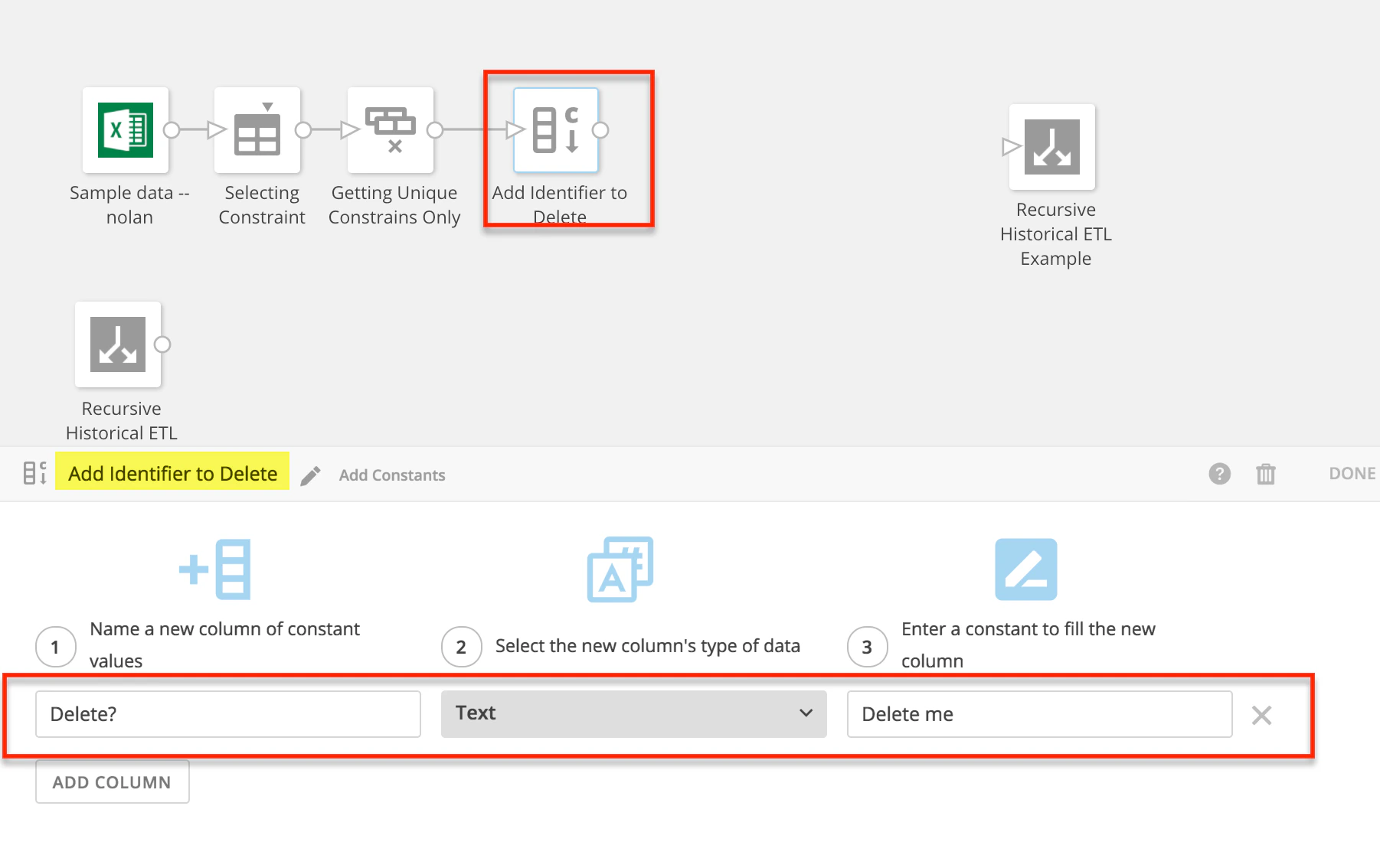
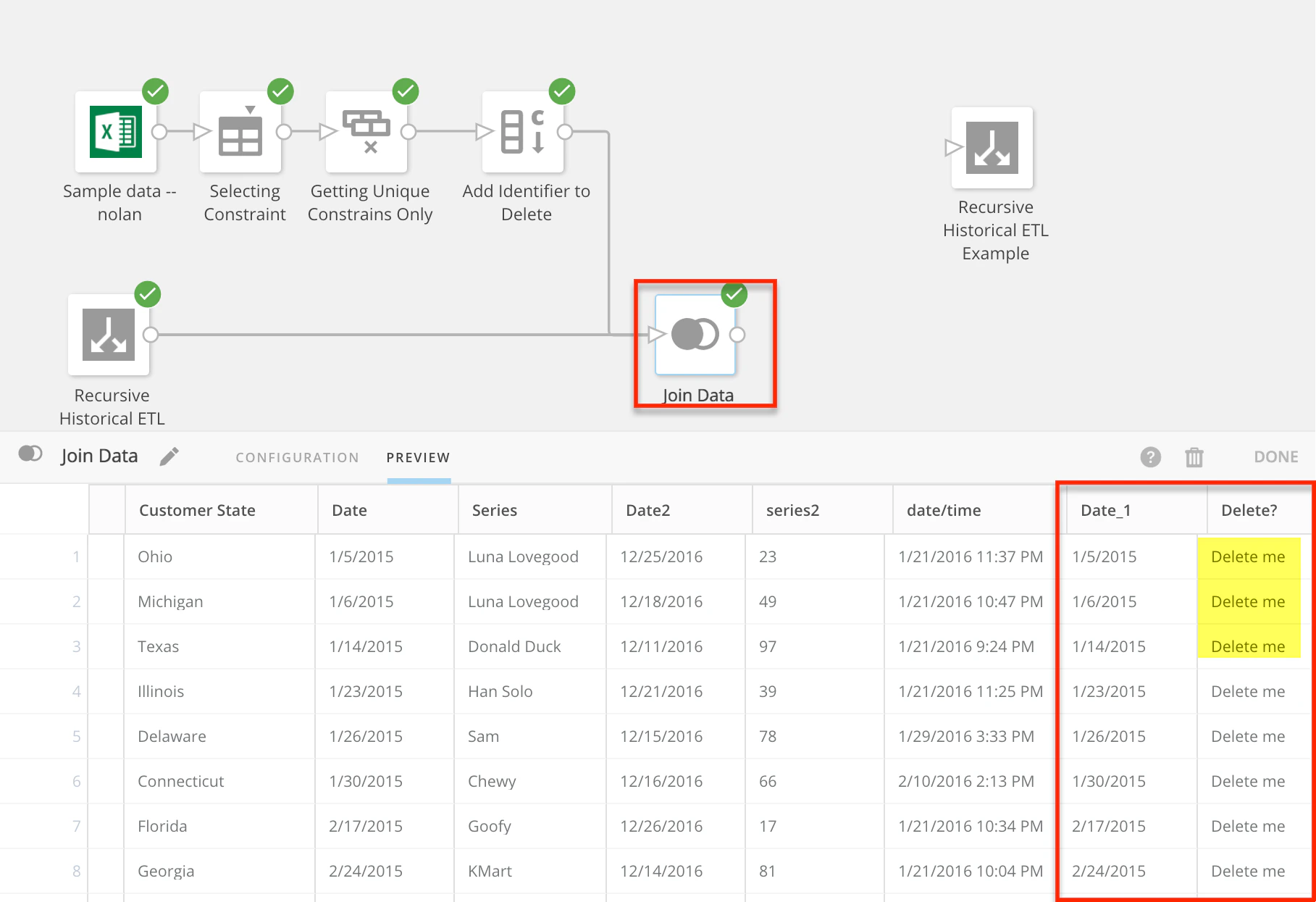
Outer Join the Constraint Columns
Use an Outer Join to join your deletion-identifying column to the unique constraint column in your historical DataSet. If you selected the historical DataSet on the left side of the join, as shown below, use a left outer join. If you select the historical DataSet on the right side of the join, use a right outer join. (Do not select Inner Join, as this could result in a loss of data.)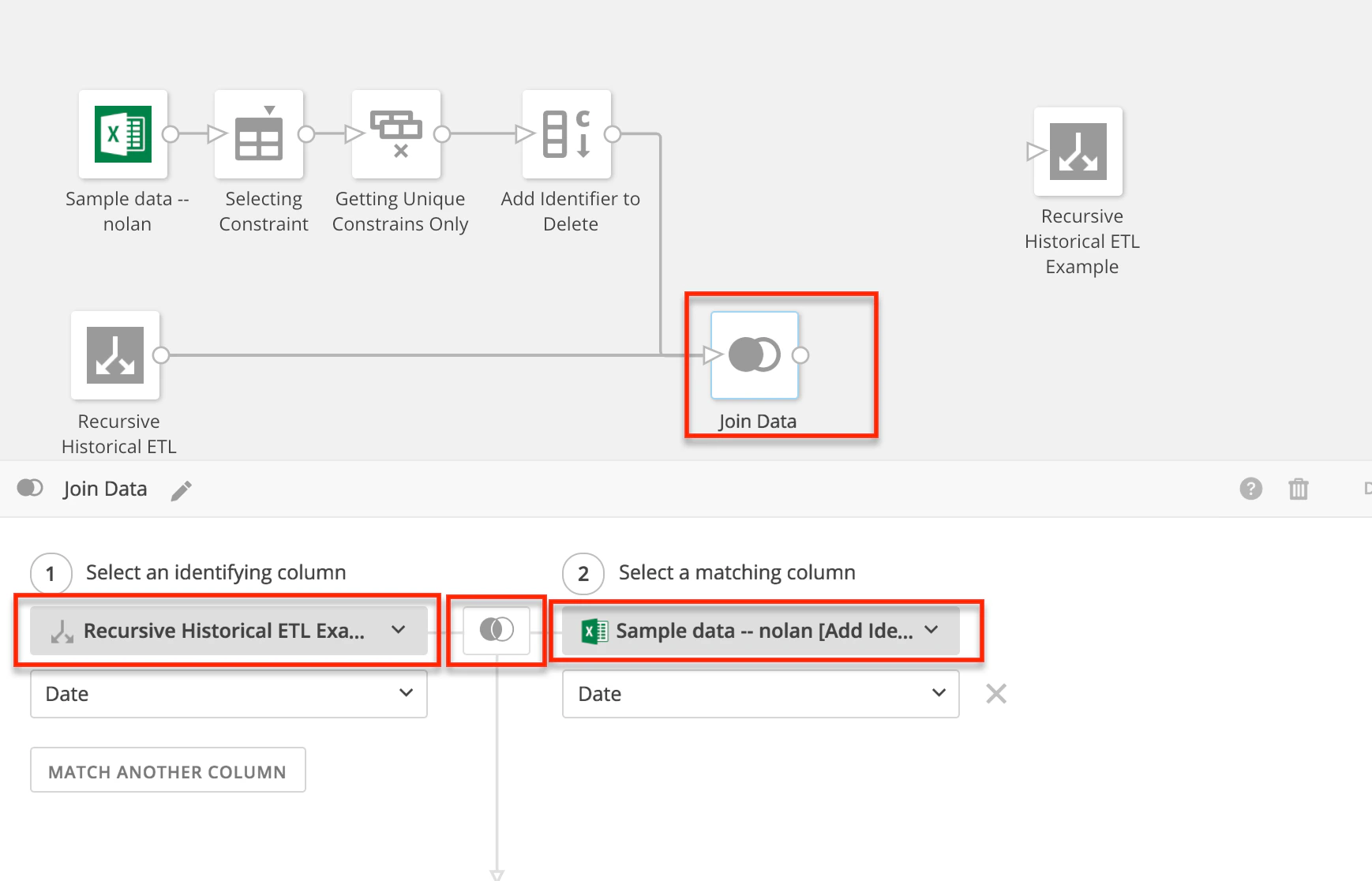
Filter Out Rows Marked for Deletion
Filter any rows from your DataSet that contain the value “Delete Me” (or whatever identifier you came up with in step 5).
This returns only rows from the historical DataSet that do not exist in the new updating DataSet.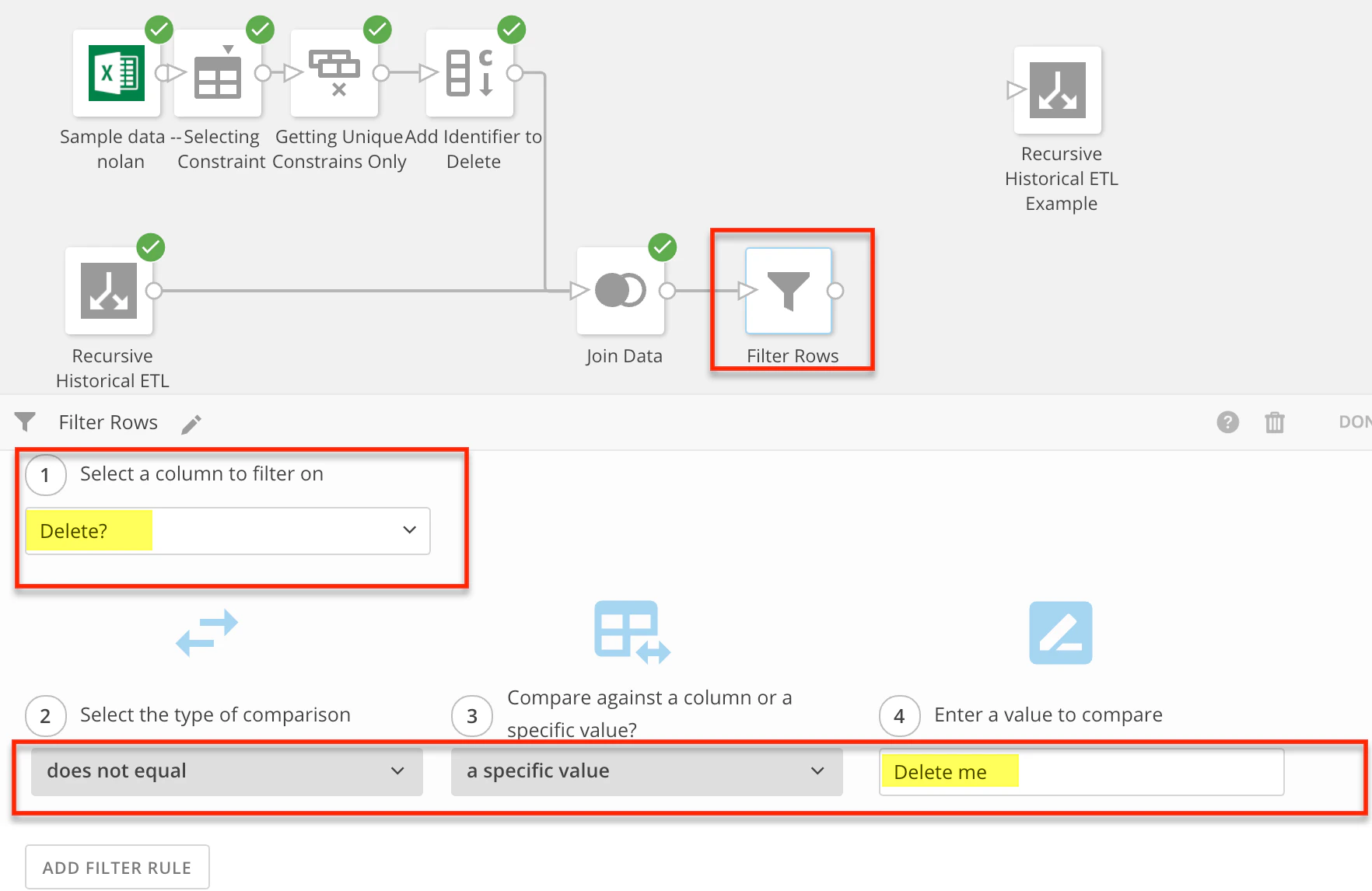
Remove the Extra Columns
Use Select Columns to remove the additional unique constraint column (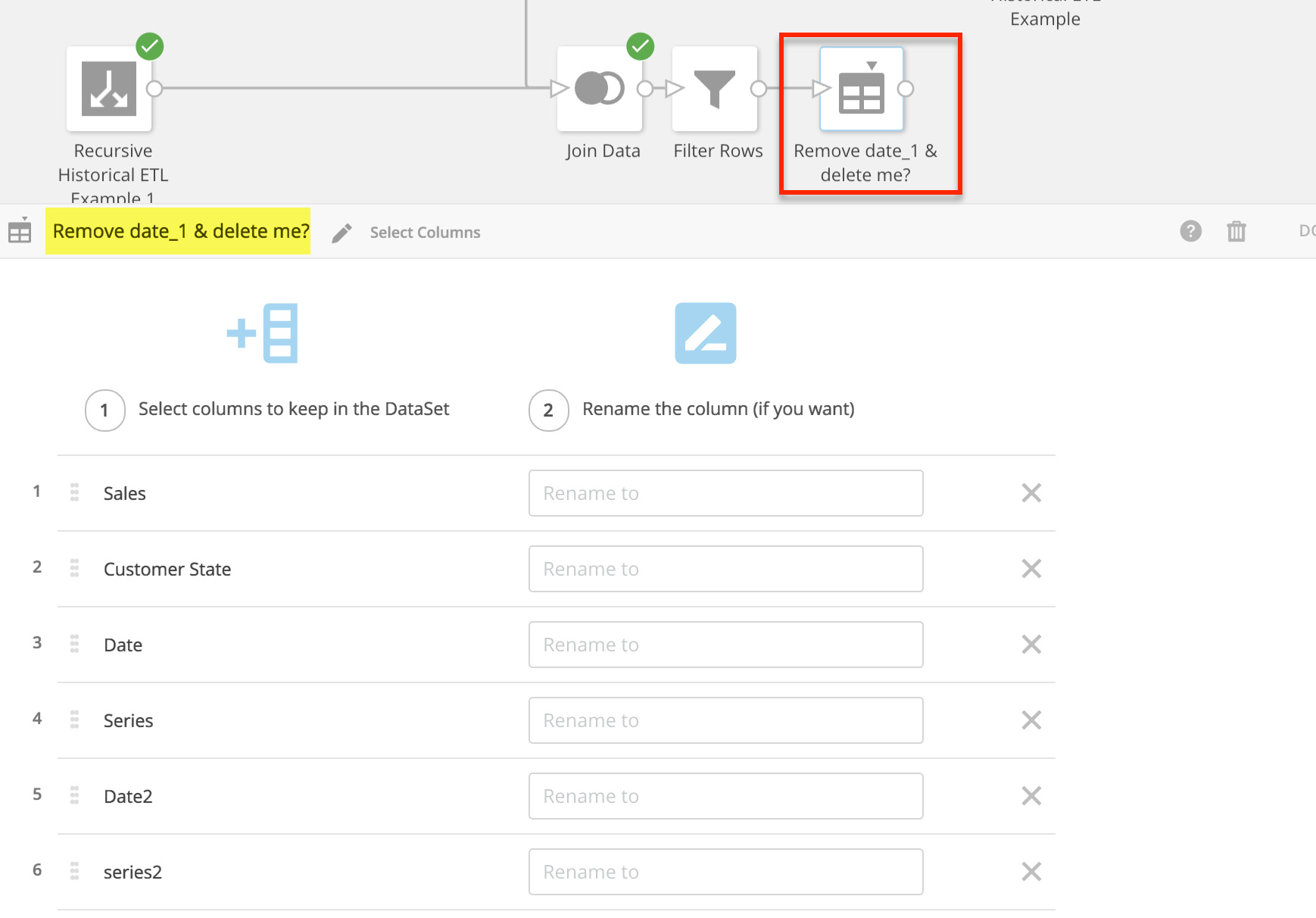
Date) and the unique deletion-identifying column.Append the DataSets
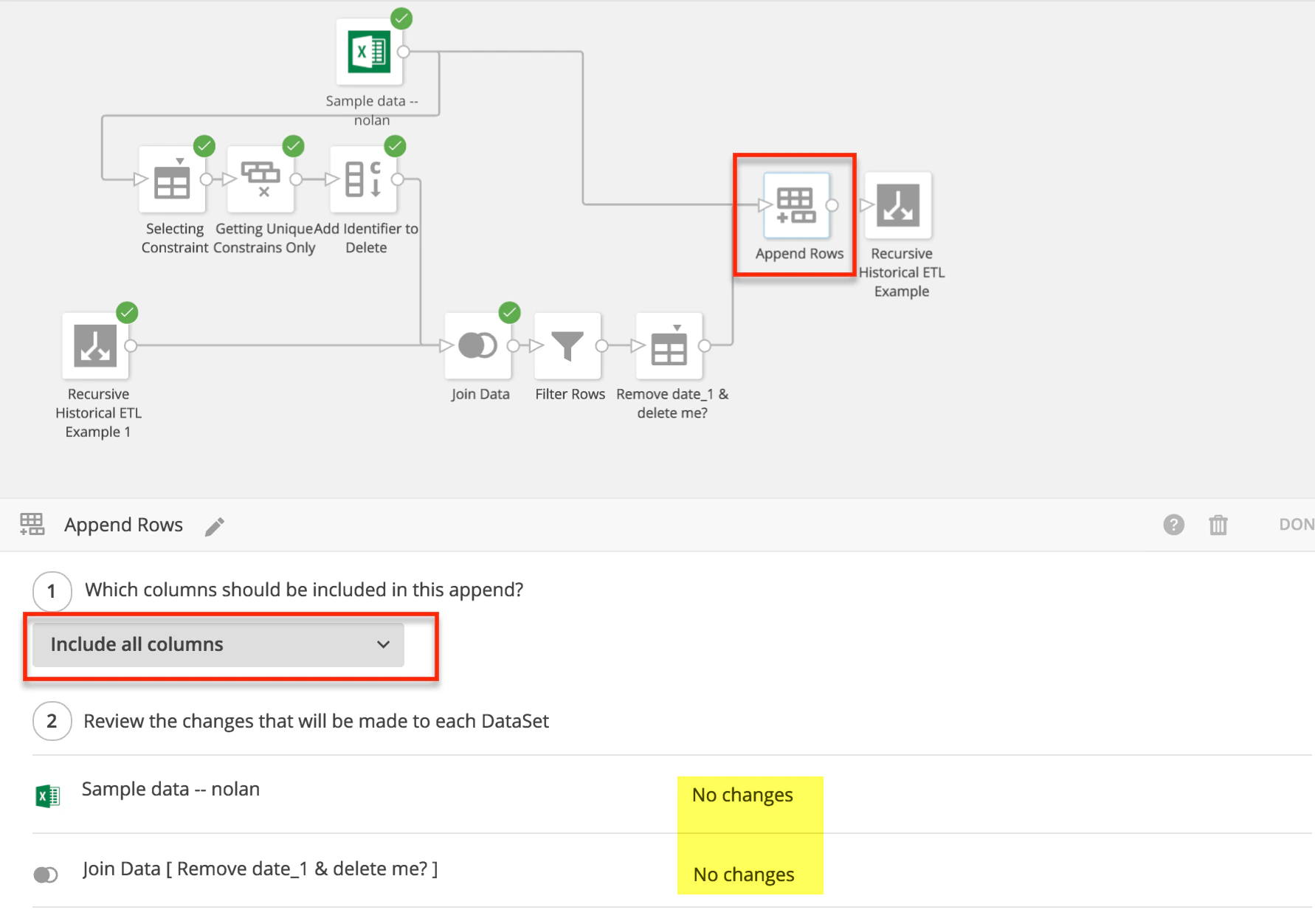
Use Append to join the historical DataSet and new updating DataSet.
If all steps have been done correctly, both DataSets will show “No changes.”